Technology
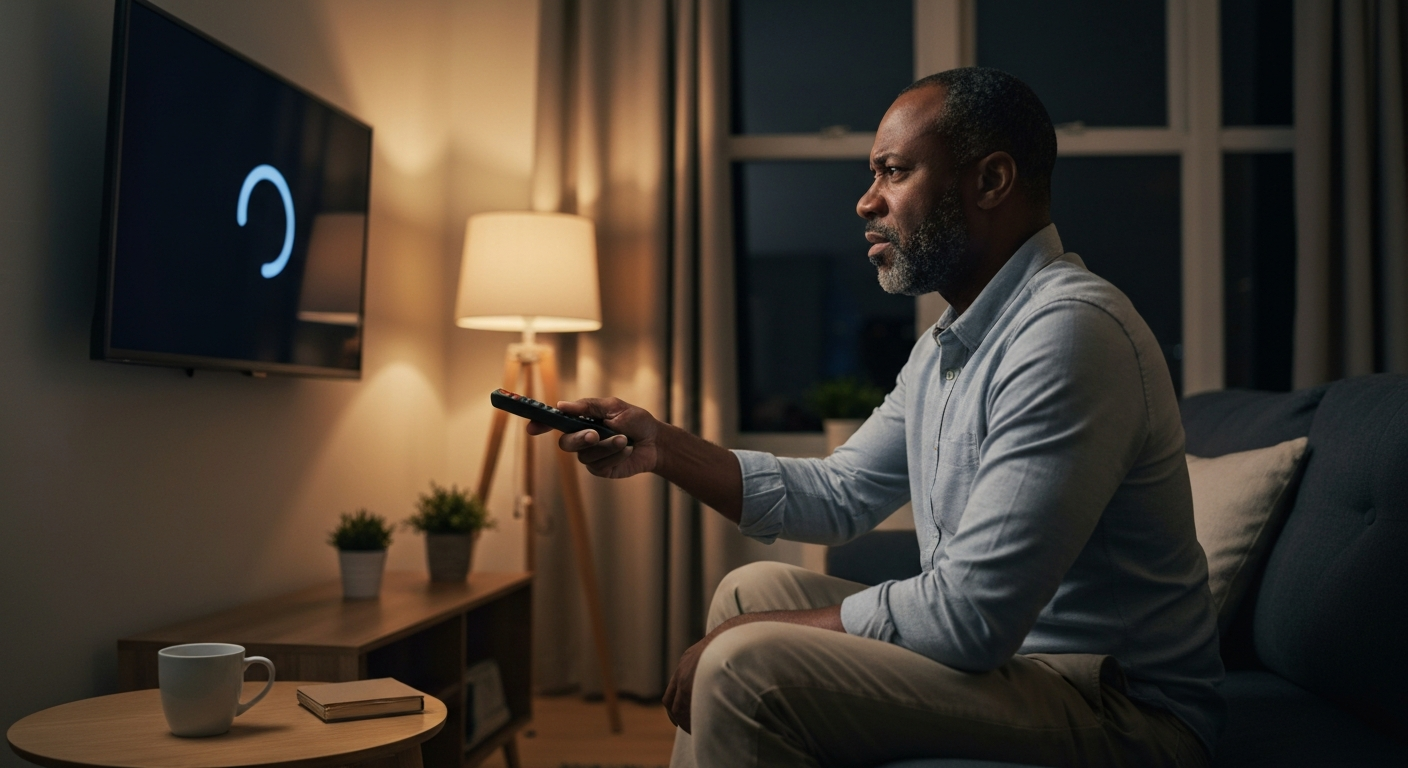

Your Amazon Fire TV Stick is slow because of overloaded cache files, insufficient storage space, an outdated operating system, too many background apps running at once, a weak Wi-Fi connection, or overheating hardware — any of these can choke performance and cause buffering, lag, and frozen screens.
If your Fire Stick has been acting sluggish lately, you're not imagining things. These streaming devices accumulate digital clutter over time, and their modest hardware can struggle under the weight of cached data, background processes, and connectivity issues. The good news: most causes are fixable in under ten minutes without spending a dollar. Let's walk through exactly what's slowing down your Amazon Fire TV and how to get it running smoothly again.
| ✓Quick Fix |
See What Solves This in Minutes A low-cost, no-commitment option to rule out before spending more on this problem. See on Amazon → |
Fire Sticks slow down because they have limited RAM and storage that gets consumed by app data, cached files, and system updates — and unlike a computer, they don't have the processing headroom to compensate.
Amazon designs Fire TV Sticks for affordability, which means tight hardware constraints. The basic Fire TV Stick has just 1 GB of RAM and 8 GB of internal storage. Even the Fire TV Stick 4K Max — the most powerful model — caps out at 2 GB of RAM and 16 GB of storage. When that limited memory fills up, everything slows to a crawl.
Every app you install reserves space for itself, then grows larger as it stores login credentials, downloaded content, thumbnails, and playback history. Streaming apps like Netflix, Hulu, and Prime Video are particularly notorious for ballooning cache sizes. After six months of regular use, it's common for cached data alone to consume 2–3 GB of your available storage.
"When your Fire TV Stick's storage is nearly full, the device struggles to perform basic tasks like loading app interfaces or buffering video content smoothly." — Amazon Device Support
Cache buildup is the single most common cause of Fire TV slowdowns, and clearing it often produces an immediate speed boost.
Every streaming app stores temporary files to speed up future loads — video thumbnails, menu graphics, recently watched data, and buffered content. The problem is that these files rarely clean themselves up. After months of use, you can have hundreds of megabytes of outdated cache data clogging your device.
To clear cache on your Fire Stick:
1. Go to Settings > Applications > Manage Installed Applications
2. Select the app that's causing problems (start with your most-used streaming apps)
3. Choose Clear cache
4. Repeat for other apps as needed
You'll notice the "Cache" number drop to zero for each app you clear. This doesn't delete your login information or downloaded content — it just removes temporary files.
Fire Sticks need at least 500 MB of free space to run smoothly — anything less and you'll experience lag, crashes, and failed app updates.
Check your available storage by going to Settings > My Fire TV > About > Storage. If you're under 500 MB free, your device is struggling.
| Storage Status | Performance Impact | Action Needed |
|---|---|---|
| Over 2 GB free | Optimal | None |
| 500 MB – 2 GB free | Mild slowdowns | Clear cache, remove unused apps |
| Under 500 MB free | Severe lag, crashes | Immediate cleanup required |
To free up space, uninstall apps you no longer use. Go to Settings > Applications > Manage Installed Applications, select the app, and choose Uninstall. Games and apps with downloadable content tend to be the biggest storage hogs.
Fire TV doesn't fully close apps when you press the home button — they continue running in the background, consuming RAM and processing power.
Your Fire Stick's limited RAM gets divided among all running applications. When you have six or seven apps sitting in memory, there's not enough left for smooth operation. This is why your Fire TV gets progressively slower during a long viewing session.
To force-stop background apps:
1. Go to Settings > Applications > Manage Installed Applications
2. Select each app you're not actively using
3. Choose Force stop
For a faster method, hold down the Home button for 5 seconds until the quick menu appears, then select Apps and navigate to Running Apps to close them quickly.
Amazon releases Fire OS updates that include performance optimizations, bug fixes, and security patches — running outdated software means missing these improvements.
Your Fire Stick should update automatically, but sometimes updates get stuck or fail to install. To check manually:
1. Go to Settings > My Fire TV > About
2. Select Check for Updates
3. If an update is available, select Install Update
As of 2026, the current Fire OS version is 7.x for most devices. If you're running Fire OS 5.x or 6.x, your device may be overdue for an update — or it may have reached end-of-life support and no longer receives updates.
A slow or unstable Wi-Fi connection causes buffering, pixelated video, and unresponsive menus because your Fire Stick relies entirely on network streaming.
Your Fire TV Stick doesn't store much content locally — it streams everything in real time. That means even a fast device will feel sluggish if your internet connection can't keep up.
To test your connection speed on your Fire Stick:
1. Go to Settings > Network
2. Select your connected network
3. Press the play/pause button to run a connection test
For smooth streaming, you need at least 5 Mbps for HD content and 25 Mbps for 4K. If your speeds are lower, try these fixes:
- Move your router closer to your Fire Stick
- Switch from 2.4 GHz to 5 GHz Wi-Fi (5 GHz is faster but has shorter range)
- Reduce the number of devices sharing your network
- Restart your router
When Fire Sticks overheat, they automatically throttle performance to prevent damage — this makes everything run slower until the device cools down.
Fire TV Sticks generate significant heat in a compact body. When plugged directly into a TV's HDMI port, they're surrounded by the TV's own heat output with poor air circulation.
Signs of overheating include:
- The device feels hot to the touch
- Video stutters or freezes unexpectedly
- The device restarts on its own
- A warning message appears on screen
The fix is simple: use the HDMI extender cable that came with your Fire Stick. This moves the device a few inches away from your TV, dramatically improving airflow. If you've lost the extender, they're available for a few dollars online.
Fire Sticks require 1 amp of power to function properly — using your TV's USB port instead of the included adapter often delivers insufficient power, causing slow performance and random restarts.
Many people plug their Fire Stick's USB cable into their TV's USB port for convenience. This is a mistake. Most TV USB ports output only 500 milliamps — half of what the Fire Stick needs. The device will turn on, but it'll run poorly.
Always use the power adapter that came with your Fire Stick, plugged into a wall outlet. If you've lost the original adapter, make sure any replacement is rated for at least 5V/1A output.
First and second-generation Fire TV Sticks have significantly less processing power and RAM than current models, and may simply be unable to keep up with modern streaming apps.
Streaming apps have grown more demanding over the years. If you're using a Fire TV Stick from 2016 or 2017, you're working with hardware that's nearly a decade old. These older models have:
- Single-core or weak dual-core processors
- Just 1 GB of RAM (or less)
- Outdated Wi-Fi standards (802.11n instead of 802.11ac)
- No support for current Fire OS versions
If you've tried all other fixes and your Fire Stick is still slow, it may be time to upgrade.
Also Read: Why Is My Flashlight Not Working? 8 Causes & Quick Fixes
The fastest way to restore Fire Stick performance is to restart the device, clear app caches, disable unused features, and ensure proper power and ventilation.
Follow this sequence for the best results:
Step 1: Restart your Fire Stick
Go to Settings > My Fire TV > Restart. This clears temporary memory and stops all background processes. A simple restart fixes roughly 30% of slowdown issues.
Step 2: Clear cache for major apps
Clear cache for Netflix, Prime Video, Hulu, Disney+, and any other streaming apps you use regularly. This often frees up 500 MB or more of storage.
Step 3: Uninstall unused apps
Remove anything you don't actively use. Each uninstalled app frees up storage and eliminates background processes.
Step 4: Disable data monitoring
Go to Settings > Preferences > Privacy Settings and turn off Device Usage Data and Collect App Usage Data. This stops Amazon from collecting analytics in the background.
Step 5: Turn off autoplay
Go to Settings > Preferences > Featured Content and disable Allow Video Autoplay and Allow Audio Autoplay. This stops the home screen from constantly loading preview videos.
Step 6: Check your power source
Ensure you're using the original power adapter plugged into a wall outlet — not your TV's USB port.
Step 7: Use the HDMI extender
Connect the Fire Stick using the included HDMI extender cable to improve ventilation and reduce overheating.
A factory reset erases everything and returns your Fire Stick to out-of-the-box condition — it's the nuclear option when nothing else works, and it's surprisingly effective.
If you've cleared caches, uninstalled apps, and restarted multiple times without improvement, a factory reset often solves persistent slowdowns caused by corrupted data or system file issues.
To factory reset:
1. Go to Settings > My Fire TV > Reset to Factory Defaults
2. Confirm the reset
3. Wait for the device to restart (this takes several minutes)
You'll need to sign back into your Amazon account and reinstall your apps afterward. Consider writing down which apps you use before resetting so you don't forget any.
Also Read: Why Is My Fire Detector Beeping? 7 Causes & Quick Fixes
If your Fire Stick is more than 4 years old, has less than 1.5 GB of RAM, or no longer receives Fire OS updates, upgrading will give you a better experience than any troubleshooting fix.
Signs you need a new device:
- Your model is stuck on Fire OS 5.x or 6.x with no available updates
- You have a first-generation (2014) or second-generation (2016) Fire TV Stick
- Slowdowns persist even after a factory reset
- Apps crash frequently or fail to load entirely
The current Fire TV Stick 4K Max offers the best performance, with a faster processor, more RAM, and Wi-Fi 6E support. Even the standard Fire TV Stick (4th generation) is dramatically faster than older models.
| ✓Our Pick |
Fire TV Stick streaming devices on Amazon You'll wonder why you didn't try this sooner — practical, well-reviewed, and easy to get started. See on Amazon → |
Your Amazon Fire TV Stick is running slow because of accumulated cache files, low storage space, too many background apps, outdated software, weak Wi-Fi, overheating, or insufficient power — and in older devices, simply outdated hardware. Restart your device, clear app caches, use the original power adapter with the HDMI extender for proper ventilation, and disable autoplay features to restore smooth performance. If your Fire Stick is more than 4 years old and still struggling after these fixes, upgrading to a current-generation model is the only real solution.
Slow streaming specifically — rather than general menu lag — usually points to a network issue rather than a device problem. Your Fire TV needs a stable connection of at least 5 Mbps for HD content and 25 Mbps for 4K. Test your connection in Settings > Network, and try switching to a 5 GHz Wi-Fi band if you're currently on 2.4 GHz. Also check whether other devices on your network are consuming bandwidth during your viewing sessions.
Fire OS updates occasionally introduce bugs or increase system resource requirements that can slow down older devices. After a major update, give your Fire Stick 24–48 hours to finish background processes like re-indexing apps. If slowdowns persist, clear your app caches and restart the device. In rare cases, a factory reset after an update resolves persistent performance issues caused by corrupted update files.
Fire TV Sticks do not support external storage expansion — there's no microSD slot or USB port for adding drives. Your only options for managing storage are clearing caches, deleting unused apps, and removing downloaded content. If storage limitations are a persistent problem, consider the Fire TV Cube, which offers more internal storage and slightly better performance headroom.
Yes, regularly restarting your Fire Stick helps maintain performance by clearing temporary memory and stopping accumulated background processes. You can restart by going to Settings > My Fire TV > Restart, or by unplugging the device for 30 seconds. Doing this once a week can prevent the gradual slowdowns that build up from continuous use.
Sudden slowdowns during a viewing session are typically caused by either overheating or memory exhaustion. As your Fire Stick runs, it accumulates heat and fills its RAM with app data. When it hits its limits, performance drops sharply. Using the HDMI extender for better ventilation and force-stopping background apps before long viewing sessions can prevent this mid-stream slowdown.
Reviewed and Updated on June 20, 2026 by George Wright