
Skin
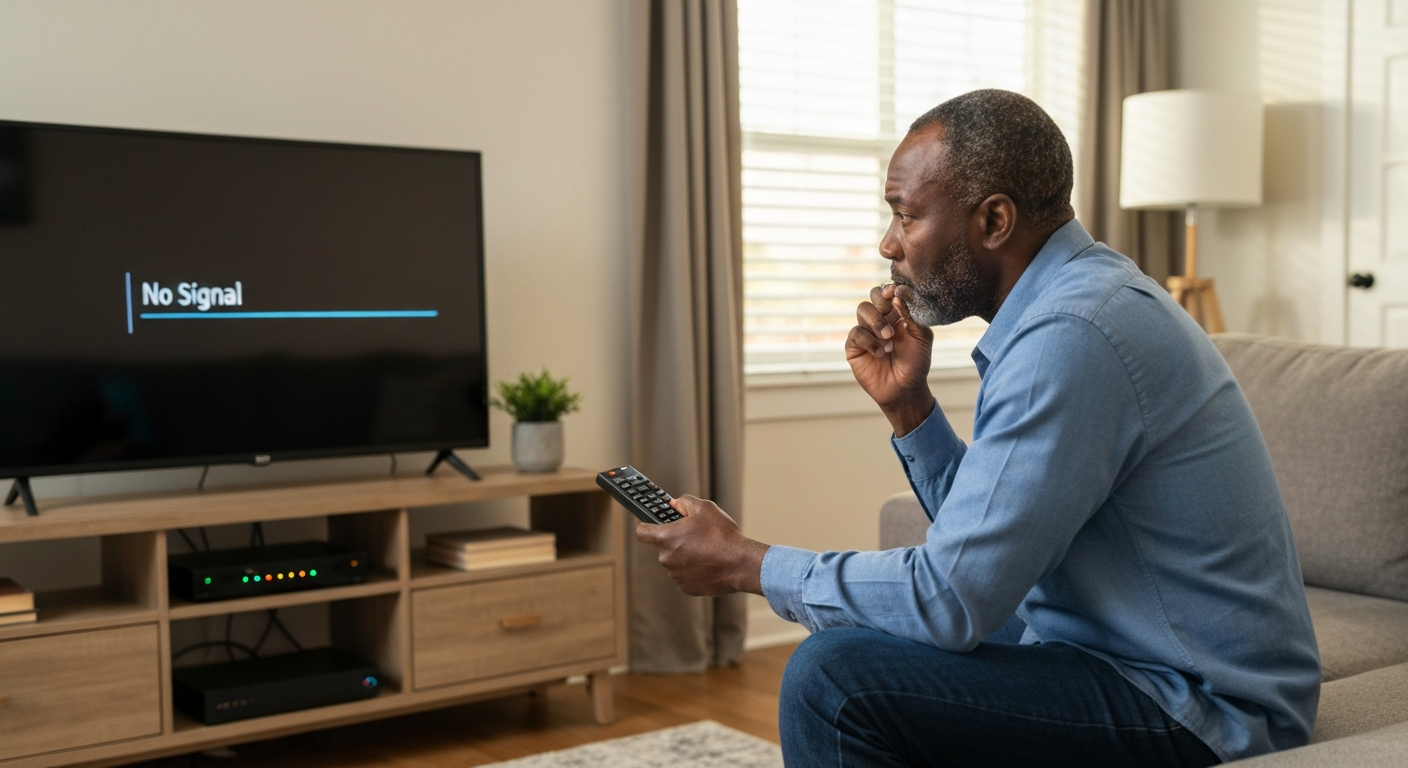

Your cable TV or internet isn't working because of a loose or damaged coaxial connection, a service outage in your area, a faulty cable box or modem, signal interference, or an account issue with your provider — and most of these problems can be diagnosed and fixed in under 15 minutes without calling for a technician.
Cable problems strike at the worst moments — right before the big game, in the middle of a movie, or when you're working from home and need that internet connection. The good news is that about 80% of cable issues stem from simple causes you can troubleshoot yourself. This guide walks you through every common reason your cable stops working and exactly how to fix each one.
Before troubleshooting your own equipment, check whether your cable provider is experiencing a service outage — this saves you from wasting time fixing something that isn't broken on your end.
The fastest way to check is to visit your provider's outage map or status page:
| Provider | Outage Check Method |
|---|---|
| Xfinity/Comcast | Xfinity app or xfinity.com/support/status |
| Spectrum | Spectrum app or spectrum.net/support/outage |
| Cox | Cox app or cox.com/residential/support |
| Optimum | optimum.net/support-outage |
| All providers | DownDetector.com |
You can also call your provider's automated outage line — most will tell you immediately if there's a known issue in your zip code. If there's an outage, you'll simply need to wait for the provider to restore service.
Also Read: Why Is My Touchpad Not Working? 12 Causes & Quick Fixes
Loose coaxial connections cause more cable failures than any other issue. The threaded connector that screws onto your cable box, modem, or wall outlet can work itself loose over time — especially if someone bumps the equipment or moves furniture nearby.
Check every coaxial connection in your setup: the wall outlet, the back of your cable box or modem, and any splitters in between. Each connector should be finger-tight — you shouldn't be able to wiggle it. If a connection feels loose, unscrew it completely, inspect the center pin for damage, then reconnect firmly.
Physical damage to the coaxial cable itself is a sneaky culprit because it's often hidden behind walls or furniture. Look for:
A damaged cable can cause intermittent signal loss, pixelation on TV, slow internet speeds, or complete signal failure. If you find damage, replacing the cable is the only reliable fix — they're inexpensive and available at any hardware store.
Cable boxes and modems are small computers that occasionally freeze, glitch, or lose their connection to the provider's network — a simple restart fixes this about 60% of the time.
Here's the proper restart sequence:
If you have both a modem and a separate router, restart the modem first, wait for all its lights to stabilize, then restart the router. Restarting them simultaneously can cause connection conflicts.
If your TV shows "No Signal" or a blank screen but your cable box appears to be working (lights are on, you can hear audio from the box), the problem is likely your TV's input setting. This happens frequently after someone uses a gaming console, streaming stick, or Blu-ray player.
Grab your TV remote and press the Input, Source, or AV button. Cycle through the options — HDMI 1, HDMI 2, Component, Coax — until you see your cable picture. If you're using an HDMI cable, try a different HDMI port on your TV, as individual ports can fail.
Electromagnetic interference can disrupt cable signals, causing pixelation, audio dropouts, or complete signal loss. Common interference sources include:
"Signal interference from household electronics is an underappreciated cause of cable problems. Separating coaxial runs from electrical wiring by at least 6 inches can dramatically improve signal quality." — Tom's Guide editorial team
If you suspect interference, try relocating your cable box away from other electronics, or use a higher-quality shielded coaxial cable.
Every time you split a cable signal, you lose some signal strength. One splitter is usually fine, but daisy-chaining multiple splitters — or using a 4-way splitter when you only need 2 outputs — can drop your signal below usable levels.
| Splitter Type | Signal Loss Per Output |
|---|---|
| 2-way splitter | 3.5 dB |
| 3-way splitter | 5.5–7 dB |
| 4-way splitter | 7 dB |
| 8-way splitter | 11 dB |
If you have multiple splitters, try connecting your cable box directly to the wall outlet, bypassing all splitters. If that fixes the problem, you may need a signal amplifier or need to reduce the number of splits.
Cable providers can disable your service for past-due payments, expired promotions, or account verification requirements. You'll typically see an on-screen message about contacting your provider, but not always — sometimes the signal simply stops.
Log into your provider's app or website to check your account status. Look for alerts, past-due balances, or required account actions. If everything looks correct but service is still out, call your provider — they can see issues on their end that don't show in your online account.
Follow this sequence to systematically eliminate each possible cause, starting with the quickest and easiest fixes.
Some cable problems genuinely require professional help — recognizing when to call saves you from wasting hours on unfixable issues.
Contact your provider if:
Before calling, write down any error codes displayed on your screen, note which lights are lit on your cable box/modem, and have your account number ready. This speeds up the call dramatically.
"Most cable service calls are resolved by replacing customer-owned equipment or repairing outdoor connections that have degraded over time. Having your troubleshooting steps documented helps technicians diagnose faster." — FCC Consumer Guide on cable service issues
Also Read: Why Is My Mic So Quiet? 7 Causes & How to Fix Them
A few simple maintenance habits can prevent most cable issues from recurring:
If your cable equipment is more than 5 years old, consider requesting updated equipment from your provider — newer boxes and modems handle signal fluctuations better and offer improved troubleshooting features.
| ✓Our Pick |
Protect your home network with NordVPN — reduce interference and secure your connection One of the highest-rated products in its category — a reliable fix used by thousands of people. Learn More → |
Your cable isn't working due to loose connections, equipment glitches, signal interference, or provider-side outages — and most issues resolve with basic troubleshooting. Start by checking for outages, then verify your TV input, tighten all coaxial connections, and restart your equipment. If problems persist after inspecting cables, bypassing splitters, and confirming your account is in good standing, contact your provider for professional assistance.
Scheduled activities on your provider's network, like software updates or maintenance windows, can briefly interrupt service. However, recurring daily outages often point to interference from a device that operates on a timer — such as a sprinkler system, HVAC unit, or appliance that cycles on at a specific time. Monitor what else turns on in your home when the signal drops.
Yes, though less than satellite service. Heavy rain, ice, or snow can impact the cable infrastructure between your home and the provider's network, particularly if connections are corroded or improperly sealed. Extreme heat can also cause signal degradation in older coaxial cables with cracked insulation.
If internet works but TV doesn't, the problem is isolated to your cable box rather than the incoming signal. Try restarting just the cable box, check its HDMI connection to your TV, and verify your TV is on the correct input. If the box shows error codes, note them and contact your provider for a box replacement if needed.
Signs of a failing cable box include constant rebooting, error codes that won't clear, no response to remote commands, unusual heat, or distorted picture even with known-good cables. Most providers will replace faulty boxes at no charge — call and describe the symptoms to request a swap.
Purchasing your own modem can save $10–15 per month in rental fees and often provides better performance than provider-issued equipment. However, verify compatibility with your provider first, and note that you'll be responsible for troubleshooting and replacement costs if it fails. For cable TV boxes, renting is typically the only option.
Reviewed and Updated on June 11, 2026 by George Wright