Skin
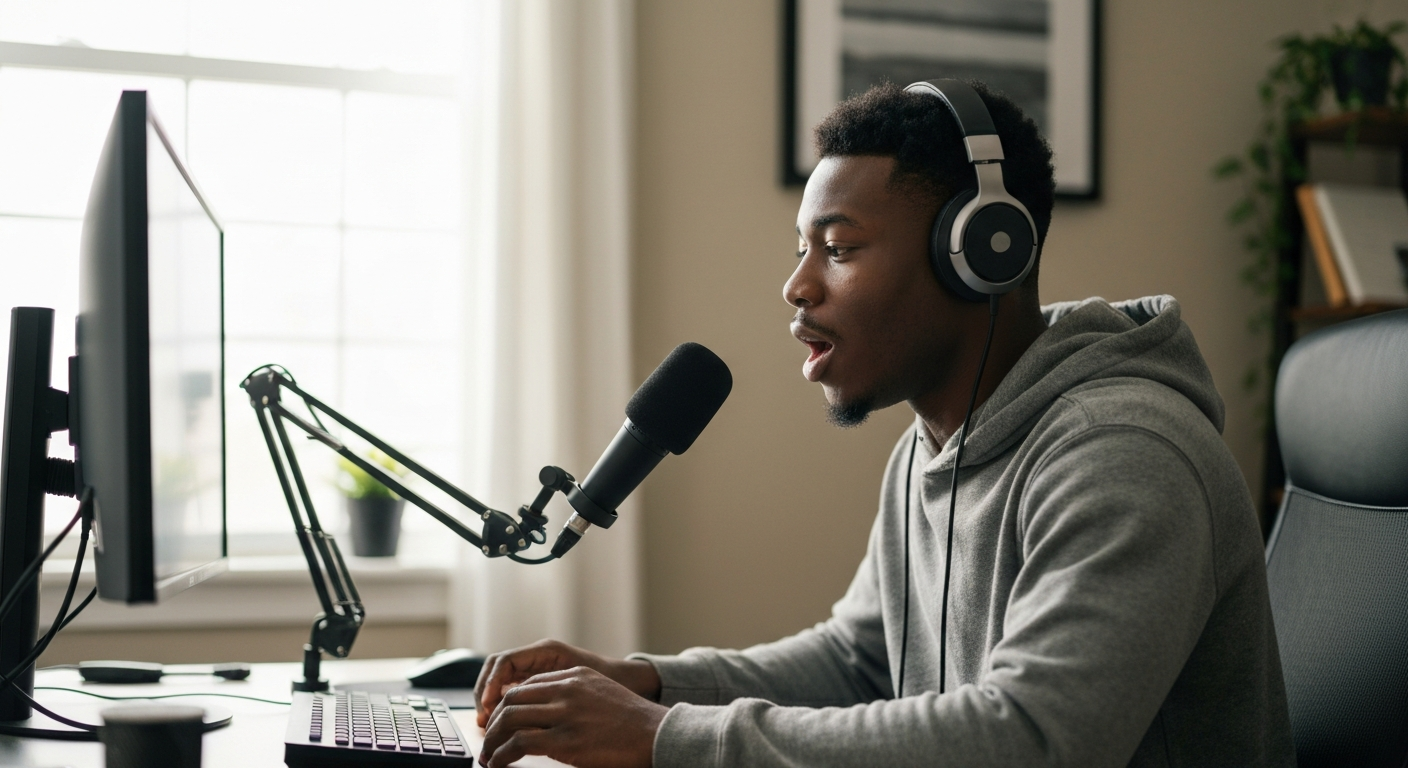

Your microphone is quiet because the input gain is set too low, the mic is positioned too far from your mouth, or your operating system and apps have conflicting volume settings that override each other.
These are the most common reasons your mic sounds low on PC, Discord, and other platforms. The fix usually takes under five minutes once you identify which setting or hardware issue is causing the problem. Below, you'll find every cause of a quiet microphone and exactly how to resolve each one.
Input gain controls how much your microphone amplifies your voice before sending it to your computer — if it's set too low, you'll sound distant or barely audible even when speaking directly into the mic.
Every microphone has a sensitivity threshold. When your gain (also called input level or mic volume) sits below that threshold, the microphone captures your voice but at such a low level that it gets lost in background noise or sounds whisper-quiet to others.
On Windows, your microphone gain lives in multiple places: the Sound Control Panel, the Settings app, and often within your audio driver software (like Realtek Audio Console). Each one can override the others, which is why you might crank one slider to 100% and still sound quiet — another setting elsewhere is pulling it back down.
Right-click the speaker icon in your taskbar, select "Sound settings," then scroll to "Input" and click your microphone. Move the Input volume slider to at least 80%. If that's still not enough, click "Device properties" and look for a "Microphone Boost" option — this adds an extra 10–30 dB of amplification.
For older Windows versions or more control, open the classic Sound Control Panel (type "mmsys.cpl" into your Start menu), go to the Recording tab, double-click your mic, and adjust both the Levels tab slider and the Microphone Boost slider underneath it.
"Most USB microphones ship with conservative default gain settings to prevent clipping during loud sounds. Users often need to increase input gain by 10–20 dB from factory defaults for normal speaking volume." — Julian Krause at YouTube Audio Reviews
Discord has its own input volume slider that operates independently of your Windows settings — if Discord's slider is low or its automatic gain control is interfering, you'll sound quiet only in Discord while other apps work fine.
Open Discord, click the gear icon (User Settings), then go to "Voice & Video." Check the "Input Volume" slider first — many users find it defaulted to 50% or lower. Drag it toward the right until the input sensitivity meter shows your voice hitting the green zone when you speak normally.
Yes, frequently. Discord's "Automatically determine input sensitivity" feature tries to filter out background noise, but it can also suppress your actual voice if you speak softly or have a naturally quieter microphone. Toggle this setting off and manually set the sensitivity slider so the marker sits just below your normal speaking level.
Also check "Advanced" settings within the Voice & Video menu. The "Echo Cancellation," "Noise Suppression," and "Automatic Gain Control" features can all reduce your apparent volume. Try disabling them one by one to see if your mic gets louder.
| ✓Our Pick |
Search USB condenser microphones on Amazon Highly rated by thousands of buyers — this is one of the most effective solutions for this issue you can try at home. See on Amazon → |
Microphone distance matters enormously — sound intensity follows the inverse square law, meaning your voice gets four times quieter when you double the distance from the mic.
Most headset microphones are designed to sit 1–2 inches from your mouth. Boom mics on gaming headsets often get pushed away or flipped up, which tanks your volume immediately. Desktop condenser mics typically work best at 6–12 inches, but USB mics marketed for streaming often assume you'll be much closer.
If you're using a laptop's built-in microphone, you're probably sitting 18–24 inches away — that's far enough that the mic struggles to separate your voice from room echo and ambient noise. Even with gain cranked up, built-in laptop mics rarely deliver clear, loud audio.
| Microphone Type | Ideal Distance | Common Mistake |
|---|---|---|
| Headset boom mic | 1–2 inches | Pushed to side of face or flipped up |
| USB condenser | 4–8 inches | Placed across desk, 18+ inches away |
| Laptop built-in | 12–18 inches max | User sits 2–3 feet back |
| Lapel/lavalier | 6–8 inches below chin | Hidden under layers of clothing |
| Webcam mic | 12–18 inches | Camera angle prioritized over audio |
Pop filters (the circular mesh screens) don't reduce volume significantly — they're designed to stop plosive sounds (hard P and B sounds) from distorting your audio. Foam windscreens can slightly muffle high frequencies but shouldn't make you noticeably quieter. If your mic got dramatically quieter after adding a windscreen, check that it's not accidentally covering an air vent or port on the microphone body.
Outdated or corrupted audio drivers can cap your microphone's maximum input level, cause intermittent volume drops, or prevent Windows from recognizing your mic's full capabilities.
Windows Update doesn't always install the latest audio drivers automatically. Realtek, the most common onboard audio chipset, releases driver updates that sometimes add features like enhanced noise reduction — which can make your mic quieter as a side effect.
To update your drivers, open Device Manager (right-click Start, select "Device Manager"), expand "Audio inputs and outputs," right-click your microphone, and select "Update driver." Choose "Search automatically for drivers" first. If that doesn't help, visit your motherboard or laptop manufacturer's website and download the audio driver directly.
After updating, restart your PC and retest. If your mic is still quiet, try rolling back to a previous driver version — sometimes the newest isn't the best.
Also Read: Why Is My Touchpad Not Working? 12 Causes & Quick Fixes
Many applications — Zoom, Teams, OBS, game clients — have their own microphone volume controls that can override or conflict with your Windows settings.
When you join a Zoom call and sound quiet while Discord works fine, Zoom's internal mic settings are the culprit. Every major video and voice app has its own audio preferences menu. You'll need to check and adjust each one individually.
In Zoom: Settings → Audio → adjust the Input Volume slider and disable "Automatically adjust microphone volume." In Microsoft Teams: click your profile picture → Settings → Devices → adjust the Mic volume slider. In OBS: go to Settings → Audio and check that your mic isn't filtered excessively.
Some games grab exclusive control of your microphone, bypassing your Windows settings entirely. This is controlled by a setting called "Exclusive Mode." To disable it, open Sound settings, click your microphone, select "Device properties," then "Additional device properties." In the popup window, go to the "Advanced" tab and uncheck "Allow applications to take exclusive control of this device."
"Applications that request exclusive mode access can bypass the Windows audio mixer entirely, applying their own gain and processing — this is why users report wildly different mic levels between apps on the same system." — Microsoft Learn Documentation
Physical damage to your microphone, cable, or audio jack can cause consistently low or muffled audio that no software setting will fix.
USB microphones can develop issues with the internal preamp circuit, causing gradual volume loss over time. 3.5mm cables are prone to partial breaks near the connector — the mic still works but loses signal strength. Built-in laptop mics can get clogged with dust or debris over months of use.
Try these hardware tests:
- Connect your mic to a different USB port (preferably directly on the motherboard, not a front-panel port)
- Test the mic on another computer to rule out PC-specific issues
- For 3.5mm mics, wiggle the cable gently while speaking — if volume fluctuates, the cable is damaged
- Inspect the mic's mesh or grille for visible dirt or blockage
If your mic works fine on another PC but stays quiet on yours, the issue is definitely software or settings. If it's quiet everywhere, the hardware needs replacing.
Also Read: Why Is My AirPod Case Flashing Orange? 6 Causes & Fixes
Follow this systematic checklist to diagnose and fix quiet microphone issues on Windows — work through each step in order.
| Step | Action | Where to Find It |
|---|---|---|
| 1 | Set Windows input volume to 100% | Settings → Sound → Input |
| 2 | Enable Microphone Boost (+10–30 dB) | Sound Control Panel → Recording → Mic Properties → Levels |
| 3 | Disable app-specific auto-gain | Discord/Zoom/Teams audio settings |
| 4 | Position mic 2–6 inches from mouth | Physical adjustment |
| 5 | Update audio drivers | Device Manager → Audio inputs and outputs |
| 6 | Disable exclusive mode | Mic Properties → Advanced tab |
| 7 | Test mic on another device | Hardware isolation test |
If you've completed all seven steps and your mic is still too quiet, the microphone itself may be underpowered for your needs. Budget USB mics and most built-in laptop mics have weak preamps that can't deliver professional volume levels. Upgrading to a condenser microphone with its own gain control gives you far more headroom.
A quiet microphone almost always comes down to low input gain settings in Windows or your specific app, improper mic positioning, or conflicting automatic gain controls fighting each other. Start by maxing out your Windows input volume and adding Microphone Boost, then check Discord or your app's own volume slider. Position your mic closer to your mouth, disable automatic sensitivity features that suppress your voice, and update your audio drivers. If none of that works, test the mic on another computer — if it's still quiet, the hardware needs replacing.
Discord has independent input volume settings and automatic gain control that operate separately from Windows. Open User Settings, go to Voice & Video, and raise the Input Volume slider. Then disable "Automatically determine input sensitivity" and manually set the threshold below your normal speaking level. Also try turning off the Noise Suppression and Automatic Gain Control under Advanced settings, as these features can over-filter quiet voices.
Windows updates sometimes reset audio settings to defaults or install generic drivers that override your manufacturer's drivers. After updating, check that your input volume and Microphone Boost settings weren't reverted. Open Device Manager and verify your audio driver version — if it changed, consider downloading the original driver from your PC or motherboard manufacturer's support page.
USB microphones have built-in analog-to-digital converters with fixed gain ranges, while 3.5mm mics rely on your sound card's preamp. Some USB mics ship with conservative gain to prevent clipping during loud sounds, making them seem quieter at default settings. Look for a physical gain knob on the mic itself, or use the Microphone Boost setting in Windows to add extra amplification.
Yes. Unpowered USB hubs or hubs with too many devices connected can deliver insufficient power to USB microphones, causing volume drops or audio cutouts. Connect your mic directly to a USB port on your computer's motherboard or case rather than through a hub. If you must use a hub, choose a powered hub with its own wall adapter.
Applications with "automatic microphone adjustment" features often reset your volume when they launch. Disable this setting in each app you use — Zoom, Teams, Discord, and many games all have this option. Also check that no other app is running in the background that might be grabbing microphone control.
Reviewed and Updated on June 10, 2026 by George Wright