Technology
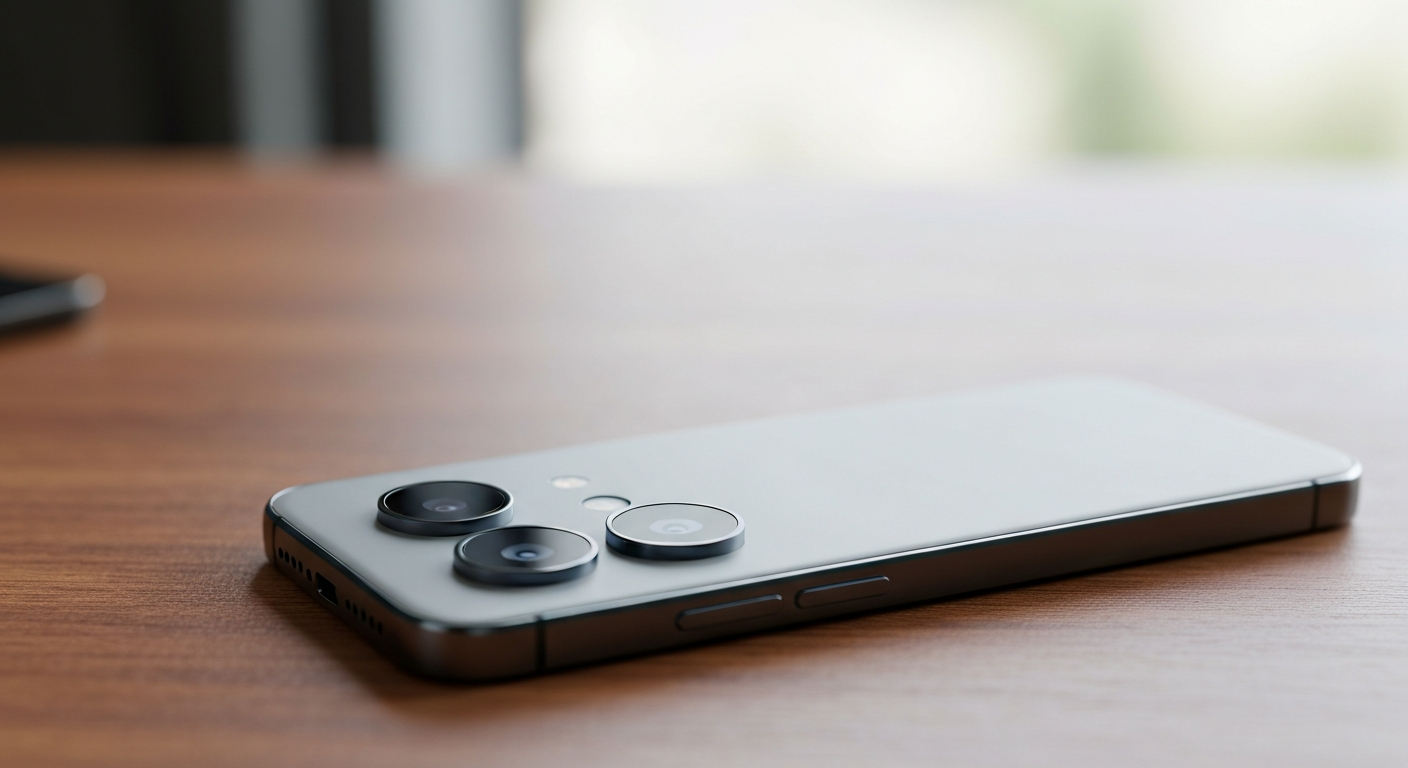

Your back camera stopped working — in most cases a software glitch, blocked lens, or loose connection is the cause, not permanent damage. A targeted fix clears the problem in minutes for the majority of Android and iPhone users.
The rear camera is one of the most hardware-intensive components on any smartphone. It draws significant power, runs a complex autofocus motor, and passes through multiple software layers before an image reaches your screen. When any link in that chain breaks, you get a black preview, a frozen image, or an error message.
The seven most common causes:
1. App or OS crash — The camera process has hung in memory. This is the single most common cause and resolves with a simple restart more than half the time.
2. Insufficient storage — When internal storage drops below roughly 1 GB, the camera cannot write its frame buffer files and may refuse to open or freeze immediately after launching.
3. Dirty or obstructed lens — A fingerprint, pocket lint, or micro-crack on the rear lens element causes a blurry, dark, or completely black preview. Even a thin film of oil can scatter enough light to create apparent failure.
4. Third-party app conflict — An app granted camera permission can hold the camera resource in the background, blocking the native camera app from accessing the hardware. On Android, this produces the "Camera failed" error; on iPhone, you may see a black screen that doesn't recover.
5. Partial or failed OS update — A software update that didn't install cleanly can corrupt the camera driver. The symptom is typically a camera that worked yesterday and fails today with no physical explanation.
6. Thermal throttling — In high-heat conditions, some phones temporarily disable the rear camera to protect the battery and CPU. It recovers on its own once the device cools to a safe temperature, usually within five to ten minutes.
7. Physical hardware failure — A drop, water exposure, or connector fatigue from repeated flexing can physically separate the camera module ribbon cable. This is less common than software causes but is the one scenario that requires professional repair.
Work through these in order. Most users find a resolution within the first three steps.
Restart the phone. Hold the power button and select Restart (not Power Off, as a warm restart clears RAM more thoroughly on Android). On iPhone 8 and later, hold the side button plus either volume button, drag the power slider, wait 30 seconds, then press the side button to turn it back on. According to Apple's support documentation on iPhone camera issues, "restart your iPhone" is the recommended first step before any other troubleshooting, because it resolves the majority of camera app failures that occur without physical cause. (Apple Support, If the Camera on your iPhone isn't working, support.apple.com/en-us/111900, accessed 2026.)
Clean the rear lens. Use a dry microfiber cloth — paper towels can scratch the optical coating. Breathe lightly on the lens to create a faint fog if smudging is present, then wipe in a circular motion. If the lens housing appears cracked or dented when viewed under direct light, stop here; pressing on a physically damaged lens element won't restore camera function and may worsen the damage.
Force-close and reopen the camera app. On iPhone, swipe up from the bottom to the App Switcher and flick the Camera card away. On Android, tap the Recent Apps button and swipe the camera card off-screen. Then reopen the camera app.
Clear the camera app cache (Android only). Navigate to Settings > Apps > Camera > Storage > Clear Cache. This removes temporary files that accumulate over time and can become corrupted. Do not tap Clear Data unless you want to lose saved camera settings like grid lines and aspect ratio preferences.
Free up storage. If available storage is under 1 GB, offload photos and videos to a computer or cloud service first. Both iOS and Android reserve headroom for system operations, and the camera app is acutely sensitive to a full drive.
Check recently installed apps. If the camera stopped working shortly after installing something new, uninstall that app and retest. On Android, go to Settings > Privacy > Permission Manager > Camera to see every app currently holding camera access. Revoke access from any app that doesn't need it.
Install pending OS updates. Camera driver patches ship regularly in both iOS and Android system updates. Go to Settings > General > Software Update on iPhone, or Settings > System > Software Update on Android. If a buggy update caused the failure, the fix often arrives within days in a follow-up patch.
Our Pick: Microfiber lens cleaning kit for smartphones — clears smudges without scratching
Reset all settings (iOS) or reset app preferences (Android). On iPhone: Settings > General > Transfer or Reset iPhone > Reset > Reset All Settings. Photos and apps are preserved; Wi-Fi passwords, notification settings, and privacy toggles are reset. On Android: Settings > General Management > Reset > Reset App Preferences — this re-enables disabled apps and resets default permissions without deleting any files.
Boot into Android Safe Mode. Hold the power button, then long-press "Power Off" until the "Reboot to Safe Mode" prompt appears. In safe mode, all third-party apps are suspended. If the camera works in safe mode but fails normally, a third-party app is definitively the cause — reinstall apps one at a time to isolate the culprit.
Also see: Why Is My Monitor Flickering? 7 Causes & Fixes for similar display-chain troubleshooting on desktops.
If every software fix fails, the camera module or its connection to the motherboard is likely at fault. JerryRigEverything, one of the most-cited smartphone teardown channels, notes that ribbon cable fatigue is a documented failure mode on foldable and ultra-thin flagships, where repeated flex eventually breaks individual conductor traces inside the flat flex cable. The same mechanism applies to any phone that has been dropped repeatedly even without obvious external damage.
Physical signs that point to hardware:
At this point the practical options are: authorized manufacturer repair (replaces the camera module and preserves any remaining warranty), a reputable third-party repair shop (lower cost, typically voids warranty on newer devices), or an insurance claim if the device is covered under an extended warranty or carrier plan.
For phones more than three years old, compare the repair quote against certified refurbished models of the same generation. If repair exceeds 40–50% of the refurbished device price, replacement is usually the better value — especially if the phone is no longer receiving security updates.
Also Read: Shop phone camera repair tools and lens replacement kits on Amazon
A few consistent habits extend rear camera life significantly.
Use a case with a raised lip around the camera bump. When a phone rests face-up on a flat surface, a flush case lets the lens contact the surface directly — a raised edge keeps it clear. Camera bump protectors, which are adhesive rings that sit around the lens array, add another layer for high-risk environments.
Keep internal storage above 10% free at all times. Cloud photo backups (iCloud, Google Photos) automate this without requiring manual management.
Update the OS within a week of release. Camera driver improvements and bug fixes are among the most frequent update components on both platforms.
Avoid prolonged heat exposure. Leaving a phone on a car dashboard in summer or using it as a hotspot for extended periods while in direct sunlight can repeatedly trigger thermal throttling. Over time, heat stress degrades the autofocus actuator.
Our Pick: Phone cases with raised camera lip protection on Amazon
Reviewed and Updated on July 2, 2026 by Adelinda Manna