
Health
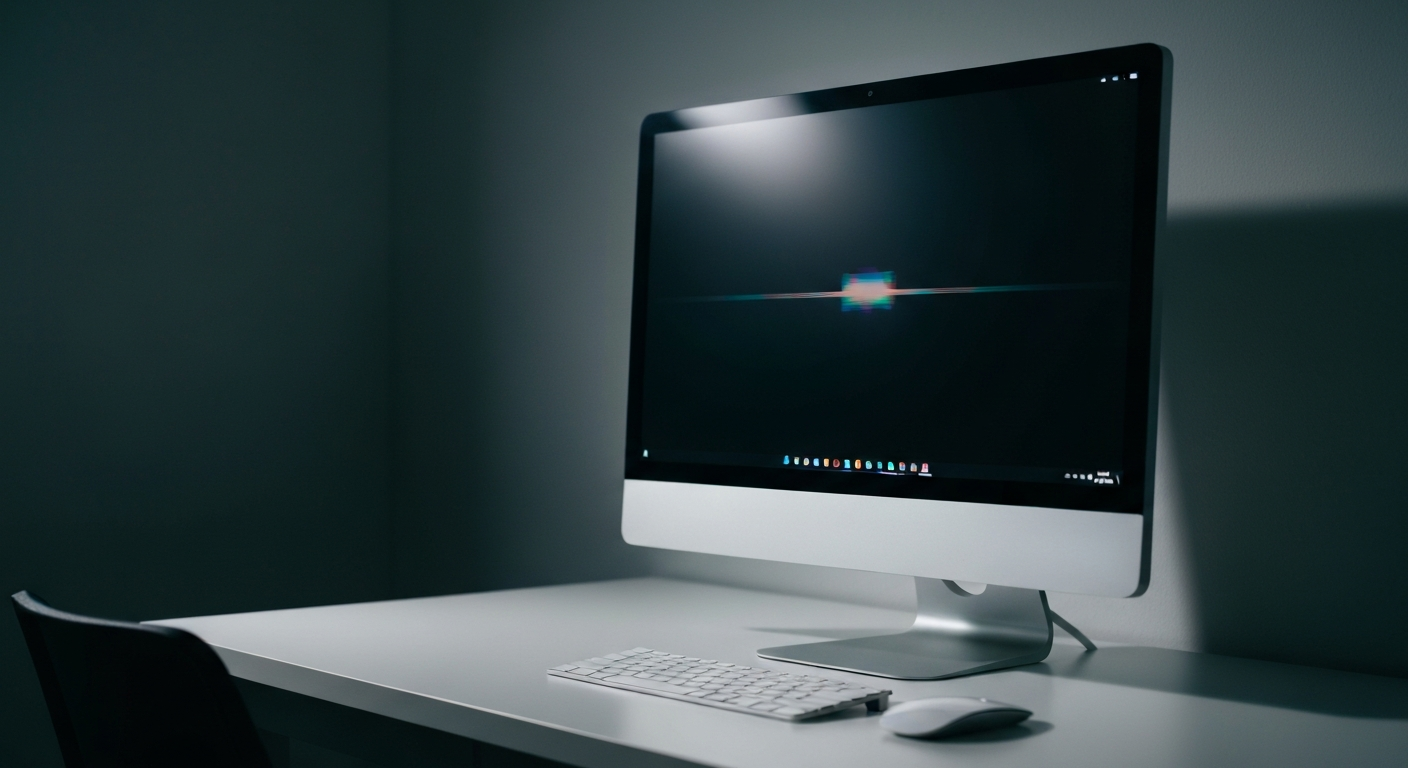

A flickering monitor is almost always caused by one of three things: a loose or failing display cable, an outdated graphics driver, or a refresh rate mismatch between your monitor and GPU — all of which are fixable without replacing the screen.
Monitor flicker is jarring, causes eye strain, and can signal a problem that will worsen if left alone. The good news: in the vast majority of cases it's a software or cable issue, not a dead panel. Walk through the causes in order before assuming you need a new monitor.
Most flickering comes from the connection between your computer and monitor — the cable, port, or driver stack — not from the monitor panel itself.
The seven most likely causes:
Loose or damaged cable: An HDMI or DisplayPort cable that isn't firmly seated, or that has a bent connector or frayed jacket, will cause intermittent flicker. Try unplugging and firmly re-seating both ends.
Outdated graphics driver: Windows may install a generic display driver after an OS update, or an existing driver may develop bugs over time. Stale drivers are one of the most common causes of flicker after a Windows update.
Wrong refresh rate setting: If your monitor is set to 75Hz but the GPU is outputting a different rate, the display can flutter. Check Display Settings > Advanced Display > Refresh Rate.
Incompatible app or background process: Some applications — especially older ones not built for high-refresh displays — trigger flickering. Windows Task Manager will itself flicker if an app is the cause, but will stay stable if the display driver is to blame.
Cable bandwidth limitation: An HDMI 1.4 cable trying to carry a 4K/120Hz signal is over capacity. The cable physically can't carry that data rate and will produce visible artifacts and flicker.
Loose GPU in its PCIe slot: On a desktop, the graphics card can work loose after shipping or moving. Re-seating the GPU eliminates flicker caused by inconsistent electrical contact at the slot.
Failing backlight or capacitors: If flicker persists regardless of cable, driver, and settings — and especially if it shows a horizontal wave pattern or worsens as the monitor warms up — the panel or its power circuitry is starting to fail.
"Screen flickering in Windows is usually caused by a display driver issue or an incompatible app. To determine whether a display driver or app is causing the problem, check to see if Task Manager flickers." — Microsoft Support at Microsoft.com
Also Read: See What Actually Fixes Monitor Flicker Fast
Fix the cable first, then the driver, then the refresh rate — in that order. The majority of monitor flicker cases are resolved at one of these three steps.
Step 1: Replace or re-seat the cable
Swap your current HDMI or DisplayPort cable with a known-good replacement. If you're running a long cable (over 6 feet) at 4K, ensure it's rated for the resolution and refresh rate you're using. DisplayPort 1.4 cables carry more bandwidth than HDMI 1.4 and are recommended for high-refresh gaming monitors.
Step 2: Update your graphics driver
If updating doesn't help, try a clean driver install: use Display Driver Uninstaller (DDU) to completely remove leftover driver files before reinstalling from scratch.
Step 3: Correct the refresh rate
Right-click your desktop → Display Settings → Advanced Display Settings → Refresh Rate. Set it to match your monitor's native rated refresh rate (listed on the monitor box or its on-screen display menu).
Step 4: Disable hardware acceleration in problem apps
In Chrome: Settings → System → toggle off "Use hardware acceleration when available." Restart Chrome and check if flicker stops in the browser. Repeat for other apps that flicker while Task Manager stays stable.
| ✓Our Pick |
Upgrade to a DisplayPort 1.4 cable rated for your monitor's resolution and refresh rate This is what many people find solves the problem quickly, without a costly professional visit. See on Amazon → |
If flicker persists after swapping cables, updating drivers, and correcting the refresh rate — test your monitor on a different computer. If it still flickers, the panel or its power supply is the problem.
Signs the monitor hardware is failing:
If your monitor is under warranty, contact the manufacturer — panel defects and backlight failures are typically covered. For older displays, compare the repair cost to a replacement; LCD panel repairs usually run $60–$150, often close to the cost of a budget replacement monitor.
"Digital eye strain symptoms — including headaches, blurred vision, and neck pain — are frequently worsened by screen flicker at rates visible to the human eye." — American Academy of Ophthalmology at AAO.org
Start with the cable — swap it. Then update your GPU driver. Then check the refresh rate setting. Those three steps resolve monitor flicker in the vast majority of cases. If none work, test the monitor on a second machine to confirm whether it's the panel or the source. Hardware panel failure is the least common cause of flicker and the last thing to investigate, not the first.
Video decoding in browsers triggers hardware acceleration, which uses your GPU. If your GPU driver has a bug or your cable can't handle the video bandwidth, flicker appears during video but not during static desktop use. Disabling hardware acceleration in your browser settings typically resolves this within seconds.
Running a monitor at 144Hz requires a cable rated for that bandwidth. HDMI 1.4 cannot reliably sustain 1080p at 144Hz — you need at minimum HDMI 2.0 or DisplayPort 1.2. Upgrading to a certified High Speed HDMI or DisplayPort 1.4 cable eliminates flicker caused by cable bandwidth limits at high refresh rates.
Yes. Persistent flicker at frequencies visible to the human eye — generally under about 80Hz — causes measurable eye strain, headaches, and fatigue over extended sessions. Fixing the underlying cause is genuinely better for your long-term health, not just an aesthetic improvement.
Malware doesn't typically cause display hardware to flicker directly, but some types can consume GPU resources or corrupt driver files, producing software-level flicker. If the flicker appeared suddenly alongside other unusual system behavior, running a malware scan is a reasonable step alongside the standard cable and driver checks.
Reviewed and Updated on July 1, 2026 by Adelinda Manna