Finance
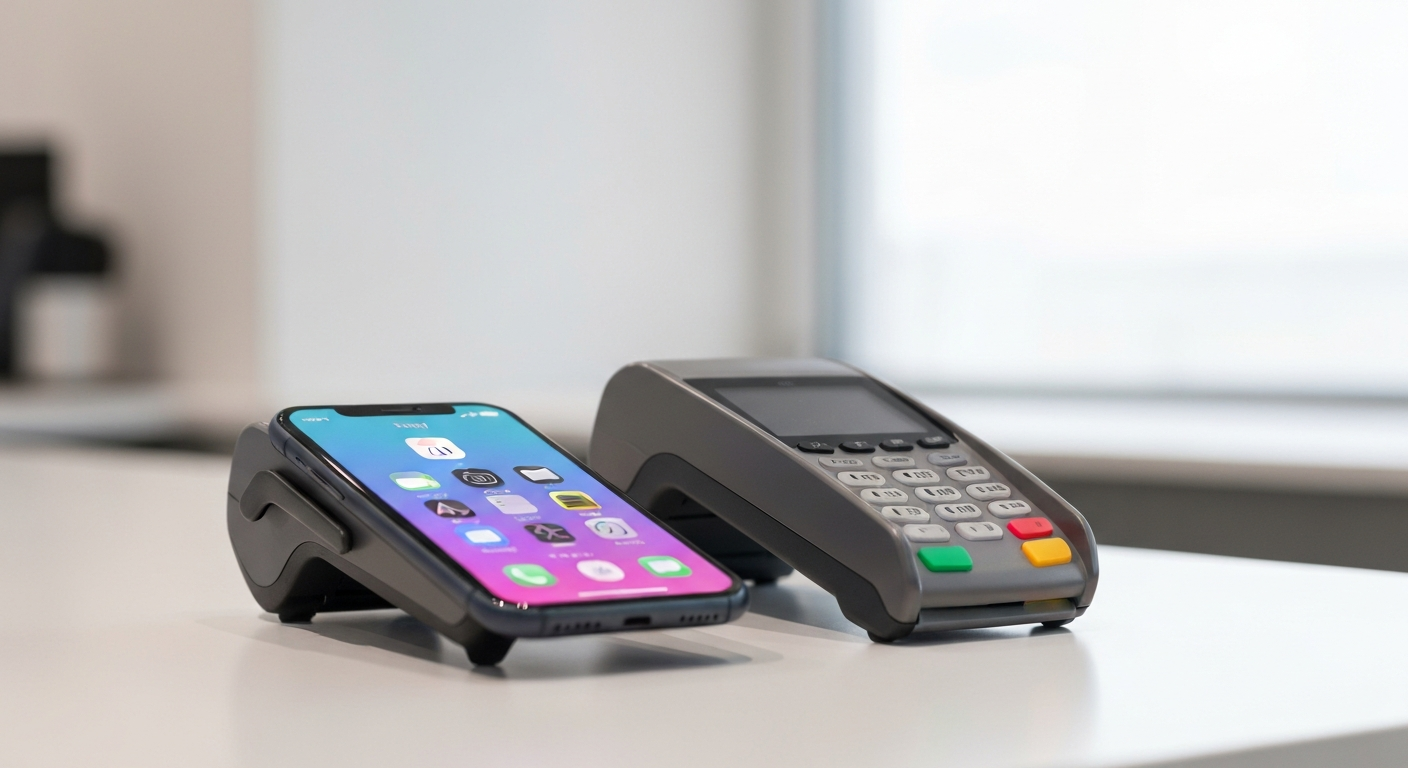

Apple Pay declines when the card issuer rejects the transaction, your iPhone's NFC reader has an issue, your Apple ID is flagged, or the merchant's terminal is incompatible. The decline happens at one of three points — the device, the network, or the bank — and the fix is different depending on which layer is failing.
Apple Pay works by passing a tokenized version of your card number — a unique device account number (DAN) — to the merchant's payment terminal via NFC. The terminal sends that token to the card network (Visa, Mastercard), which verifies it with your bank. If any link in that chain rejects the request, the payment declines.
Bank-side declines. Your card issuer can decline an Apple Pay transaction for any reason it would decline a physical card transaction: insufficient funds, a suspected fraud flag, a daily spending limit, or a temporary hold triggered by unusual activity. Contactless payments on a new device often trigger fraud screening because the bank's algorithm interprets a new token as potentially unauthorized activity.
Card not set up for Apple Pay. Some banks and credit unions have restrictions on which cards can be added to Apple Pay, or require a verification step that wasn't completed correctly. A card that shows in your Wallet app but wasn't properly verified by the issuer will decline.
Expired or recently reissued card. When a physical card is replaced (due to expiration, loss, or fraud), the old Apple Pay token is invalidated. You need to remove the old card from Wallet and add the new card.
Apple ID or Wallet issue. If your Apple ID has a payment dispute, a flagged account, or a suspended iCloud account, Apple Pay may be suspended across your devices until the account issue is resolved.
Device NFC problem. The NFC chip that enables contactless payment requires close contact with the terminal (typically within 1 inch). Cases that include metallic elements (metal plates, some kickstand cases) can block NFC. Holding the phone correctly — face up, top edge near the terminal reader — matters on older iPhone models.
Merchant terminal incompatibility. Not every payment terminal supports Apple Pay, even if it appears to be a contactless terminal. Some older NFC terminals support only specific payment networks and may reject Apple Pay tokens from certain card networks.
Spending limits. Some banks impose higher scrutiny or transaction limits on contactless/digital wallet payments specifically. A transaction that would go through on the physical card may decline on Apple Pay due to a separate daily or per-transaction limit applied to mobile wallet transactions.
A newly added card declines on the first use. Many banks require a one-time verification step when you first add a card to Apple Pay. If you skipped the verification or used the wrong code, the card appears in Wallet but is not authorized for transactions. To verify: open Wallet > tap the card > scroll down to find the verification option (usually labeled "Verify Now" or "Call Bank").
One card works but another doesn't. If you have multiple cards in Wallet and only one is declining, the issue is issuer-specific — that bank is rejecting the transaction, not Apple Pay itself. Remove and re-add the declining card to generate a fresh token. If it declines again, call your bank.
The card was recently replaced. Physical card replacements (due to expiration, loss, or suspected fraud) invalidate the Apple Pay token linked to the old card number. Open Wallet, remove the expired card, and add the new card using its updated number, expiration date, and CVV.
International transactions. Some US banks restrict Apple Pay use outside the country or flag foreign transactions for additional verification. If you're traveling abroad and Apple Pay is declining, call your bank before your trip to authorize international use.
Our Pick: RFID-blocking slim wallet — secure backup for when digital payment isn't available
Check your card balance and transaction history. Log into your bank's app or website and confirm the card has available funds and no fraud alerts or holds. Look for any notification from the bank about declined contactless transactions.
Verify the card in Wallet. Open Wallet (or Settings > Wallet & Apple Pay) and tap the declining card. If it shows a status other than "Active," follow the prompts to complete verification.
Remove and re-add the card. This generates a fresh device account number. Open Wallet > tap the card > scroll down > tap "Remove Card." Then tap the plus icon to add the card again. Your bank will send a verification code.
Restart your iPhone. An NFC subsystem crash can prevent Apple Pay from working even if the card is active. A restart resolves this.
Check for iOS update. Apple regularly patches Apple Pay behavior in iOS updates. An outdated iOS version can have bugs that cause incorrect decline responses. Go to Settings > General > Software Update and install any pending updates.
Reset network settings (if Apple Pay is the only issue). Settings > General > Transfer or Reset iPhone > Reset > Reset Network Settings. This clears cached payment authentication data. Note: this also clears saved WiFi passwords.
Check Apple's system status. Visit apple.com/support/systemstatus/ to confirm Apple Pay services are operating normally. Widespread outages affecting Apple Pay are rare but do occur.
Hold the phone correctly. Position your iPhone with the top edge (where the NFC antenna is located) within 1 inch of the payment terminal reader. Don't tilt the phone — keep it flat and parallel to the terminal face.
Remove any NFC-blocking case material. Metallic phone cases, magnetic attachments, and thick leather wallet cases can interfere with NFC signal. Test Apple Pay without the case to determine if it's contributing to the decline.
According to Apple's Apple Pay support documentation, "contact your bank or card issuer for help with payment issues. Your bank may require identity verification or additional steps to approve the transaction." (Apple Support, If your card isn't working with Apple Pay, support.apple.com/en-us/111830, accessed 2026.) In other words, when the issuer is the source of the decline, Apple cannot resolve it — the bank must.
Also Read: Shop contactless payment accessories and phone wallet cases on Amazon
Some Apple Pay declines are outside your control:
Merchant terminal not updated. A cashier may tell you "contactless isn't working" — this is the terminal, not your device. Ask to pay with the physical card, or try a different checkout lane.
Bank fraud block. If you've recently made unusual purchases, traveled to a new location, or had a large number of transactions in a short period, your bank may have automatically blocked contactless transactions as a fraud precaution. Call the number on the back of your physical card and ask the fraud department to unblock digital wallet transactions.
Bank's Apple Pay enrollment limit. Some smaller banks and credit unions limit the number of devices a card can be enrolled in simultaneously. If you've recently set up a new iPhone, the old device's enrollment may need to be removed first.
Suspended Apple ID. If Apple has suspended your Apple ID (for payment disputes, terms of service violations, or security flags), Apple Pay across all your devices is suspended until the account issue is resolved. Sign in at appleid.apple.com to check your account status.
Our Pick: Secure card holder with RFID protection for physical card backup
Reviewed and Updated on July 2, 2026 by Adelinda Manna