

Health
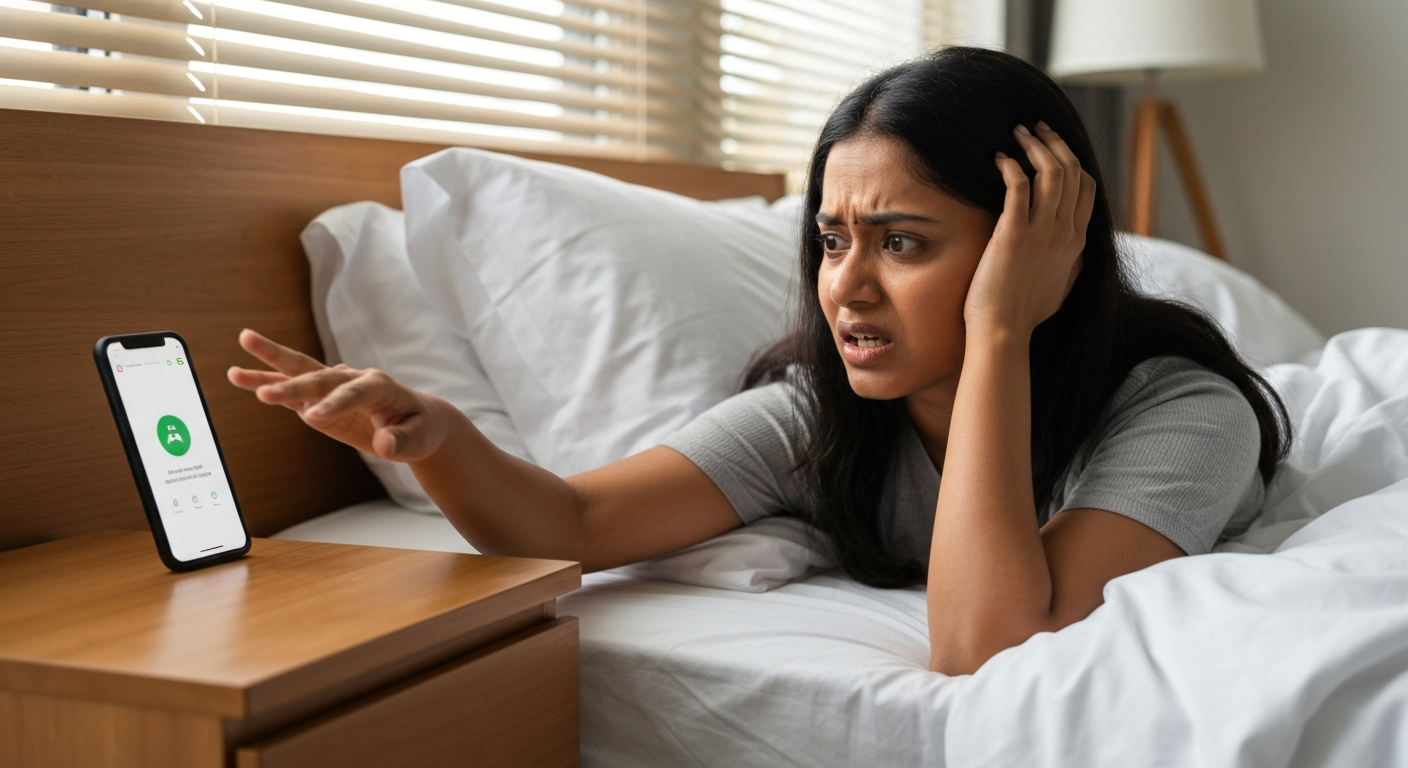

Your phone alarm is quiet because the alarm volume is set separately from your ringer and media volumes, and one of these settings—or a feature like Do Not Disturb, Focus mode, or Attention Aware—is actively suppressing the sound without your knowledge.
Most people assume their phone has one master volume slider, but modern smartphones split audio into three or more independent channels. Your alarm has its own volume setting that can be turned down even when your ringer is at maximum. Add in sleep-focused features that silence notifications overnight, a case blocking the speaker, or a Bluetooth device hijacking your audio output, and you've got the perfect recipe for missed wake-up calls and late mornings.
Smartphones separate alarm, ringer, and media volumes so you can customize each independently—but this design is exactly why your alarm can be whisper-quiet while everything else sounds normal.
When you press the physical volume buttons on your phone, you're usually adjusting whichever audio type is currently active. If you're watching a video, you're changing media volume. If nothing is playing, you're often adjusting ringer volume. The alarm volume? That typically requires going into your settings or adjusting it while an alarm is actively sounding.
This separation exists because Apple and Google recognized that people want different volume levels for different situations. You might want a quiet ringtone in meetings but a loud alarm to wake you up. The problem is that most people don't realize these are separate controls, so they never think to check their alarm volume specifically.
| Volume Type | What It Controls | How to Adjust |
|---|---|---|
| Ringer/Notification | Calls, texts, app alerts | Volume buttons (when idle), Settings > Sound |
| Media | Music, videos, games | Volume buttons (when playing), Settings > Sound |
| Alarm | Clock app alarms only | Settings > Sound, or while alarm is sounding |
| Call | In-call audio | Volume buttons during a phone call |
Do Not Disturb and Focus modes are designed to let alarms through by default, but certain configurations—especially custom Focus schedules or third-party alarm apps—can accidentally mute your morning wake-up call.
On iPhones running iOS 15 and later, Focus modes replaced the simple Do Not Disturb toggle with a more complex system. While Apple designed these modes to allow alarms from the native Clock app, third-party alarm apps may not receive the same exemption. If you use an app like Alarmy, Sleep Cycle, or any alarm outside the built-in Clock app, your Focus mode might be treating those alarms like regular notifications and silencing them.
Check your Focus settings by going to Settings > Focus, then tapping each Focus mode you have scheduled. Look for the "Apps" section and make sure your alarm app is listed under "Allowed Apps." For the native Clock app, alarms should work automatically, but a bug or settings conflict can occasionally override this behavior.
Android users face similar issues with their Do Not Disturb settings. Go to Settings > Sound > Do Not Disturb > Alarms and other interruptions, and confirm that "Alarms" is toggled on. Some Android skins from Samsung, OnePlus, or Xiaomi add their own sleep modes that layer on top of standard Do Not Disturb, creating additional opportunities for your alarm to get caught in the crossfire.
Also Read: Why Is My Smoke Detector Chirping? 6 Causes & Quick Fixes
iPhones with Face ID have a feature called Attention Aware that automatically lowers your alarm volume when it detects you're looking at the screen—and it works even if you haven't consciously unlocked your phone.
This feature uses the TrueDepth camera to detect when your eyes are focused on your iPhone. The moment it senses attention, it assumes you've noticed the alarm and drops the volume. In theory, this prevents you from being startled by a blaring alarm when you're already awake and looking at your phone. In practice, it means your alarm gets quieter the moment you groggily glance at the screen, even if you're still half-asleep and about to drift off again.
To disable Attention Aware features, go to Settings > Accessibility > Face ID & Attention, then toggle off "Attention Aware Features." Your alarm will now maintain its full volume regardless of whether you're looking at the screen or not.
According to Apple's official support documentation, "When Attention Aware Features is turned on, your iPhone will check for attention before dimming the display or expanding a notification, or lowering the volume of some alerts."
Thick, rugged, or poorly designed phone cases can muffle your speaker output by 30% or more, turning a loud alarm into a barely audible hum.
Phone speakers are precisely engineered to project sound at specific angles. When a case covers or partially obstructs the speaker grilles—even by a few millimeters—sound waves get absorbed or redirected. Waterproof cases are particularly problematic because the seals designed to keep water out also keep sound in.
Remove your case temporarily and set a test alarm. If it's noticeably louder without the case, you've found your culprit. Consider switching to a case with larger speaker cutouts or one that uses acoustic channels to redirect sound rather than blocking it.
This also applies to how you position your phone at night. If your phone is lying face-down on a soft surface like a pillow, mattress, or plush nightstand pad, the speaker output gets absorbed directly into the material. Place your phone face-up on a hard surface, or use a charging stand that keeps the speaker grilles exposed to open air.
When your phone is connected to Bluetooth headphones, a speaker, or your car's audio system, your alarm may play through that device instead of your phone's speaker—leaving you in silence when you need noise.
Many people fall asleep wearing Bluetooth earbuds for sleep sounds or podcasts, then forget they're still connected when morning arrives. The alarm dutifully plays through the earbuds, which may have fallen out during the night or run out of battery, resulting in no audible alarm at all.
Check your phone's Bluetooth settings before bed. On iPhone, swipe into Control Center and make sure no audio devices are connected, or simply toggle Bluetooth off. On Android, go to Settings > Connected devices and disconnect any audio peripherals. Some phones also have settings to force alarms through the phone speaker regardless of Bluetooth connections—look for this in your Clock app settings under "Alarm volume" or "Audio output."
| Device | Setting Location | How to Force Speaker Playback |
|---|---|---|
| iPhone | Clock app > alarm > Sound | Disconnect Bluetooth or toggle it off before sleeping |
| Samsung | Clock > Settings > Alert sound while using headphones | Toggle "Alert sound with headphones" off |
| Pixel | Clock > Settings > Alarm volume | Disconnect Bluetooth; no native speaker-force option |
Also Read: Why Is My Mouse Not Working? 8 Causes & Quick Fixes
Third-party alarm apps sometimes trigger sounds through the notification system rather than the alarm audio channel, making them subject to ringer volume and notification settings.
The native Clock app on both iPhone and Android uses a dedicated alarm audio channel that bypasses many of the volume restrictions applied to notifications. Third-party apps don't always have the same system-level access, so their "alarms" may actually be notifications with sound attachments—which means they're affected by your ringer volume, Do Not Disturb, and notification settings.
If you use a third-party alarm app, check its settings for options like "Use system alarm volume," "Override Do Not Disturb," or "High-priority notifications." Some apps require you to grant additional permissions for full-volume playback. If your app lacks these options, consider switching to the built-in Clock app for critical wake-up alarms and using the third-party app only for features like sleep tracking.
The fix is usually a two-minute settings dive: verify your alarm-specific volume, disable suppression features, and test with a short alarm before you actually need it.
On iPhone, go to Settings > Sounds & Haptics and look for the "Ringtone and Alerts" slider. This controls your alarm volume. Make sure it's turned up and that "Change with Buttons" is toggled off if you want to prevent accidental adjustments.
On Android, the process varies by manufacturer, but generally go to Settings > Sound > Volume, then look for the "Alarm" slider specifically. On Samsung phones, press the volume button, tap the three-dot menu or the slider icon, and you'll see separate sliders for media, calls, notifications, and alarms.
Turn off Attention Aware features on iPhones with Face ID. Disable "Adaptive Sound" or "Reduce Loud Sounds" features that might be capping your maximum volume. Check for any scheduled automation rules that adjust volume at certain times.
Set a test alarm for two minutes from now at your desired volume. Leave the room and see if you can hear it clearly. If you normally sleep with earplugs, white noise, or a fan, test under those conditions. Adjust as needed until you're confident the alarm will wake you.
| ✓Our Pick |
Data recovery and phone repair tools You'll wonder why you didn't try this sooner — practical, well-reviewed, and easy to get started. Learn More → |
A quiet phone alarm almost always comes down to separate volume settings, Do Not Disturb configurations, Attention Aware features, physical speaker blockage, or Bluetooth routing issues. Check your alarm-specific volume in Settings > Sound, disable Focus modes overnight or allow your alarm app through, turn off Attention Aware if you have an iPhone with Face ID, remove your case to test speaker output, and disconnect Bluetooth devices before bed. A two-minute test alarm before you actually need to wake up will save you from oversleeping.
iPhone separates alarm volume from media volume. The physical volume buttons usually adjust media (music, videos) rather than alarms. Go to Settings > Sounds & Haptics and check the "Ringtone and Alerts" slider—this is what controls your alarm volume. If "Change with Buttons" is on, you may have accidentally turned it down while adjusting other audio.
Samsung phones have four separate volume sliders, and the alarm slider can be adjusted independently from the others. Press the volume button, tap the three-dot icon or slider symbol, and make sure the alarm slider (usually shown with a clock icon) is turned up. Also check if you have Bedtime mode or Do Not Disturb scheduled, which can affect alarm behavior.
The built-in Clock app alarm should play through Do Not Disturb on both iPhone and Android, but third-party alarm apps may get silenced like regular notifications. Check your Do Not Disturb settings to confirm alarms are allowed, and if you use a third-party app, add it to your allowed apps list in Focus or DND settings.
On iPhones with Face ID, Attention Aware Features automatically lower the alarm volume when the phone detects you're looking at it. This happens even if you're half-asleep and barely glancing at the screen. Disable this by going to Settings > Accessibility > Face ID & Attention and toggling off "Attention Aware Features."
Go to Settings > Sound > Volume and drag the Alarm slider to maximum. On some phones, you can also access this by pressing the volume button and tapping the settings icon that appears. Additionally, check your alarm app for options like "Gradually increase volume" and make sure the starting volume isn't set too low.
Reviewed and Updated on May 29, 2026 by George Wright