Technology
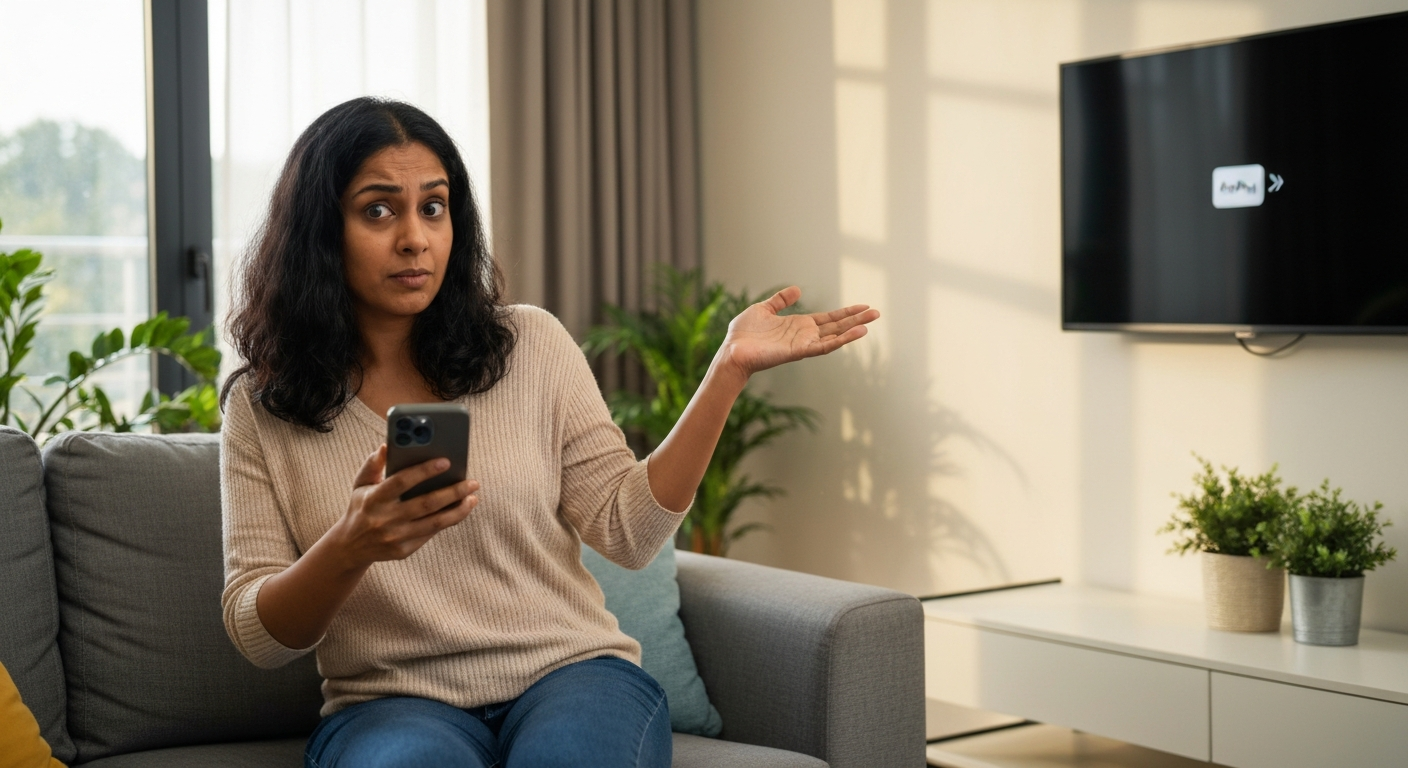

AirPlay won't work on your Roku TV because the feature is either disabled in settings, your devices aren't on the same Wi-Fi network, or there's a software glitch blocking the connection—most cases are fixed in under five minutes by toggling AirPlay off and on, restarting both devices, or checking your network setup.
AirPlay lets you stream video, music, and photos from your iPhone, iPad, or Mac directly to your Roku TV without cables. When it stops working, the culprit is almost always a simple configuration issue rather than a hardware failure. Below, you'll find the seven most common reasons AirPlay fails on Roku TVs in 2026, along with step-by-step fixes that work for every Roku-compatible model.
| ✓Quick Fix |
See What Solves This in Minutes Most people dealing with this exact problem start here — quick, affordable, and easy to try today. See on Amazon → |
AirPlay connectivity problems fall into three categories: settings misconfigurations, network issues, and software bugs—and roughly 90% of cases trace back to one of these seven specific causes.
Understanding which category your problem falls into helps you fix it faster. Here's what's likely happening when your Roku TV won't accept an AirPlay connection.
AirPlay isn't enabled by default on all Roku TVs, and it can be accidentally disabled. Navigate to Settings > Apple AirPlay and HomeKit on your Roku, and confirm the toggle is set to "On." If you've recently performed a factory reset or major software update, this setting may have reverted to off.
AirPlay requires your iPhone, iPad, or Mac to be on the exact same Wi-Fi network as your Roku TV. Many routers broadcast separate 2.4 GHz and 5 GHz networks with different names. If your phone is connected to "HomeNetwork_5G" but your Roku is on "HomeNetwork," they can't communicate. Guest networks also block AirPlay traffic by design.
Roku regularly releases firmware updates that fix AirPlay compatibility bugs. An outdated Roku OS can cause AirPlay to fail silently—your Apple device sees the TV but connections drop or never complete. Go to Settings > System > Software Update > Check Now to ensure you're running the latest version.
The same applies to your iPhone, iPad, or Mac. AirPlay 2 requires iOS 12.3 or later, iPadOS 12.3 or later, or macOS 10.14.5 (Mojave) or later. Older software versions lack the protocols needed to communicate with Roku's AirPlay implementation.
"AirPlay and HomeKit are supported on select 4K Roku TV models running Roku OS 9.4 or above." — Roku Support at Roku.com
Some routers have "AP Isolation" or "Client Isolation" enabled, which prevents devices on the same network from talking to each other. This security feature is common on mesh networks and ISP-provided routers. You'll need to access your router's admin panel to disable it for AirPlay to work.
Both Roku TVs and Apple devices can develop temporary software glitches that freeze network services. A process that handles AirPlay may have crashed or become unresponsive. A simple restart of both devices clears these frozen states.
Not every Roku TV supports AirPlay. The feature requires a Roku TV running OS 9.4 or higher and specific hardware. Most Roku TVs manufactured from 2017 onward support it, but older models and some budget lines don't. Check Roku's official compatibility list if you're unsure.
Also Read: Why Is My Firestick So Slow? 8 Causes & Quick Fixes
Follow these fixes in order—they're arranged from quickest to most thorough, and most users solve their AirPlay problem within the first three steps.
Each fix addresses one of the root causes above. Work through them systematically rather than jumping around.
Power cycle your Roku TV and Apple device completely. For the Roku, go to Settings > System > Power > System Restart, or unplug it from power for 30 seconds. For your iPhone or iPad, hold the power button and slide to power off, then wait 10 seconds before turning it back on. This clears temporary glitches and refreshes network connections.
On your Roku TV, navigate to Settings > Apple AirPlay and HomeKit. Ensure AirPlay is toggled On. While you're there, check the "Require Code" setting—if it's set to "Every Time," you'll need to enter a code displayed on your TV each time you connect. Try setting it to "First Time Only" to simplify troubleshooting.
On your iPhone or iPad, go to Settings > Wi-Fi and note the network name. On your Roku, go to Settings > Network > About and confirm it shows the same network name. If they differ, connect both to the same network. If your router broadcasts 2.4 GHz and 5 GHz separately, try putting both devices on the 5 GHz network for faster, more stable connections.
| ✓Our Pick |
HDMI cable for AirPlay streaming A well-reviewed choice that delivers real results — worth every penny for anyone dealing with this. See on Amazon → |
Go to Settings > System > Software Update > Check Now on your Roku TV. If an update is available, install it and restart the TV. Roku OS updates frequently include AirPlay bug fixes that resolve connection failures.
On your iPhone or iPad, go to Settings > General > Software Update. On a Mac, go to System Settings > General > Software Update. Install any available updates. Apple regularly patches AirPlay connectivity issues, and running the latest software ensures compatibility with Roku's implementation.
Log into your router's admin panel (usually at 192.168.1.1 or 192.168.0.1 in your browser). Look for settings labeled "AP Isolation," "Client Isolation," or "Wireless Isolation" under your Wi-Fi settings. Disable this feature, save changes, and restart your router. This allows your Apple device and Roku to communicate directly.
On your Roku TV, go to Settings > Apple AirPlay and HomeKit > Require Code and select "Reset Paired Devices." This clears all previously authorized Apple devices and forces a fresh pairing. On your Apple device, try connecting again—you'll be prompted to enter a new code displayed on your TV.
"If AirPlay isn't working, try restarting your devices, checking for software updates, and making sure your devices are on the same network and have AirPlay turned on." — Apple Support at Apple.com
When basic fixes don't work, the problem usually lies deeper in your network configuration—here's how to diagnose and resolve stubborn connectivity issues.
Network problems are the hardest to troubleshoot because they involve your router, not just the Roku or Apple device. These steps help isolate and fix network-level blocks.
Many modern routers use "band steering" to automatically switch devices between 2.4 GHz and 5 GHz frequencies. This can cause AirPlay to fail if your devices keep jumping between bands. Try disabling band steering in your router settings, or manually assign your Roku TV a static connection to one band.
Create a mobile hotspot from a second phone, then connect both your Roku TV and your primary Apple device to that hotspot. If AirPlay works over the hotspot but not your home Wi-Fi, your router is definitely the problem. This narrows down the issue and confirms your devices are otherwise functional.
If your router uses a VPN or custom DNS servers (like Pi-hole for ad blocking), these can interfere with AirPlay's Bonjour discovery protocol. Temporarily disable any VPN connections and revert to your ISP's default DNS servers to test. AirPlay relies on multicast DNS traffic that some VPN configurations block.
| Network Issue | Symptom | Fix |
|---|---|---|
| AP Isolation enabled | Roku visible but won't connect | Disable in router settings |
| Devices on different bands | Intermittent connection drops | Connect both to 5 GHz |
| VPN on router | Roku not discovered at all | Disable VPN temporarily |
| Guest network | AirPlay option doesn't appear | Switch to main network |
| Firewall blocking Bonjour | Connection times out | Allow ports 554, 3689, 5353 |
Dynamic IP assignment can occasionally cause AirPlay discovery problems. In your router's admin panel, assign your Roku TV a static IP address outside the DHCP range. This ensures the TV always has the same network address, which can resolve intermittent discovery failures.
Also Read: Why Is My Alexa Red? What the Light Means & Quick Fix
AirPlay compatibility depends on both your Roku TV's model year and its current software version—here's a quick reference to check your device.
Roku added AirPlay 2 and HomeKit support in 2020, but not all existing devices received the update. If your Roku TV isn't on this list, it physically cannot support AirPlay regardless of software updates.
| Roku TV Brand | Compatible Model Years |
|---|---|
| TCL Roku TV | 2018 and later (4K models) |
| Hisense Roku TV | 2018 and later |
| Sharp Roku TV | 2019 and later |
| Philips Roku TV | 2019 and later |
| Westinghouse Roku TV | 2019 and later |
| Onn Roku TV | 2020 and later |
| Element Roku TV | 2019 and later |
Standalone Roku streaming devices (Roku Ultra, Roku Streambar, Roku Express 4K+) manufactured from 2017 onward also support AirPlay when running Roku OS 9.4 or higher. The basic Roku Express and older Roku Premiere do not support AirPlay.
To check your specific model's compatibility, go to Settings > System > About on your Roku and note the model number. Cross-reference it with Roku's official AirPlay compatibility page.
A factory reset is the last resort when nothing else works—it erases all settings and apps but often resolves deep software corruption that blocks AirPlay.
Before resetting, try one more option: remove your Roku TV from the Home app on your Apple device (if you've added it), then re-add it. Go to the Home app, long-press your Roku TV, tap the gear icon, scroll down, and tap "Remove Accessory." Then set up AirPlay fresh from Settings > Apple AirPlay and HomeKit on the Roku.
If that doesn't work, perform a factory reset:
After the reset, test AirPlay before reinstalling your channels and configuring other settings. If it works, gradually add your apps back. If it still fails, the problem is almost certainly network-related, and you should focus troubleshooting there.
Also Read: Why Is My Keurig Not Working? 7 Causes & Quick Fixes
AirPlay failures on Roku TVs almost always come down to three things: the feature being disabled, network misconfigurations, or outdated software. Start by confirming AirPlay is enabled in your Roku's settings and that both devices are on the same Wi-Fi network. Restart both devices, update their software, and check for router settings like AP Isolation that block device-to-device communication. If your Roku TV was manufactured before 2017 or isn't running Roku OS 9.4+, it doesn't support AirPlay at all.
Software updates occasionally reset AirPlay settings to their defaults or introduce new bugs. After any Roku or Apple device update, go to Settings > Apple AirPlay and HomeKit on your Roku and confirm AirPlay is still enabled. Also check that "Require Code" hasn't changed to a more restrictive setting. If problems persist, a second update often follows within weeks to patch the issue—keep checking for updates.
This usually indicates a network issue rather than a Roku problem. Your Apple device can "see" the Roku via Bonjour discovery, but something blocks the actual data stream. Check for AP Isolation on your router, ensure both devices are on the same Wi-Fi band (not just the same network name), and disable any VPN running on your network. Firewall rules blocking ports 554 or 5353 can also cause this specific symptom.
Video streaming requires more bandwidth and uses different protocols than audio. This symptom often points to network congestion or a weak Wi-Fi signal to your Roku. Move your router closer to the TV, switch from 2.4 GHz to 5 GHz if possible, or reduce the number of devices competing for bandwidth. Some older Roku TVs also have hardware limitations that affect video AirPlay performance.
No. AirPlay requires both devices to communicate over a local network, which means you need an active Wi-Fi connection. There's no peer-to-peer AirPlay option for Roku like there is for some Apple TV models. As a workaround, you can create a mobile hotspot and connect both devices to it, but this uses cellular data for any streaming content.
Intermittent disconnections typically indicate network instability. Common causes include band steering switching your devices between frequencies, Wi-Fi interference from neighboring networks, or your router's sleep settings powering down connections. Try assigning static IP addresses to both devices, disabling band steering, and changing your router's Wi-Fi channel to reduce interference.
Reviewed and Updated on June 20, 2026 by George Wright