Cars
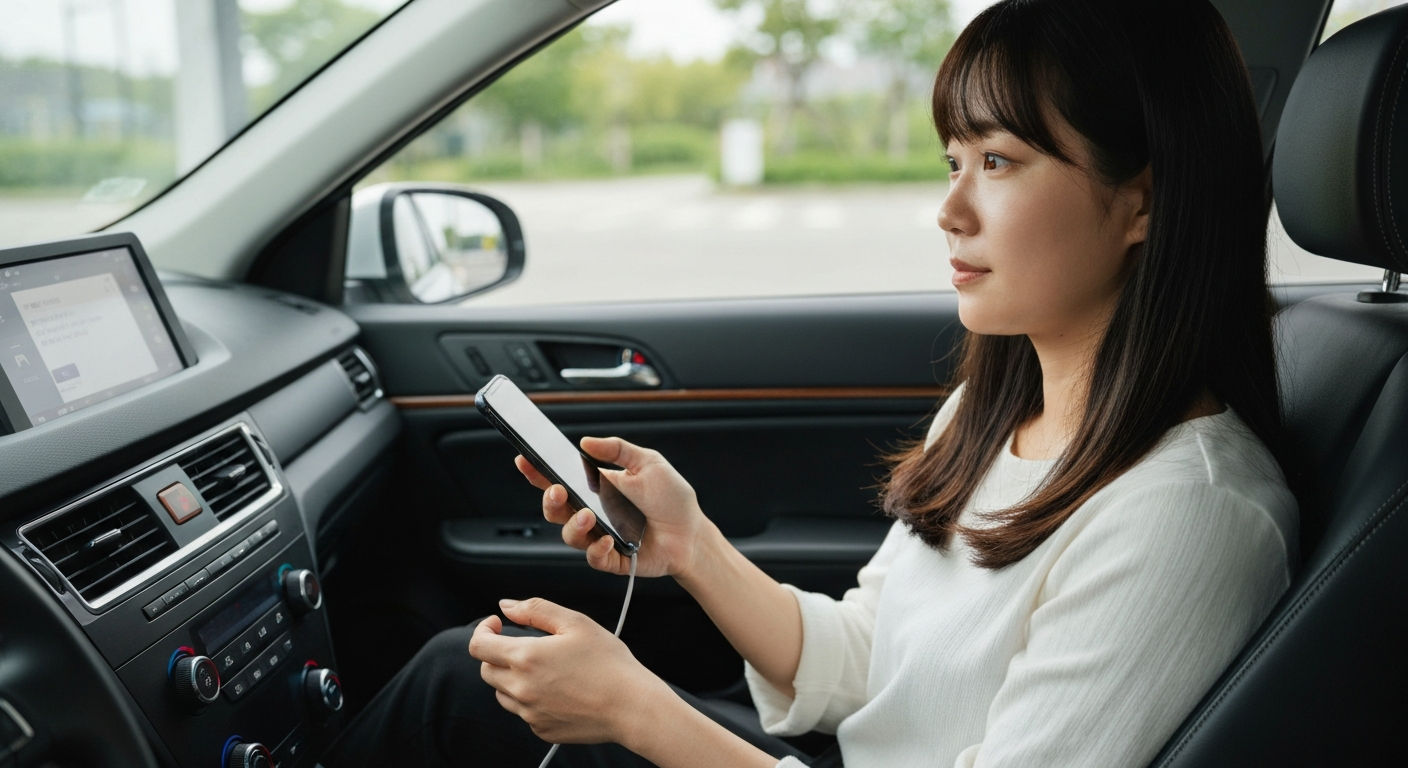

Wireless CarPlay fails when one of its two radios is off, when a saved pairing goes stale, or when an iOS feature like Private Wi-Fi Address or a VPN blocks the local link. It pairs over Bluetooth and runs data over Wi-Fi, so both must be on and clean for it to work.
Wireless CarPlay is more fragile than the wired kind because it depends on two radios cooperating, plus a few iPhone privacy features that can quietly get in the way. The reward is no cable, but the trade-off is more places for the connection to break. The good news is that the failure points are well known, and most are fixed in the phone's settings in a couple of minutes.
Wireless CarPlay needs Bluetooth and Wi-Fi at the same time. Turning off either one — or using Airplane Mode — stops the connection before it starts.
This is the single most common cause, and it surprises people who assume wireless CarPlay is a Bluetooth-only feature. It is not.
"Wireless CarPlay uses Bluetooth for initial pairing and authentication, then switches to Wi-Fi for data transfer." — Car Tech Studio
Bluetooth makes the introduction; Wi-Fi does the work. Confirm both are on in Settings.
"Open the Settings app, tap Wi-Fi, and make sure Wi-Fi is toggled on." — Leanne Hays at iPhone Life
If you keep Wi-Fi off to save battery, wireless CarPlay will never connect. Leave both radios on whenever you want it to work.
Two iPhone privacy features commonly break wireless CarPlay: Private Wi-Fi Address and an active VPN. Both interfere with the direct phone-to-car link.
Private Wi-Fi Address randomizes the identifier your phone shows a network, which can stop a car from recognizing a phone it paired with before. Turn it off for the car's CarPlay network so the car sees a consistent device. A VPN causes a similar problem by routing traffic through a tunnel that blocks the local handshake.
"For iOS 18 users specifically, turn off any active VPN connections before trying to connect CarPlay." — Car Tech Studio
Disable the VPN, connect CarPlay, and turn the VPN back on afterward if you still need it. These two settings explain a large share of wireless failures that appear right after an iOS update.
| ✓Our Pick | ||
Browse plug-in wireless CarPlay adapters that handle the connection for you Consistently earns five-star reviews — reliable, well-supported, and genuinely effective.
|
Wireless CarPlay is the connection most likely to break after a software update, because updates can reset network settings or leave a stale pairing behind. Forgetting the car and re-pairing fixes most of these.
If wireless worked until a recent update, do not assume hardware failure. Start by deleting the saved connection. Open Settings, tap General, tap CarPlay, choose the car, and remove it.
"Tap your car, then tap Forget This Car." — Leanne Hays at iPhone Life
Then restart the phone and the car and pair again from scratch. Also check Settings, General, Software Update for the latest iOS, since Apple frequently ships fixes for wireless connection bugs in point releases.
Also Read: Why Is My Phone in Recovery Mode? Causes & Fixes
Not every setup supports wireless CarPlay. The car must offer it, and the iPhone must have the radios and software to match. A mismatch leaves you with wired-only CarPlay.
Many cars offer wired CarPlay but not wireless, even on recent models. If your car only supports the wired version, no setting will enable wireless directly from the phone. The reverse also matters: a very old iPhone may struggle with the Wi-Fi demands of a wireless link. Confirm your car's CarPlay type in its manual before chasing a wireless connection that the car was never built to provide.
When a car only has wired CarPlay, or its built-in wireless keeps dropping, a plug-in adapter is the most dependable route to stable wireless CarPlay. It manages the Bluetooth and Wi-Fi handshake itself.
An adapter plugs into the car's existing wired CarPlay port and then connects to your iPhone wirelessly each time you get in. Because it handles the pairing on its own, it sidesteps the privacy settings, the stale profiles, and the flaky factory wireless that cause most of the problems above. For drivers whose cars have wired CarPlay only, it is the simplest way to go wireless without replacing the head unit.
Also Read: The Quick Fix Most Drivers Try First
A clean setup avoids most future problems. Pairing in the right order, with the right settings on, gives the connection the best chance of holding.
Start the car and put the head unit into its wireless or Bluetooth pairing mode. On the iPhone, make sure Bluetooth and Wi-Fi are both on, Airplane Mode is off, and any VPN is disabled. Then begin pairing from the car's screen and accept the prompt that appears on the phone.
Some setups will not start wirelessly on the first try. In that case, connect once with a cable to complete the initial pairing, then unplug and let the system reconnect wirelessly the next time you drive. This wired-first trick gets a stubborn wireless link going more often than any other single step.
Once paired, the car should connect on its own every time you get in. If it stops doing that later, a software update or a changed privacy setting is the usual reason, and the fixes above bring it back.
| Symptom | Likely cause | First fix |
|---|---|---|
| Never starts | Bluetooth or Wi-Fi off | Turn both radios on |
| Stopped after update | Stale profile or reset settings | Forget the car, re-pair |
| Drops in and out | Private Wi-Fi Address or VPN | Disable both for the car network |
| No wireless option | Car is wired-only | Use a wireless adapter |
| Slow or laggy | Weak Wi-Fi link or old phone | Re-pair, update iOS |
Repeated drops usually come from Private Wi-Fi Address, an active VPN, or a weak Wi-Fi link. Disable Private Wi-Fi Address for the car's network and turn off the VPN before connecting. If it persists, forget the car and pair again.
iOS updates can reset network settings or leave a stale pairing. Forget the car under Settings, General, CarPlay, restart both devices, and re-pair. Then install any newer iOS point release, which often includes wireless CarPlay fixes.
Yes. A plug-in wireless adapter connects to your car's wired CarPlay port and links to the phone wirelessly. It is the standard way to add wireless CarPlay without replacing the head unit.
Yes, somewhat, because it keeps Bluetooth and Wi-Fi active and does not charge the phone the way a cable does. Many drivers pair a wireless connection with a separate charging cable or a wireless charging pad to keep the battery topped up.
Reviewed and Updated on June 27, 2026 by Adelinda Manna