
Cars
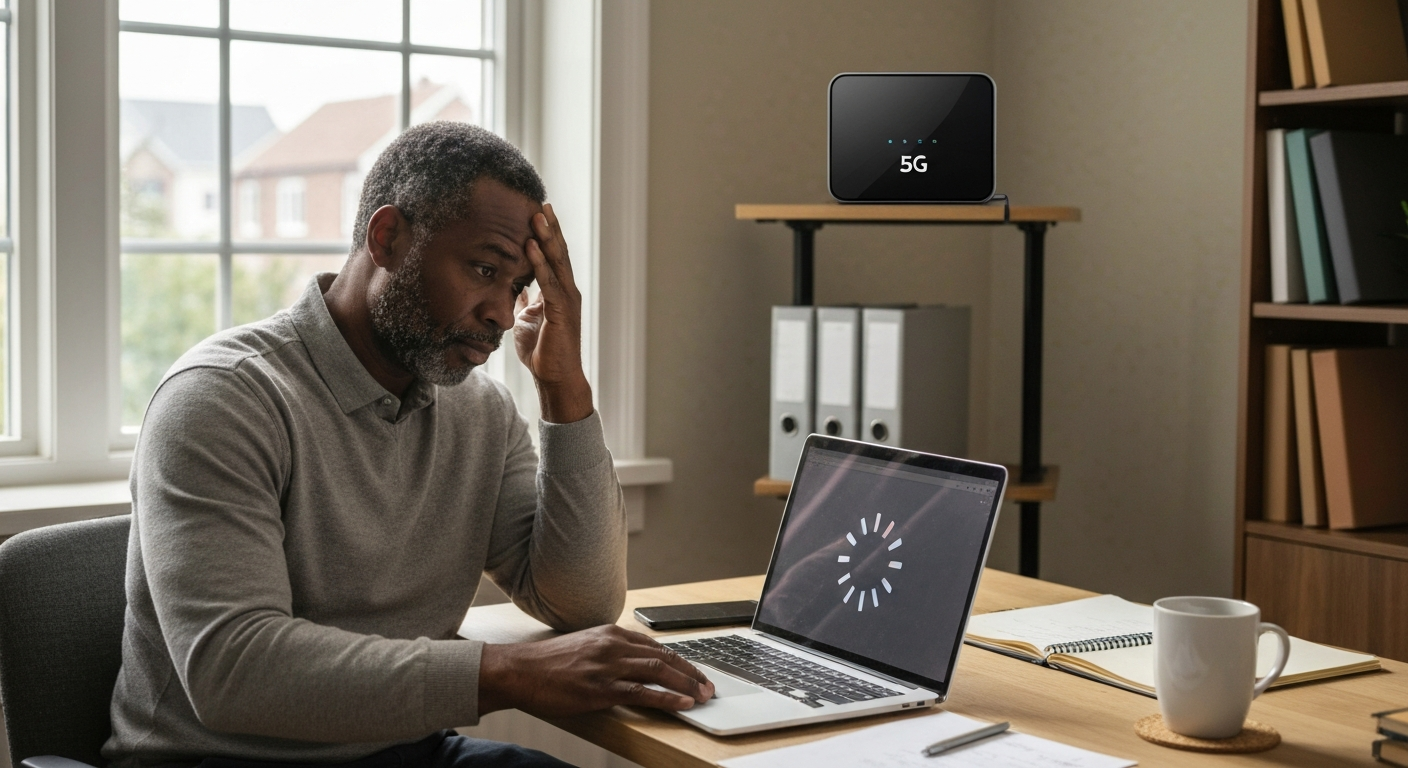

T-Mobile internet runs slow because of network congestion, poor gateway placement, signal interference, deprioritization during peak hours, or hardware issues with your 5G gateway—most of which you can diagnose and fix yourself in under 30 minutes.
If your T-Mobile home internet or phone service has suddenly slowed to a crawl, you're dealing with one of the most frustrating modern inconveniences. The good news: T-Mobile's fixed wireless service relies on cellular towers, which means the causes are predictable and the solutions are often straightforward. This guide covers every reason your T-Mobile internet might not be working properly in 2026, plus step-by-step fixes to get your speeds back up.
T-Mobile Home Internet uses 5G and LTE cellular signals instead of cable or fiber lines, which makes it more susceptible to environmental factors but also easier to troubleshoot without a technician.
Unlike traditional ISPs that run physical cables to your home, T-Mobile's fixed wireless service connects your gateway device to nearby cell towers. Your gateway acts as both a modem and router, converting cellular signals into WiFi for your home network. This setup means your internet speed depends entirely on three things: tower distance, signal quality, and how many other users share your tower's bandwidth.
The T-Mobile 5G Gateway (models like the Arcadyan KVD21 or Sagemcom Fast 5688W) displays signal metrics that tell you exactly what's happening with your connection. Understanding these numbers is the first step to fixing slow speeds.
| Metric | Good Range | Poor Range | What It Means |
|---|---|---|---|
| RSRP (Signal Power) | -80 dBm or higher | Below -100 dBm | Raw signal strength from tower |
| SINR (Signal Quality) | 10 dB or higher | Below 5 dB | Signal-to-noise ratio |
| RSRQ (Reference Quality) | -10 dB or higher | Below -15 dB | Signal quality relative to interference |
Yes—network congestion is the most common reason T-Mobile service runs slow, especially between 5 PM and 11 PM when residential usage peaks.
T-Mobile's network prioritizes traffic based on plan type and overall tower load. During high-usage periods, your connection competes with every other customer on the same tower. Home internet customers are often deprioritized below postpaid phone customers, which means your speeds can drop significantly when the network gets busy.
"Fixed wireless access customers may notice reduced speeds during times of network congestion." — T-Mobile Network Policy Documentation
You can test for congestion by running speed tests at different times. If you get 100+ Mbps at 6 AM but struggle to hit 10 Mbps at 8 PM, congestion is your culprit. Unfortunately, you can't eliminate congestion entirely, but you can minimize its impact by scheduling bandwidth-heavy activities (downloads, updates, backups) for off-peak hours.
Placing your T-Mobile gateway in the wrong spot can cut your speeds by 50% or more—even a few feet of repositioning often doubles your bandwidth.
Cellular signals degrade rapidly when they pass through walls, floors, and building materials. Metal objects, concrete, and low-e glass windows are particularly problematic. The gateway needs the clearest possible path to the nearest tower, which usually means placing it:
T-Mobile's Internet app shows your signal metrics in real-time. Walk around your home with the gateway unplugged, checking RSRP and SINR values at each potential location. The spot with the highest SINR (signal quality) typically delivers the fastest speeds, even if RSRP (raw power) is slightly lower elsewhere.
Also Read: Why Is My Room So Stuffy? 6 Causes & Easy Fixes
WiFi interference from neighboring networks and household electronics frequently causes T-Mobile internet to drop or slow down, but switching channels usually fixes it.
Your gateway broadcasts on 2.4 GHz and 5 GHz bands. The 2.4 GHz band reaches further but only has three non-overlapping channels (1, 6, and 11). In apartment buildings or dense neighborhoods, dozens of networks often compete for these same channels.
The 5 GHz band offers more channels and less interference but shorter range. If your devices support it, prioritizing 5 GHz connections typically improves performance. You can also use a WiFi analyzer app to identify the least congested channel in your area, then manually set your gateway to that channel through its admin interface (usually 192.168.12.1).
Common interference sources include:
- Microwave ovens (2.4 GHz band specifically)
- Bluetooth devices
- Baby monitors and cordless phones
- Other routers and mesh systems
- USB 3.0 devices and hubs
T-Mobile doesn't hard-throttle home internet data, but they do deprioritize your traffic when towers get congested—and some accounts face stricter limits than others.
Deprioritization means your data packets wait in line behind higher-priority customers. You're not cut off; you're just served last. This typically happens automatically when tower utilization exceeds certain thresholds.
Some T-Mobile plans include different priority tiers. Business accounts and higher-tier postpaid plans generally receive better treatment during congestion. If you're on an older or promotional plan, your deprioritization threshold might kick in sooner.
T-Mobile's network management practices also vary by region. Areas with newer tower infrastructure and more spectrum holdings handle congestion better than markets where T-Mobile is still building out capacity. Checking T-Mobile's coverage map for your specific address can reveal whether you're in an optimal service area.
Outdated or corrupted gateway firmware causes random slowdowns, dropped connections, and T-Mobile internet not working properly—rebooting or factory resetting often resolves it.
T-Mobile pushes firmware updates automatically, but they don't always install correctly. A failed update can leave your gateway in a degraded state where it technically works but performs poorly.
Try these fixes in order:
The T-Mobile Internet app displays your current firmware version. Compare it to the latest version listed in T-Mobile's support forums to confirm you're up to date.
Also Read: Why Is My Google Chrome So Slow? 12 Causes & Fast Fixes
Scheduled tower maintenance and unplanned outages explain sudden T-Mobile service slowdowns that affect an entire area, not just your connection.
T-Mobile continuously upgrades its network, which sometimes requires taking equipment offline. These maintenance windows typically happen overnight, but extended work can spill into daytime hours. Severe weather, power outages, and equipment failures also cause unplanned disruptions.
Check for outages through:
- T-Mobile's official outage page (my.t-mobile.com)
- The T-Mobile Internet app's connection status
- Downdetector.com for user-reported issues
- T-Mobile's Twitter/X support account (@TMobileHelp)
If the outage affects your tower specifically, there's nothing you can do except wait. T-Mobile typically resolves major outages within hours, though complex repairs can take longer.
Running speed tests incorrectly produces misleading results—testing at the gateway level versus over WiFi reveals whether your problem is cellular signal or local network.
Many users test speeds on a laptop connected via WiFi, which introduces variables unrelated to T-Mobile's network. For accurate diagnostics:
T-Mobile home internet plans typically advertise 33-245 Mbps depending on your location and available spectrum. Actual speeds vary significantly based on tower conditions. If ethernet-connected tests show good speeds but WiFi is slow, your gateway's WiFi radio or local interference is the issue—not T-Mobile's network.
"Typical download speeds on our 5G network range from 72-245 Mbps, with some customers experiencing higher speeds." — T-Mobile Home Internet Specifications
External antennas boost T-Mobile signal strength by 10-20 dB in weak coverage areas, turning unusable connections into reliable service.
If your gateway consistently shows poor signal metrics (RSRP below -100 dBm, SINR below 5 dB) regardless of placement, an external antenna might help. T-Mobile's gateways have antenna ports that accept aftermarket MIMO antennas designed for cellular frequencies.
Antenna options include:
- Panel antennas: Directional, aimed at a specific tower
- Omni antennas: 360-degree reception, no aiming required
- Yagi antennas: High-gain, narrow beam for maximum distance
Installation requires identifying your nearest tower (CellMapper.net helps), mounting the antenna with clear line-of-sight, and connecting it to your gateway's external antenna ports. This modification isn't officially supported by T-Mobile but is widely used by customers in rural or fringe coverage areas.
Systematic troubleshooting resolves most T-Mobile speed issues within an hour—start with the easiest fixes before considering hardware changes.
| Issue | Fix | Time Required |
|---|---|---|
| Slow speeds all day | Relocate gateway near window | 15 minutes |
| Slow only at night | Schedule heavy usage for off-peak | Ongoing |
| Dropped connections | Update firmware, factory reset | 10 minutes |
| Poor WiFi in some rooms | Switch to 5 GHz, change channels | 5 minutes |
| Consistently weak signal | Install external antenna | 1-2 hours |
| Complete outage | Check T-Mobile outage map | 2 minutes |
If you've tried everything and speeds remain unusable, contact T-Mobile support with your signal metrics documented. They can check tower conditions, verify your account status, and potentially offer a different gateway model. In some cases, T-Mobile will acknowledge that your address isn't suitable for their service and allow you to cancel without penalty.
| ✓Our Pick |
Search T-Mobile compatible routers and signal boosters A top-rated pick that works — readers who tried this reported noticeable improvement within days. See on Amazon → |
T-Mobile internet slowdowns typically stem from network congestion, poor gateway placement, WiFi interference, or firmware issues. Relocating your gateway near a window, testing speeds via ethernet, checking for outages, and power-cycling the device fix most problems. If your signal metrics consistently show weak values, external antennas can dramatically improve performance in marginal coverage areas.
Complete outages usually indicate tower problems, gateway failure, or account issues. First, check T-Mobile's outage map and the status lights on your gateway. A solid red light typically means no cellular connection. Try power-cycling the gateway, and if that fails, contact T-Mobile support to verify your account is active and check for local tower maintenance.
Phone slowdowns follow similar patterns to home internet—congestion, weak signal, or deprioritization. Check your signal bars and try toggling airplane mode on and off to force a new tower connection. If you've used significant data during your billing cycle, some plans reduce speeds after hitting certain thresholds, though T-Mobile's premium unlimited plans don't hard-throttle.
Yes, severe weather impacts cellular signals. Heavy rain causes signal attenuation, and storms can damage tower equipment. Snow and ice accumulation on your gateway's location (if near a window) can also degrade reception. Speeds typically return to normal once weather clears, though storm damage may require repair crews.
Using your own router in "bridge mode" or connected to the gateway's ethernet port can improve WiFi performance if your personal router has better range or features. However, this doesn't fix cellular signal issues—only local network performance. The gateway must remain connected to receive T-Mobile's 5G/LTE signal.
Open the T-Mobile Internet app on your phone and navigate to the connection or network section. You'll see RSRP, SINR, and RSRQ values. Alternatively, log into the gateway's admin page (usually 192.168.12.1) using the credentials on your device's label. Higher RSRP and SINR numbers indicate better signal quality.
Reviewed and Updated on June 13, 2026 by Adelinda Manna