Technology

T-Mobile internet runs slow because of network congestion, weak signal strength, gateway placement issues, or outdated firmware — and fixing it usually takes less than 15 minutes once you identify the cause.
T-Mobile Home Internet and hotspots rely on cellular towers rather than cable or fiber infrastructure. That fundamental difference means your speeds fluctuate based on factors traditional ISPs never deal with: tower distance, building materials blocking signal, how many neighbors share your cell sector, and even weather conditions. When your T-Mobile service suddenly slows to a crawl or stops working entirely, the problem almost always traces back to one of nine specific causes — each with a straightforward fix.
| ✓Our Pick |
Reduce gaming lag and stop ISP throttling with NordVPN A top-rated pick that works — readers who tried this reported noticeable improvement within days. Learn More → |
T-Mobile Home Internet failures typically stem from tower outages, gateway hardware problems, or account-level issues that block your service entirely.
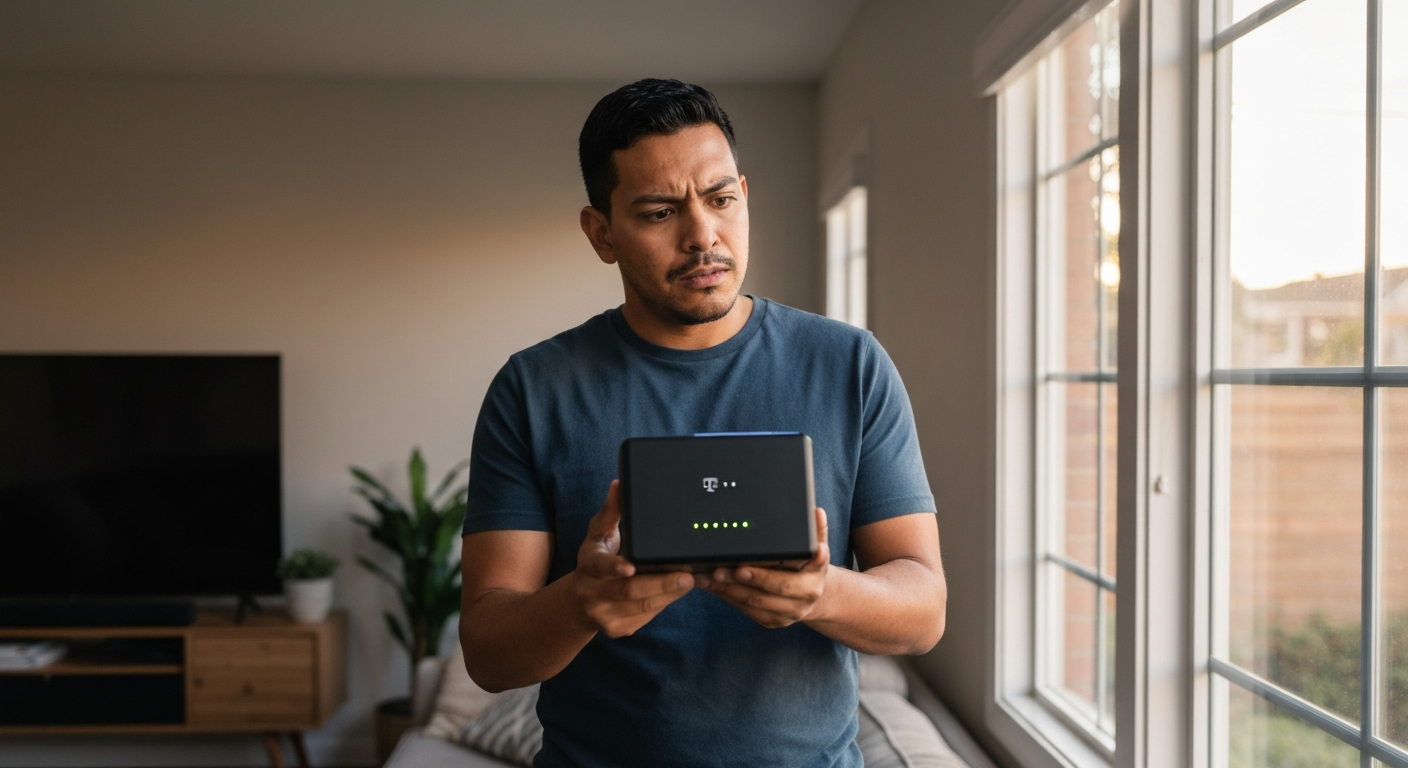
Before troubleshooting speed, confirm your service is actually functional. A complete outage requires different fixes than slow speeds. Check the LED indicators on your gateway — solid lights indicate connection, while blinking or red lights signal a problem. The T-Mobile app shows real-time network status for your area, and you can also text "STATUS" to 456 from your T-Mobile phone to check for known outages.
If your T-Mobile hotspot box is not working at all, try a different power outlet first. These gateways draw significant power, and a weak outlet or failing surge protector can cause intermittent shutdowns. Hold the reset button for 30 seconds to perform a factory reset as a last resort — you'll need to reconfigure your WiFi settings afterward, but this clears most firmware glitches.
Congestion occurs when too many users share the same cell tower, and it's the most common cause of slow T-Mobile internet during evenings and weekends.
T-Mobile's 5G Home Internet customers share bandwidth with mobile phone users on the same tower. During peak hours — typically 6 PM to 11 PM — you're competing with everyone in your neighborhood streaming Netflix, gaming, and video calling simultaneously. T-Mobile prioritizes mobile customers during extreme congestion, which means home internet users may see speeds drop from 100+ Mbps to under 20 Mbps.
"Fixed Wireless Access customers may notice slower speeds during network congestion, as mobile device traffic is prioritized." — T-Mobile Network Policy Documentation
Test your speeds at different times of day using speedtest.net. If you consistently see fast speeds at 6 AM but sluggish performance at 8 PM, congestion is your culprit.
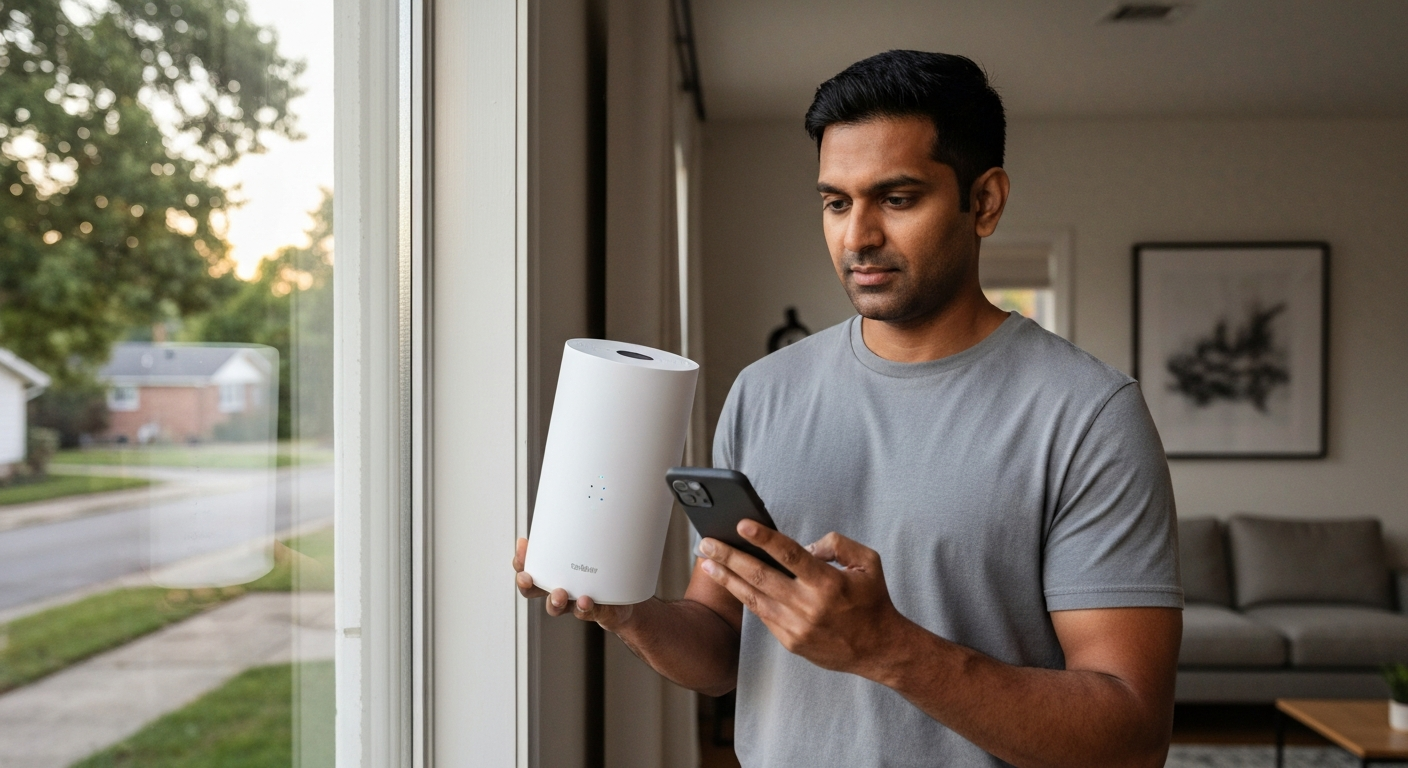
Gateway placement directly affects signal strength — moving it even a few feet can double your speeds.
Unlike a cable modem that works identically anywhere in your home, T-Mobile gateways need line-of-sight (or close to it) to the nearest tower. Placing your gateway in a basement, closet, or center of your home blocks the cellular signal that delivers your internet.
Optimal placement follows these rules:
- Near a window facing the nearest T-Mobile tower
- On an upper floor if possible
- Away from metal objects, appliances, and thick walls
- At least 6 feet from other electronics that cause interference
Use the T-Mobile Internet app's placement assistant feature. It displays real-time signal metrics as you move the gateway, helping you find the strongest spot.
Certain construction materials dramatically weaken cellular signals, and newer energy-efficient homes are often the worst offenders.
Metal roofs, low-E glass windows, stucco with wire mesh, and concrete walls all attenuate cellular signals. A home built in 2020 with energy-efficient windows might get half the signal strength of an older home with single-pane glass.
| Building Material | Signal Loss |
|---|---|
| Standard glass | 4 dB |
| Low-E coated glass | 24–40 dB |
| Brick | 6–10 dB |
| Concrete | 10–15 dB |
| Metal siding/roof | 30–50 dB |
If you suspect building materials are the problem, try placing your gateway directly against an exterior wall or even temporarily outside (protected from weather) to test. A significant speed improvement confirms the diagnosis.
Outdated firmware causes connection drops, slow speeds, and features that simply stop working until you update.
T-Mobile pushes firmware updates automatically, but they sometimes fail to install. Check your current firmware version in the T-Mobile Internet app under Gateway > About. Compare it to the latest version listed on T-Mobile's support site. If you're behind, restart your gateway by unplugging it for 60 seconds — it will check for updates during the boot sequence.
Firmware updates in 2026 have addressed several speed-related bugs, including one that caused the Nokia and Arcadyan gateways to fall back to slower LTE bands even when 5G was available.
Also Read: Why Is My Internet Cutting In and Out? 9 Causes & Fixes
T-Mobile throttles hotspot speeds after you exceed your plan's high-speed data allotment, reducing speeds to 600 Kbps or 3 Mbps depending on your plan.
If you're using a T-Mobile phone as a mobile hotspot rather than the dedicated Home Internet service, data caps apply. Most T-Mobile plans include 40–50 GB of high-speed hotspot data before throttling kicks in. Check your data usage in the T-Mobile app — if you've crossed the threshold, slow speeds will persist until your billing cycle resets.
Home Internet plans don't have data caps, but they do have deprioritization thresholds. After extremely heavy usage (typically 1+ TB monthly), you may experience slower speeds during congestion.
Your gateway might lock onto a weaker 5G band when a stronger LTE or different 5G band is available nearby.
T-Mobile's network uses multiple frequency bands: n41 (mid-band 5G), n71 (low-band 5G), and various LTE bands as fallback. The gateway doesn't always choose the fastest available option. Mid-band n41 offers the highest speeds but has shorter range — your gateway might connect to distant n41 rather than nearby n71, resulting in weaker signal and slower actual throughput.
Some users report success with third-party apps that display detailed band information, though T-Mobile officially doesn't support manual band selection. Repositioning your gateway often encourages it to reconnect to a better band.
Slow DNS servers add latency to every website you visit, making your connection feel sluggish even when raw bandwidth is fine.
T-Mobile's default DNS servers occasionally experience delays. Switching to a faster public DNS like Cloudflare (1.1.1.1) or Google (8.8.8.8) can improve perceived speed, especially for web browsing.
To change DNS on your devices:
1. Open network settings on your computer or phone
2. Find DNS settings (usually under Advanced or IP settings)
3. Replace automatic DNS with 1.1.1.1 and 1.0.0.1
4. Save and reconnect
Note: The T-Mobile gateway itself doesn't allow DNS changes through its interface. You'll need to configure DNS on individual devices or on a secondary router connected to the gateway.
Your cellular connection might be fast, but outdated WiFi settings or interference from neighbors can throttle what reaches your devices.
Connect a device directly to your gateway via Ethernet cable and run a speed test. If wired speeds are significantly faster than WiFi, the problem isn't T-Mobile's network — it's your wireless setup.
Common WiFi culprits:
- Gateway broadcasting on congested 2.4 GHz when 5 GHz is available
- Too many devices connected simultaneously
- Neighboring WiFi networks causing interference
- Devices connected at older WiFi standards (802.11n instead of WiFi 6)
The T-Mobile Internet app lets you split your 2.4 GHz and 5 GHz networks into separate SSIDs, ensuring your primary devices connect to the faster 5 GHz band.
Also Read: Why Is My Internet Upload Speed So Slow? 7 Causes & Fixes
T-Mobile regularly upgrades, maintains, and occasionally decommissions towers — changes that directly impact your home internet performance.
If your service was fast for months and suddenly degraded without any changes on your end, tower modifications may be responsible. T-Mobile doesn't publicly announce routine tower maintenance, but their support team can see work orders affecting your area.
Call 611 from your T-Mobile phone or 1-800-937-8997 and specifically ask: "Has there been any tower maintenance or configuration change affecting my address in the past 30 days?" Representatives can also submit a network ticket if speeds are consistently below what's advertised.
| Step | Action | What It Tells You |
|---|---|---|
| 1 | Check LED lights on gateway | Red or blinking = hardware/connection issue |
| 2 | Run speed test at speedtest.net | Baseline comparison against your plan |
| 3 | Test via Ethernet, not WiFi | Isolates cellular vs WiFi problems |
| 4 | Test at different times | Peak vs off-peak reveals congestion |
| 5 | Move gateway near window | Signal strength affecting speeds |
| 6 | Check T-Mobile app for outages | Known issues in your area |
| 7 | Restart gateway (full 60 seconds) | Clears temporary glitches |
| 8 | Contact T-Mobile support | Tower-level issues only they can see |
Fiber slowdowns usually indicate router problems, Ethernet cable issues, or ISP throttling — not the fiber connection itself.
If you've switched from T-Mobile to fiber and still experience slow speeds, the fiber line is rarely at fault. Fiber optic cables either work at full speed or fail completely — there's no gradual degradation like cellular signals.
Check your router first. Many ISP-provided routers bottleneck gigabit fiber connections, especially under heavy load. Next, verify your Ethernet cables are Cat6 or newer — older Cat5 cables can't sustain gigabit speeds. Finally, some fiber ISPs throttle specific traffic types like torrents or gaming. A VPN can bypass this throttling by encrypting your traffic so your ISP can't identify what you're doing.
"Fiber to the home provides symmetric upload and download speeds, but actual performance depends heavily on home networking equipment and ISP policies." — Fiber Broadband Association Technical Resources
T-Mobile Home Internet works excellently in some locations and poorly in others — there's no universal experience. If you've optimized gateway placement, confirmed no tower issues, and consistently see speeds below 25 Mbps during your primary usage hours, the network simply may not serve your address well.
Check whether cable or fiber has become available at your address since you signed up. T-Mobile Home Internet expanded rapidly to underserved areas, but traditional ISPs have also extended their networks. You might have options now that didn't exist when you first subscribed.
T-Mobile internet slowdowns typically trace to network congestion during peak hours, poor gateway placement blocking cellular signal, or firmware and settings that need updating. Test speeds via Ethernet to isolate WiFi problems, move your gateway near a window facing the nearest tower, and restart the device fully before assuming the problem is on T-Mobile's end. If speeds remain consistently slow after these steps, contact T-Mobile support to check for tower-level issues affecting your specific address.
A non-functional T-Mobile hotspot usually means the device can't connect to the cellular network. Check that mobile data is enabled in your phone settings, verify you haven't exceeded your hotspot data cap for the billing cycle, and ensure the hotspot feature is included in your plan. For dedicated hotspot devices, try removing and reinserting the SIM card, then restart the device. If the hotspot still won't connect, your SIM may need reprovisioning — T-Mobile support can push a refresh to your device remotely.
Complete T-Mobile service failure — no calls, texts, or data — indicates either a network outage, account issue, or SIM problem. Check the T-Mobile outage map first. If no outage is reported, verify your account is in good standing and not suspended for non-payment. Try your SIM card in another phone to rule out device problems. For eSIM users, sometimes re-downloading the eSIM profile resolves connection issues that a restart won't fix.
Yes, weather impacts T-Mobile Home Internet more than traditional wired connections. Heavy rain attenuates 5G signals, particularly the higher-frequency n41 band. Dense fog and snow can also reduce signal strength. During severe weather, your gateway may fall back to more reliable but slower bands. Speeds typically recover once conditions clear, but persistent weather-related issues may indicate your gateway is borderline on signal strength to begin with.
T-Mobile doesn't throttle Home Internet based on data usage, but does deprioritize heavy users during network congestion. In practice, this means someone using 200 GB monthly won't notice any difference during off-peak hours, but may see reduced speeds during evening congestion compared to lighter users. This isn't throttling in the traditional sense — your maximum speed isn't artificially capped — but you get lower priority for bandwidth when the tower is busy.
Using your own router behind the T-Mobile gateway can improve WiFi performance, especially in larger homes. Connect your router to the gateway's Ethernet port and configure it as an access point or in bridge mode to avoid double-NAT issues. This setup gives you better WiFi coverage, more advanced settings, and potentially faster wireless speeds — the cellular connection remains the same, but how that bandwidth reaches your devices improves significantly.
Reviewed and Updated on June 13, 2026 by Adelinda Manna