Technology

T-Mobile Home Internet slows down primarily due to network congestion, weak signal strength, poor gateway placement, or exceeding your plan's deprioritization threshold—all of which you can diagnose and fix in under 30 minutes with the right approach.
T-Mobile's 5G Home Internet relies on cellular towers rather than cables, which means your speeds can fluctuate based on factors that wouldn't affect traditional wired connections. The good news: most slowdowns stem from fixable issues on your end, not permanent limitations of the service. Let's walk through exactly what's throttling your connection and how to get it running at full speed again.
T-Mobile Home Internet performance depends on three main factors: the signal reaching your gateway, the number of users sharing your local tower, and how your home network distributes that connection to your devices.
Unlike cable or fiber internet, T-Mobile's service shares bandwidth with mobile phone users on the same cell towers. When those towers get busy—during evening hours when everyone's streaming, for example—your home internet takes a back seat. T-Mobile's network management policies prioritize mobile customers during congestion, which can temporarily reduce your speeds even if your signal is strong.
The other major factor is physics. Radio waves weaken as they travel through walls, windows, and distance. Your gateway's placement matters enormously—sometimes moving it six feet can double your speeds.
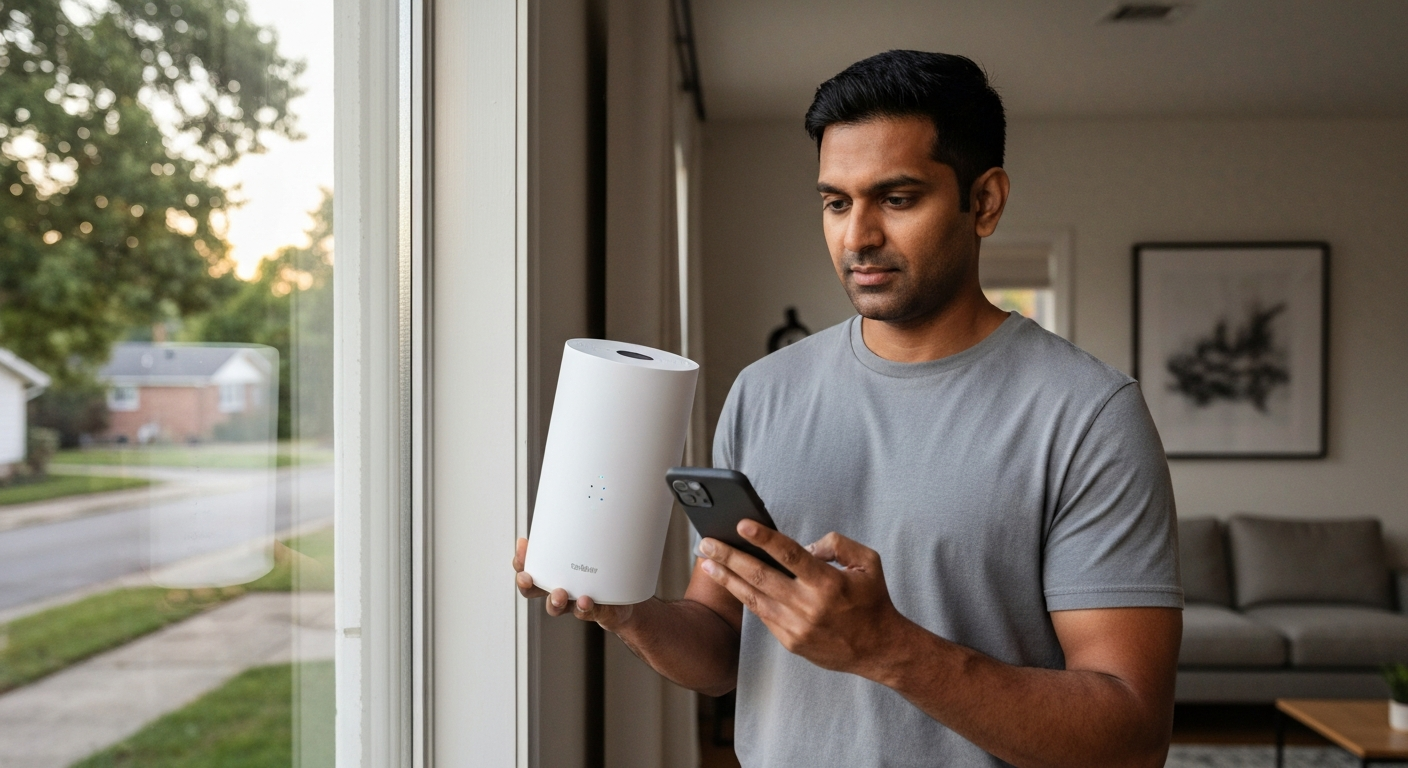
The single most impactful fix for slow T-Mobile internet is repositioning your gateway near a window facing the nearest cell tower, ideally on an upper floor with minimal obstructions.
T-Mobile's 5G gateway works best with a clear line of sight to the tower. Low-E glass (common in energy-efficient windows), concrete walls, metal siding, and even large mirrors can block or weaken the signal significantly. The difference between a gateway sitting on a desk in a basement versus one placed near an upstairs window can be 100+ Mbps.
Here's how to find the optimal spot:
If you're unsure where your nearest tower is, websites like CellMapper show tower locations in your area. Point your gateway toward that tower, even if you can't see it directly.
"Placement is everything with fixed wireless. A gateway in the wrong spot can perform 10x worse than one positioned optimally—same hardware, same tower, completely different experience." — Chris Welch at The Verge
Also Read: Why Is My Internet Cutting In and Out? 9 Causes & Fixes
Yes—T-Mobile Home Internet customers are deprioritized below mobile users during peak congestion, which typically occurs between 6 PM and 11 PM local time.
This isn't throttling in the traditional sense. T-Mobile doesn't cap your speeds artificially. Instead, when a tower gets busy, mobile phone traffic gets first dibs on bandwidth. Your home internet connection uses whatever capacity remains. During off-peak hours (late night through mid-afternoon), you might see speeds of 200+ Mbps. During prime time, that same connection could drop to 20-50 Mbps.
Run speed tests at different times of day to confirm whether congestion is your issue:
| Time of Day | Expected Behavior | Typical Speeds |
|---|---|---|
| 6 AM – 12 PM | Low congestion | 100–300 Mbps |
| 12 PM – 5 PM | Moderate congestion | 75–200 Mbps |
| 5 PM – 11 PM | Peak congestion | 25–100 Mbps |
| 11 PM – 6 AM | Minimal congestion | 150–400 Mbps |
If your speeds consistently drop during evening hours but recover overnight, congestion is likely the culprit—and there's limited action you can take beyond scheduling large downloads for off-peak times.
| ✓Our Pick |
Search mesh WiFi systems to extend coverage Backed by strong customer feedback — the most recommended solution in forums and Q&A communities. See on Amazon → |
A simple gateway restart clears cached data and forces a fresh connection to the tower, often resolving speed issues caused by software glitches or stale network assignments.
T-Mobile's gateways (the Arcadyan and Nokia models) occasionally need a reboot to maintain optimal performance. The device might be connected to a congested tower when a less-busy one is available, or a firmware bug could be limiting speeds.
To restart properly:
T-Mobile also pushes firmware updates automatically, but these sometimes require a restart to apply. Check the T-Mobile Internet app for any pending updates. If your gateway hasn't been power-cycled in weeks, do it now—this single step fixes the majority of temporary slowdowns.
Each device connected to your gateway consumes bandwidth, and older devices using outdated WiFi standards can bottleneck your entire network by forcing the gateway to slow down for compatibility.
T-Mobile's gateways support WiFi 6, which handles multiple devices efficiently. However, if you have older devices (pre-2019 phones, tablets, or laptops) still using WiFi 4 or 5, they can create congestion on your local network even when your tower connection is strong.
Check how many devices are connected through the T-Mobile Internet app. For a typical household, the gateway handles 20-30 devices without issue. Problems arise when:
Consider disconnecting devices you're not actively using, or connecting bandwidth-heavy devices (gaming consoles, streaming boxes) via ethernet if your gateway has an ethernet port. A wired connection bypasses WiFi congestion entirely.
Also Read: Why Is My Ethernet Slower Than WiFi? 9 Causes & Fixes
T-Mobile uses multiple 5G bands with vastly different speeds—if your gateway is connecting to extended-range bands (n71) instead of faster mid-band (n41), your speeds will be significantly lower.
Not all 5G is created equal. T-Mobile's network uses three primary bands:
| Band | Frequency | Typical Speeds | Range |
|---|---|---|---|
| n71 | 600 MHz | 25–75 Mbps | Excellent (rural coverage) |
| n41 | 2.5 GHz | 100–400 Mbps | Good (suburban/urban) |
| mmWave | 24+ GHz | 500–1000+ Mbps | Poor (line-of-sight only) |
The T-Mobile Internet app shows which band you're connected to. If you're seeing n71 instead of n41, repositioning your gateway or adding an external antenna might help it lock onto the faster band. Some users in suburban areas find that elevating the gateway or moving it to a different side of the house allows it to reach a mid-band tower.
"The difference between T-Mobile's low-band and mid-band 5G can be dramatic—we're talking 5x to 10x faster speeds on n41 versus n71 for fixed wireless customers." — Sascha Segan at PCMag
T-Mobile performs regular tower maintenance that can temporarily degrade service, and outages affecting specific towers won't always appear on national outage maps.
Before spending an hour repositioning equipment, verify that the network itself is functioning normally. The T-Mobile Internet app displays service alerts for your area. You can also check:
Tower maintenance typically happens during off-peak hours (2 AM – 6 AM), but emergency repairs can occur anytime. If your speeds dropped suddenly and nothing has changed on your end, an outage or maintenance window is likely. Wait 24 hours before troubleshooting further.
Contact T-Mobile if you've tried repositioning, restarting, and waiting through potential congestion periods but still see speeds consistently below 25 Mbps—this may indicate a tower issue, account problem, or need for equipment replacement.
T-Mobile's support team can:
Before calling, document your speeds at different times using Ookla Speedtest or Fast.com. Concrete data helps support agents escalate your issue rather than running through standard troubleshooting scripts you've already tried.
If your location simply doesn't receive adequate T-Mobile coverage, you may be eligible to cancel without penalty under their 15-day trial policy (for new customers) or negotiate a plan credit.
T-Mobile Home Internet slowdowns usually trace back to gateway placement, network congestion during peak hours, or connection to slower 5G bands. Start by repositioning your gateway near a window on an upper floor, restart it to clear any software issues, and check the T-Mobile app to see which band you're connected to. If speeds remain poor after these steps and you've ruled out local outages, contact T-Mobile support with documented speed test results to request a gateway replacement or account review.
Evening slowdowns (typically 6 PM to 11 PM) happen because T-Mobile's network deprioritizes home internet users below mobile customers during congestion. More people are using their phones and home connections during these hours, so the tower has less capacity to spare. This is normal network management, not a problem with your equipment. Schedule large downloads for early morning hours when possible.
Yes, though less dramatically than satellite internet. Heavy rain, dense fog, and severe storms can weaken cellular signals, particularly on higher-frequency bands like n41 and mmWave. If speeds drop during bad weather and recover afterward, this is the likely cause. Tree foliage can also affect signals seasonally—speeds may be faster in winter when leaves have fallen.
T-Mobile doesn't throttle home internet to a specific speed cap, but they do deprioritize it during network congestion. The distinction matters: throttling would limit you to, say, 50 Mbps regardless of tower capacity, while deprioritization only affects you when the tower is busy. If your speeds are consistently slow even during off-peak hours, the issue is likely signal quality or equipment placement, not deliberate throttling.
Signs of a defective gateway include frequent disconnections that don't improve with repositioning, inability to maintain a stable connection even with strong signal metrics, overheating (the device becomes hot to the touch), or failure to receive firmware updates. If your gateway is more than two years old and performance has degraded over time, request a replacement from T-Mobile support.
External antennas can significantly improve speeds for users with weak signals, particularly in rural areas or homes with signal-blocking construction materials. However, T-Mobile's newer gateways (like the Arcadyan KVD21) don't have external antenna ports, limiting your options. Some users have successfully used passive signal reflectors or WiFi-based mesh extenders to improve coverage within their homes, even if they can't boost the cellular signal itself.
Reviewed and Updated on June 13, 2026 by Adelinda Manna