Technology
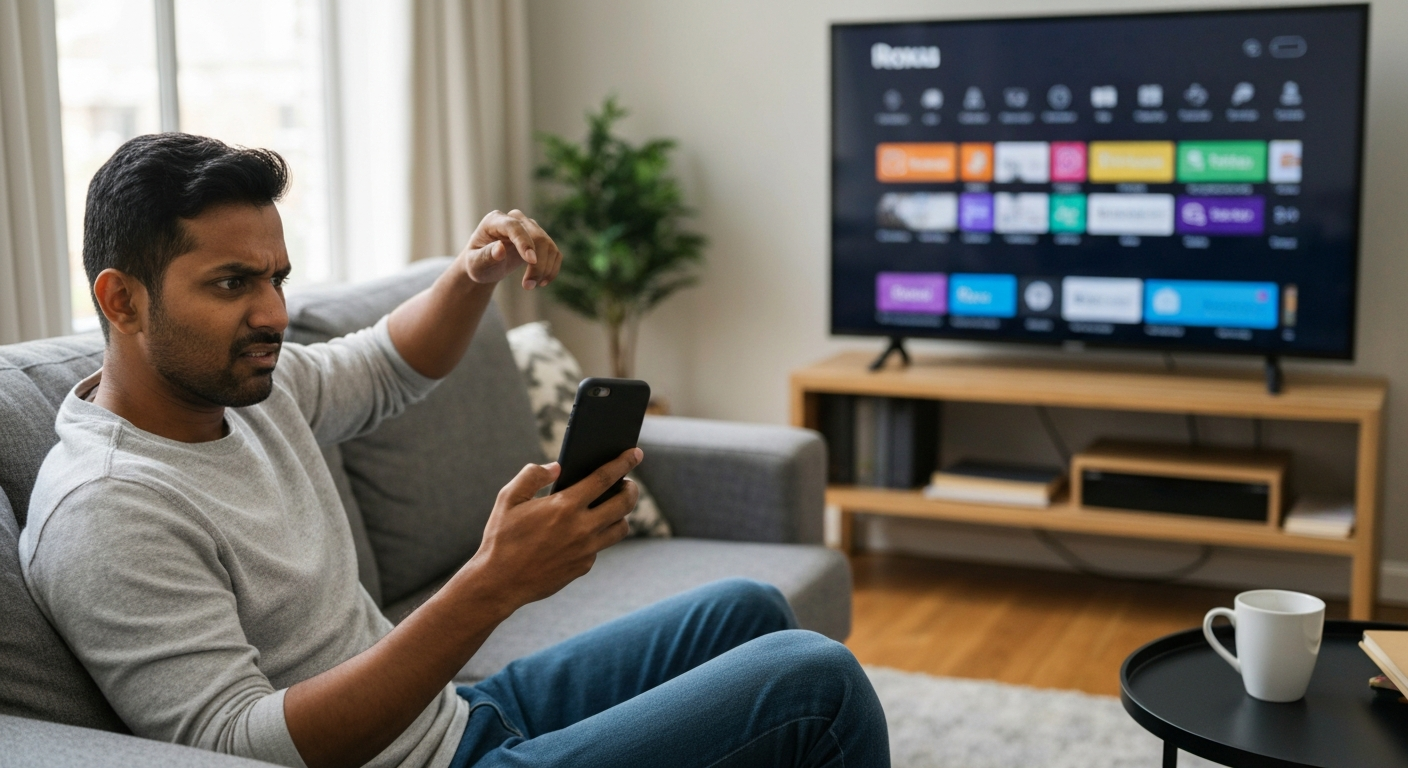

Your Roku remote on your phone isn't working because the app and your Roku device aren't on the same Wi-Fi network, the app needs an update, or your phone's permissions are blocking the connection — force-closing the app and verifying both devices share one network fixes most cases in under two minutes.
The Roku mobile app turns your smartphone into a fully functional remote, but when it stops responding, you're stuck staring at a frozen screen. The good news: this problem almost always comes down to a network mismatch, an outdated app, or a permission setting that got toggled off. Below, I'll walk you through every cause and the exact steps to restore control.
Also Read: Why Is My Roku App Remote Not Working? 8 Causes & Fixes
The Roku app remote relies entirely on your local Wi-Fi network to communicate with your streaming device — if anything disrupts that connection, the remote feature fails silently without an error message.
Unlike infrared remotes that beam signals directly to a sensor, the Roku app sends commands over your home network. Your phone talks to your router, which relays the instruction to your Roku. This chain has multiple potential failure points, and the app doesn't always tell you which link broke.
"The Roku mobile app requires both your mobile device and your Roku device to be connected to the same wireless network." — Roku Support at Roku.com
When the app can't find your Roku, it either shows "no devices found" or appears to connect but commands do nothing. Both symptoms trace back to the same underlying causes.
This is the most frequent culprit — your phone silently switched to a guest network, a 5GHz band, or mobile data while your Roku stayed on the original 2.4GHz connection.
Many routers broadcast two networks (2.4GHz and 5GHz) with similar names. Your phone might auto-connect to "HomeNetwork-5G" while your Roku uses "HomeNetwork." They look like the same network but function as separate channels that can't communicate directly with each other.
Fix it:
1. On your phone, go to Settings → Wi-Fi and note the exact network name
2. On your Roku, navigate to Settings → Network → About and check the network name
3. If they differ, reconnect your phone to the same network your Roku uses
4. Disable mobile data temporarily to prevent your phone from falling back to cellular
Apps can hang in a zombie state where they appear open but aren't actually processing commands — force-closing and reopening clears this.
Your phone's operating system sometimes keeps apps running in a suspended state to save battery. The Roku app may think it's connected when the connection actually timed out minutes ago.
Fix it (iPhone):
1. Swipe up from the bottom and pause in the center of the screen
2. Find the Roku app card and swipe it up to close
3. Wait 10 seconds, then reopen the app
Fix it (Android):
1. Go to Settings → Apps → Roku
2. Tap "Force Stop"
3. Return to your home screen and relaunch the app
The app requires local network access permission to discover and control your Roku — if you denied this permission during setup or a system update reset it, the remote won't function.
Both iOS and Android have added increasingly strict privacy controls over apps accessing your local network. A single denied permission prompt can permanently break the remote feature until you manually re-enable it.
Fix it (iPhone/iPad — iOS 14 and later):
1. Open Settings → Privacy & Security → Local Network
2. Find "Roku" in the list and ensure the toggle is ON
3. If you don't see Roku listed, delete and reinstall the app to trigger a fresh permission request
Fix it (Android):
1. Go to Settings → Apps → Roku → Permissions
2. Enable "Nearby devices" or "Local network" (wording varies by Android version)
3. Also enable Location permission — some Android versions require this for Wi-Fi device discovery
An outdated app version may have bugs or lack compatibility with recent Roku firmware updates — updating to the latest release resolves most unexplained failures.
Roku regularly pushes firmware updates to streaming devices. If your app version predates a major firmware change, the remote protocol may no longer match.
Fix it:
1. Open the App Store (iPhone) or Google Play Store (Android)
2. Search for "Roku" and tap "Update" if available
3. If no update appears, uninstall and reinstall the app to get the freshest version
Your Roku may appear to be working (displaying the home screen) while its Wi-Fi connection has actually dropped — the device caches the interface but can't receive commands.
Power outages, router reboots, or signal interference can knock your Roku offline without any visible indication on the TV screen.
Fix it:
1. On your Roku (using the physical remote or TV buttons if available), go to Settings → Network → Check Connection
2. If the check fails, select "Set up connection" and reconnect to your Wi-Fi
3. If you don't have a physical remote, unplug your Roku for 30 seconds, then plug it back in — it will automatically attempt to rejoin the network
Also Read: Why Is My Internet Cutting In and Out? 9 Causes & Fixes
Some routers have an "AP Isolation" or "Client Isolation" setting enabled that prevents devices on the same network from seeing each other — this breaks the Roku app remote completely.
This security feature is common on guest networks and some ISP-provided routers. It's designed to stop devices from communicating directly, which is exactly what the Roku app needs to do.
Fix it:
1. Log into your router's admin panel (usually 192.168.1.1 or 192.168.0.1 in a browser)
2. Look for "AP Isolation," "Client Isolation," or "Wireless Isolation" in the wireless settings
3. Disable the setting and save
4. Restart both your router and Roku
"Client isolation is a security feature that prevents wireless clients from communicating with each other on the same access point." — Netgear Support at Netgear.com
Active VPN connections route your traffic through external servers, making your phone appear to be on a different network than your Roku — the app can't discover local devices through a VPN tunnel.
Even "split tunnel" VPN configurations can block local network discovery depending on how they're set up.
Fix it:
1. Open your VPN app and disconnect
2. Wait 15 seconds for your phone to fully return to local network routing
3. Open the Roku app and try connecting again
4. If you need the VPN for other purposes, check if your VPN app has a "local network bypass" or "LAN access" option
If your phone's IP address changed (common when reconnecting to Wi-Fi or after a router reboot), the Roku app may be trying to reach your Roku at an old address that no longer exists.
This is more common on networks with short DHCP lease times or after power outages that caused your router to reassign addresses.
Fix it:
1. Turn Wi-Fi off on your phone, wait 10 seconds, turn it back on
2. Open the Roku app and select "Devices" at the bottom
3. If your Roku doesn't appear, tap "Connect manually" and enter your Roku's IP address (found under Settings → Network → About on the Roku)
| Symptom | Most Likely Cause | First Fix to Try |
|---|---|---|
| "No devices found" | Different Wi-Fi networks | Match phone and Roku to same network |
| Connects but commands don't work | App frozen or permission denied | Force-close app, check local network permission |
| Intermittent connection | Router AP isolation or VPN | Disable client isolation, disconnect VPN |
| Worked yesterday, stopped today | App or firmware update | Update Roku app, restart Roku |
| Never worked on this phone | Permission never granted | Reinstall app, accept all permission prompts |
If you've tried everything above and the remote still won't connect, the issue may require resetting network settings on your phone or factory resetting your Roku as a last resort.
Reset network settings (iPhone):
Settings → General → Transfer or Reset iPhone → Reset → Reset Network Settings
This erases saved Wi-Fi passwords but clears any corrupted network configurations that might be blocking the connection.
Reset network settings (Android):
Settings → System → Reset options → Reset Wi-Fi, mobile & Bluetooth
Factory reset your Roku (last resort):
Settings → System → Advanced system settings → Factory reset
A factory reset erases all your settings and installed channels. Only do this if nothing else works and you're comfortable setting up your Roku from scratch.
| ✓Our Pick |
Search universal remotes compatible with Roku Used by over 10,000 satisfied customers — an easy, affordable option you can start using today. See on Amazon → |
Your Roku phone remote fails when the app and device aren't on the same Wi-Fi network, when permissions block local network access, or when the app is outdated or frozen. Force-close the app, verify both devices share one network, enable local network permissions, and update to the latest app version. These four steps fix the vast majority of cases without any advanced troubleshooting.
The "no devices found" message means your phone can't discover any Roku devices on your current network. This happens when your phone and Roku are on different Wi-Fi networks, when your router has client isolation enabled, or when the Roku app lacks local network permission. Check that both devices connect to the exact same network name, disable any VPN on your phone, and verify the app has permission to access local network devices in your phone's settings.
No, the Roku mobile app requires both devices to be connected to the same Wi-Fi network. The app communicates with your Roku over your local network, not via Bluetooth or infrared. If your Wi-Fi is down, you'll need a physical Roku remote (which uses RF or IR signals) or a universal remote programmed for your TV to control playback.
Intermittent connectivity usually points to network instability or your phone switching between Wi-Fi networks. Many phones auto-connect to stronger signals, which might be a neighbor's open network or your router's 5GHz band while your Roku stays on 2.4GHz. Disable auto-join for networks you don't use and ensure your phone stays locked to the same network as your Roku.
After changing your Wi-Fi password, your Roku loses its connection and can't receive commands from the app. You'll need to use a physical remote (or the buttons on the Roku device itself, if available) to navigate to Settings → Network → Set up connection and enter your new password. Once the Roku reconnects, the phone app will find it automatically.
The Roku app remote uses Wi-Fi exclusively. Your phone sends commands to your router, which forwards them to your Roku. This is different from the physical Roku Voice Remote Pro, which uses a combination of Wi-Fi Direct and IR. Because the app relies on your network infrastructure, any router issues, network mismatches, or permission problems will prevent it from working.
Reviewed and Updated on June 13, 2026 by Adelinda Manna