Technology
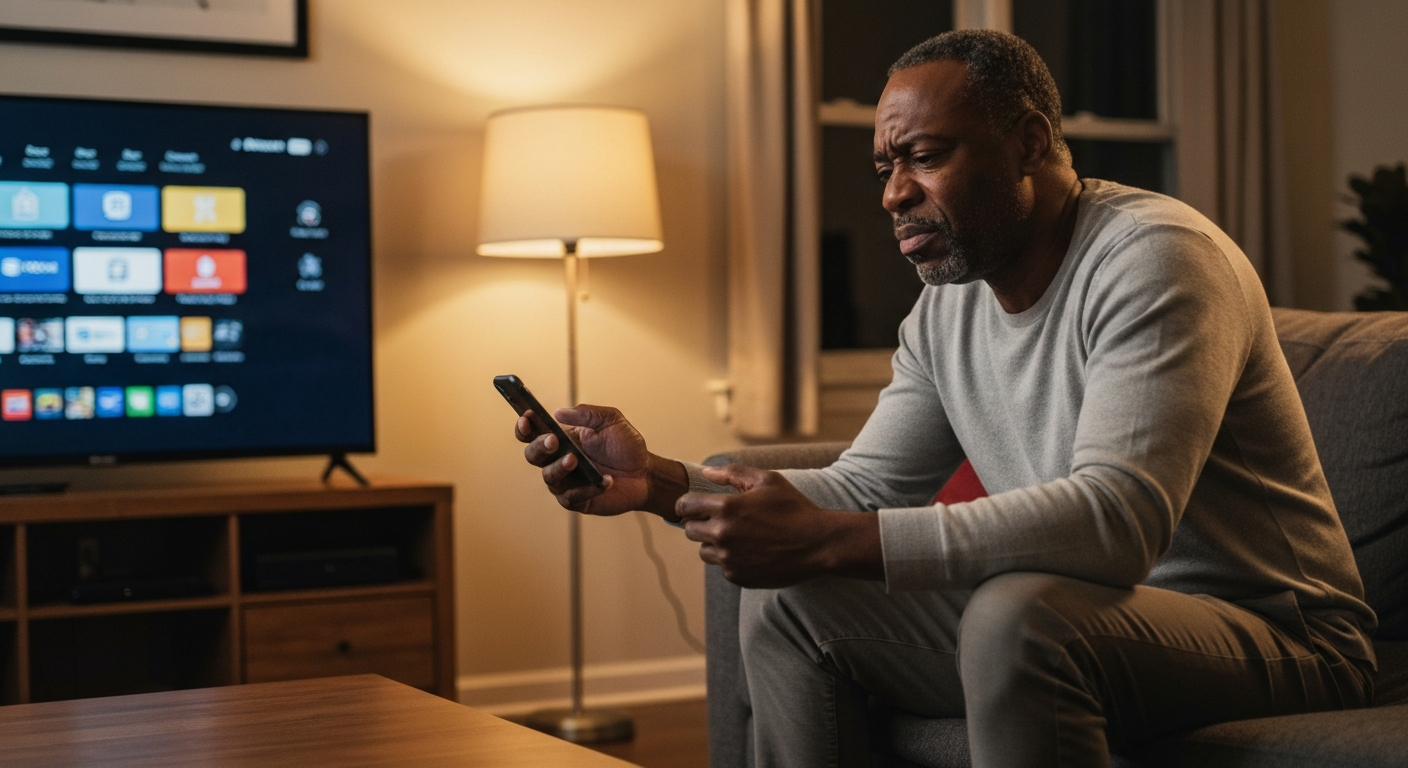

Your Roku app remote isn't working because of a connection issue between your phone and the Roku device — most commonly caused by being on different WiFi networks, a crashed app, or the Roku's network settings losing sync.
| ✓Our Pick |
Recover corrupted files and fix storage issues with MiniTool A well-reviewed choice that delivers real results — worth every penny for anyone dealing with this. Learn More → |
The Roku mobile app remote relies entirely on your home WiFi to communicate with your streaming device. Unlike a physical remote that uses infrared or radio frequency signals, the app sends commands over your local network. When that connection breaks — even slightly — buttons stop responding, the app shows "cannot connect," or commands lag by several seconds. The fix usually takes under five minutes once you identify which link in the chain has failed.
The app remote fails when your phone and Roku device can't find each other on the same network segment, or when either device's network stack has become unresponsive.
Roku's mobile app works by discovering your Roku device using a protocol called SSDP (Simple Service Discovery Protocol). Your phone broadcasts a search request on the local network, and your Roku responds with its location. If anything blocks that handshake — a router hiccup, a phone switching to cellular data, or the Roku's WiFi dropping — the remote stops working instantly.
This same principle applies to other streaming remotes. If you're wondering why your Fire TV remote or Firestick remote isn't working, the troubleshooting steps overlap significantly, since Amazon's app remote also relies on network discovery rather than infrared signals.
This is the most frequent culprit. Your phone might have silently switched to cellular data, connected to a guest network, or joined the 5GHz band while your Roku sits on the 2.4GHz band.
How to check: Open your phone's WiFi settings and note the exact network name. Then use your physical Roku remote (or the buttons on the device itself) to navigate to Settings > Network > About. The network names must match exactly.
How to fix: Connect your phone to the same network. If your router broadcasts separate 2.4GHz and 5GHz networks (like "HomeWifi" and "HomeWifi-5G"), put both devices on the same one. Most Roku devices work better on 2.4GHz for reliability, even if 5GHz is faster.
Mobile apps can freeze in the background without showing obvious signs. The Roku app might appear open but actually be unresponsive.
How to fix: Force-close the app completely. On iPhone, swipe up from the bottom and flick the Roku app away. On Android, go to Settings > Apps > Roku > Force Stop. Then reopen the app and let it rediscover your device.
Streaming devices accumulate memory leaks and network glitches over time. A Roku that's been running for weeks may stop responding to app commands even though it still plays content fine.
How to fix: Unplug your Roku from power for 30 seconds, then plug it back in. This clears the memory and forces a fresh network connection. After it boots, open the Roku app — it should rediscover the device automatically.
Also Read: Why Is My Google Chrome So Slow? 12 Causes & Fast Fixes
Some routers have "AP isolation" or "client isolation" enabled, which prevents devices on the same network from talking to each other. This is common on guest networks and some mesh systems.
How to fix: Log into your router's admin panel (usually 192.168.1.1 or 192.168.0.1) and look for AP Isolation, Client Isolation, or Privacy Separator under your WiFi settings. Disable it for your main network.
Roku occasionally updates the communication protocol between the app and devices. An outdated app may lose compatibility.
How to check: Open the App Store (iPhone) or Google Play Store (Android) and search for "Roku." If an Update button appears instead of Open, tap it.
The device itself needs current firmware to communicate properly with the latest app version.
How to check: Navigate to Settings > System > System update > Check now using your physical remote. Install any available updates.
A blinking green light on a Roku remote typically indicates the remote is trying to pair or has lost its pairing with the Roku device.
Physical Roku remotes (the "enhanced" voice remotes) use radio frequency signals and must be paired to your specific Roku. When the pairing breaks, the green light blinks as the remote searches for a connection.
| Light Behavior | Meaning | Solution |
|---|---|---|
| Blinking green slowly | Remote is in pairing mode | Press and hold the pairing button for 5 seconds |
| Blinking green rapidly | Remote lost connection | Restart Roku and re-pair |
| Solid green | Normal operation during button press | No action needed |
| No light | Dead batteries or defective remote | Replace batteries first |
How to re-pair: Remove the batteries from the remote, unplug your Roku for 30 seconds, plug the Roku back in, wait until the home screen appears, reinsert the batteries, and press the pairing button (inside the battery compartment) for 5 seconds. The remote should pair within 30 seconds.
Universal remotes and TV remotes fail for different reasons than app remotes — usually dead batteries, blocked infrared signals, or lost programming.
If your TV remote isn't working, the issue is almost always simpler than a streaming app problem. TV remotes use infrared (IR) light, which requires a clear line of sight to the TV's sensor.
Quick IR remote fixes:
- Replace batteries even if the remote "seems fine" — weak batteries cause intermittent failures
- Clean the IR emitter (the dark plastic tip) with a soft cloth
- Remove obstructions between the remote and TV
- Check if the TV's IR sensor is blocked by a soundbar or decoration
- Test the remote by pointing it at your phone's camera and pressing a button — you should see a faint purple light through the camera if it's working
For universal remotes that have stopped controlling a device, you may need to reprogram the device code. Consult your remote's manual for the code entry process, as it varies by brand.
Fire TV remotes use Bluetooth for pairing and WiFi for voice commands, so troubleshooting involves checking both connections.
Amazon's streaming remotes share similarities with Roku's enhanced remotes. When a Firestick remote stops responding:
If you're using the Fire TV app as a remote, the same WiFi network requirements apply as with the Roku app.
Also Read: Why Is My T-Mobile Internet So Slow? 9 Causes & Fixes
If the Roku app won't work at all — not just the remote feature — the problem is usually app data corruption or a phone software conflict.
Try these steps in order:
"Network connectivity is the foundation of Roku's mobile app experience. Without a stable local network connection, the app cannot discover or communicate with Roku devices." — Roku Support at Roku
When any streaming device's app remote fails, work through this diagnostic sequence:
| Step | Check | Action if Failed |
|---|---|---|
| 1 | Phone connected to WiFi (not cellular) | Switch to WiFi in settings |
| 2 | Same network as streaming device | Join the matching network |
| 3 | Internet working on phone | Restart router if no internet |
| 4 | Streaming device visible in app | Restart the streaming device |
| 5 | App responds to taps | Force-close and reopen app |
| 6 | Commands reach device | Restart both phone and device |
"Many remote control issues stem from simple network misconfigurations that users can resolve without technical support." — Consumer Technology Association at CTA
A factory reset should be your last resort, as it erases all settings, preferences, and linked accounts.
If you've tried everything above and the app still can't connect, a factory reset may clear a deeper software corruption. Navigate to Settings > System > Advanced system settings > Factory reset, or press the physical reset button on the Roku device for 20 seconds.
After resetting, you'll need to reconnect to WiFi, log back into your Roku account, and reinstall your streaming channels. The app should then discover the device as if it were new.
Also Read: Why Is My Noise Cancelling Not Working? 7 Fixes for 2026
Your Roku app remote stops working when your phone and Roku can't communicate over WiFi — usually because they're on different networks, the app has frozen, or the Roku needs a restart. Check that both devices are on the exact same WiFi network, force-close and reopen the app, and restart your Roku by unplugging it for 30 seconds. For physical remotes blinking green, re-pair the remote after a device restart. These steps also apply to Fire TV, Firestick, and other streaming app remotes that rely on network connectivity.
A green blinking light means the remote is searching for your Roku but can't find it. This happens when the pairing is lost or the Roku is powered off. Restart your Roku by unplugging it, wait for it to fully boot, then hold the pairing button inside the battery compartment for five seconds. The remote should reconnect within 30 seconds.
Universal remotes need to be programmed with the correct device code for your Roku model. If it was working before and stopped, the codes may have been erased (some remotes lose programming when batteries die). Re-enter the Roku device code from your universal remote's manual. Note that some Roku features, like voice commands, won't work through universal remotes.
Yes, but with limitations. You can set up a brand-new Roku using only the app if your Roku is connected to a network with WPS (WiFi Protected Setup) or if it was previously configured. However, some initial setup screens require a physical remote. Once connected, the app remote handles all normal functions including voice search.
This message appears when the app can't discover any Roku devices on your current network. Verify your phone is on WiFi (not cellular), confirm it's the same network as your Roku, and restart both devices. If you're using a VPN on your phone, disable it temporarily — VPNs can prevent local device discovery.
Fire TV remotes can lose their Bluetooth pairing or become unresponsive due to firmware glitches. Try holding the Home button, Menu button, and Back button simultaneously for 10 seconds to reset the remote. If that fails, unplug the Firestick, wait 60 seconds, plug it back in, and re-pair the remote by holding Home for 10 seconds during startup.
Reviewed and Updated on June 13, 2026 by Adelinda Manna