Health
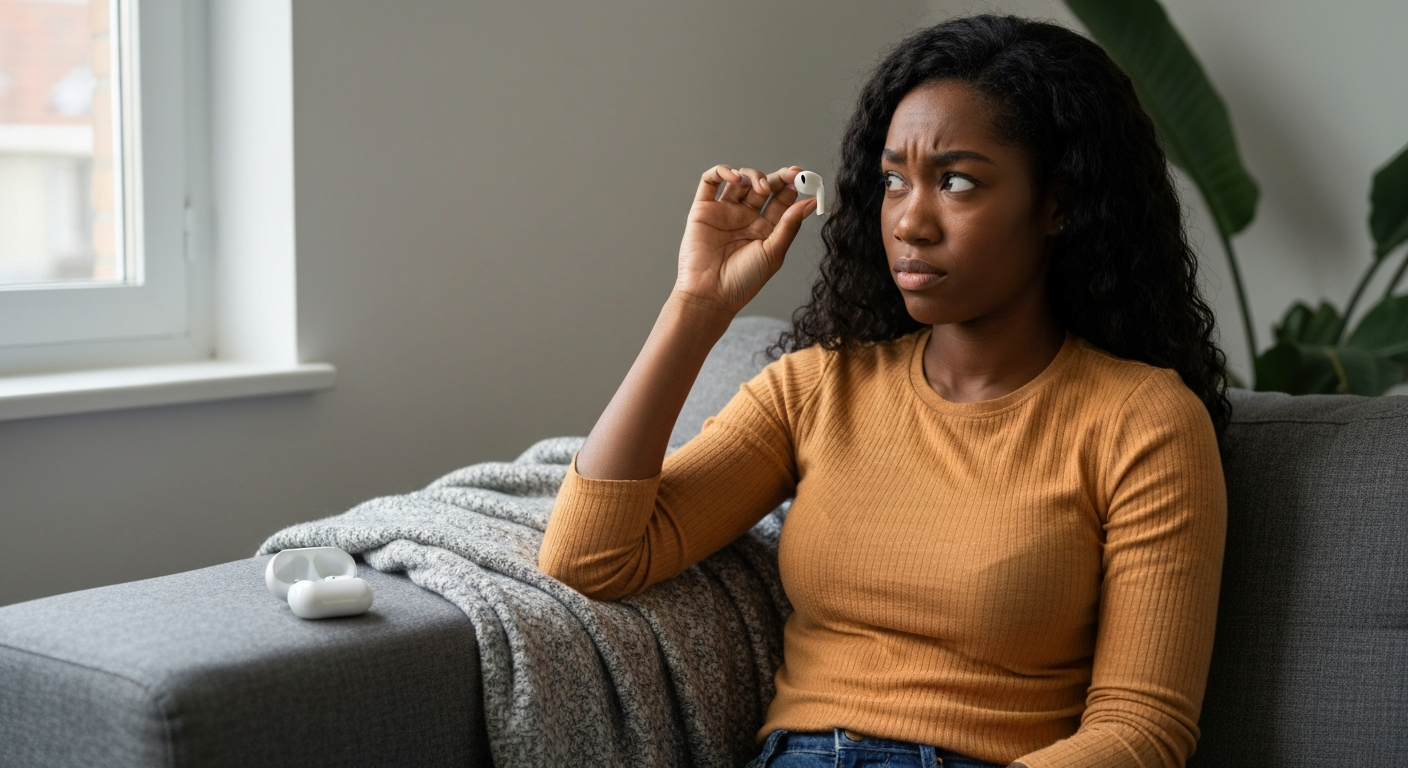

Your left AirPod is quiet because earwax, debris, or skin oils have built up on the speaker mesh — this blocks sound output and is the cause in roughly 8 out of 10 cases of one AirPod being quieter than the other.
The good news is that most volume imbalances between AirPods are fixable at home in under five minutes. Before you assume your earbud is broken or start shopping for replacements, work through the causes below. You'll likely find the culprit is something simple — a clogged mesh, a software glitch, or a setting you didn't know existed.
Sound travels through a tiny mesh grille on each AirPod, and that mesh traps everything it encounters — earwax, dust, pocket lint, and skin oils that harden into a waxy film.
The left and right AirPods don't always clog at the same rate. Which ear produces more wax, which AirPod you handle more often, and even which side you sleep on can all affect buildup. Over months of daily use, one AirPod gradually loses volume while the other stays clear.
This asymmetric clogging explains why "why is my airpod volume so low in one ear" is such a common search. The AirPod itself isn't failing — the physical pathway for sound is simply obstructed.
The most common causes are earwax buildup, unbalanced audio settings, Bluetooth glitches, low battery, hearing accommodation features, damaged speakers, and software bugs — roughly in that order of likelihood.
This is the number-one cause. The speaker mesh on AirPods is extremely fine, designed to keep debris out of the internal components. But that fine mesh also traps earwax on the surface. Even a thin film of hardened wax can cut volume by 30–50%.
Hold your AirPod under bright light and look at the mesh. If you see any discoloration, yellowish residue, or visible debris, that's your problem.
iOS has an accessibility slider that lets you shift audio output toward the left or right ear. If this slider accidentally moved — or if you adjusted it once and forgot — one AirPod will sound quieter even though both are working perfectly.
Go to Settings → Accessibility → Audio/Visual and check the Left/Right balance slider. It should be centered. If it's shifted toward either side, drag it back to the middle.
AirPods reduce volume output as battery life drops below 20%. If your left AirPod has been draining faster (due to more microphone use during calls, or a slightly degraded battery cell), it may hit this low-power state before your right AirPod does.
Check the battery widget on your iPhone or open the charging case near your phone to see individual AirPod battery levels. A significant difference between left and right suggests uneven battery health.
Bluetooth audio can behave inconsistently when connections are unstable. If your left AirPod paired incorrectly or experienced a handoff error, it may output at reduced volume even though it appears connected.
This is especially common after iOS updates or when switching between multiple Apple devices.
Also Read: Why Is My Volume Not Working? 11 Causes & Quick Fixes
Apple's Headphone Accommodations feature (found in Settings → Accessibility → Audio/Visual → Headphone Accommodations) can boost or reduce frequencies based on your audiogram or listening preferences. If this feature is enabled and calibrated unevenly, one ear may sound quieter.
Additionally, if you've imported a hearing test profile, iOS may be applying per-ear adjustments that affect perceived volume.
Physical damage to the speaker driver itself is less common but does happen — especially if AirPods have been dropped, crushed, or exposed to moisture. Water damage in particular can corrode the voice coil inside the speaker, causing permanent volume loss.
If your left AirPod has been through a washing machine cycle or dropped in water, internal damage is a strong possibility.
Occasionally, iOS or AirPods firmware bugs cause volume inconsistencies. Apple has released firmware updates in the past specifically to address audio balance issues. If your AirPods firmware is outdated, a bug fix may already exist.
To check firmware: with AirPods connected, go to Settings → Bluetooth → tap the "i" next to your AirPods → scroll to Firmware Version.
Start with cleaning (it works most of the time), then move through software resets if the problem persists.
Use a dry, soft-bristled brush (a clean toothbrush works well) to gently brush across the speaker mesh. Brush away from the mesh, not into it — you want to dislodge debris, not push it deeper.
For stubborn buildup, lightly dampen a lint-free cloth with isopropyl alcohol (70% concentration) and wipe the mesh. Never spray liquid directly onto the AirPod. Let it dry completely before testing.
"Regularly clean the speaker meshes with a dry cotton swab. Don't use sharp objects or abrasive materials." — Apple Support
Open Settings → Accessibility → Audio/Visual on your iPhone. Find the balance slider between L and R. If it's not perfectly centered, drag it to the middle position.
This clears any connection glitches:
Go to Settings → Accessibility → Audio/Visual → Headphone Accommodations. If this is enabled, try toggling it off and testing your AirPods. If you need the feature, tap Custom Audio Setup and run through the calibration again to ensure both ears are balanced.
AirPods update automatically when connected to an iPhone and charging, but you can encourage an update:
Compare your firmware version to the latest available on Apple's support site.
| ✓Our Pick |
Recover lost audio files and fix corrupted media with Wondershare Simple to use and genuinely effective — for many people this is all they ever needed. Learn More → |
| Symptom | Most Likely Cause | Fix |
|---|---|---|
| Gradual volume loss over weeks | Earwax/debris buildup | Clean speaker mesh |
| Sudden volume drop after update | Software/firmware bug | Reset AirPods, update firmware |
| Volume low only during calls | Microphone mesh clogged | Clean both meshes |
| Volume varies when moving head | Bluetooth interference | Re-pair, stay closer to device |
| Both AirPods quiet | Volume limit or EQ setting | Check Settings → Sounds & Haptics |
| One AirPod always dies first | Battery degradation | Apple battery service |
If cleaning and software resets don't restore volume, the speaker driver is likely damaged and the AirPod needs replacement.
Apple offers individual AirPod replacement through their support site — you don't have to buy a whole new set. As of 2026, a single AirPod replacement costs $89 for standard AirPods and $89–$99 for AirPods Pro, though AppleCare+ significantly reduces this.
Before paying for replacement, visit an Apple Store or authorized service provider. They can run diagnostics that detect speaker damage you can't see.
Also Read: Why Is My Alarm So Low? 7 Causes & iPhone Fixes
A few habits will keep both AirPods performing evenly:
Wipe down your AirPods with a dry microfiber cloth after each use. Store them in the case when not in use — pockets and bags expose them to lint and debris. Clean the speaker mesh lightly once a week if you use AirPods daily. Avoid using AirPods during intense workouts where sweat can seep into the mesh (or switch to sweat-resistant models for exercise).
A quiet left AirPod is almost always caused by earwax or debris blocking the speaker mesh — clean it gently with a dry brush and the volume usually returns immediately. If cleaning doesn't work, check your audio balance slider, reset the Bluetooth connection, and update firmware. Only consider replacement if the speaker itself is damaged.
The most common reason is physical obstruction of the speaker mesh. Earwax, skin oils, and pocket lint accumulate unevenly between left and right earbuds based on your ear anatomy and handling habits. Clean both earbuds thoroughly and check your device's audio balance settings to rule out software causes.
If volume is low across both AirPods at max, check Settings → Sounds & Haptics → Headphone Safety on your iPhone. The "Reduce Loud Sounds" feature caps volume at a decibel limit you may have enabled. Also verify that no volume limit is set in Settings → Music → Volume Limit if you use the Music app.
Yes. While AirPods Pro have some water resistance (IPX4), standard AirPods do not. Moisture can corrode the speaker's voice coil or create mineral deposits on the mesh after drying. If your AirPod was exposed to water and now sounds quiet, the damage may be permanent.
For daily users, a quick wipe after each session and a more thorough mesh cleaning once a week prevents buildup. If you notice wax accumulating quickly, you may need to clean more frequently. Prevention is easier than removing hardened deposits.
Apple will replace a defective AirPod under warranty if the speaker is faulty through no fault of your own. If the issue is caused by debris or physical damage, replacement falls outside warranty coverage. AppleCare+ with accidental damage protection covers more scenarios at a reduced replacement cost.
Reviewed and Updated on June 3, 2026 by George Wright