
DIY
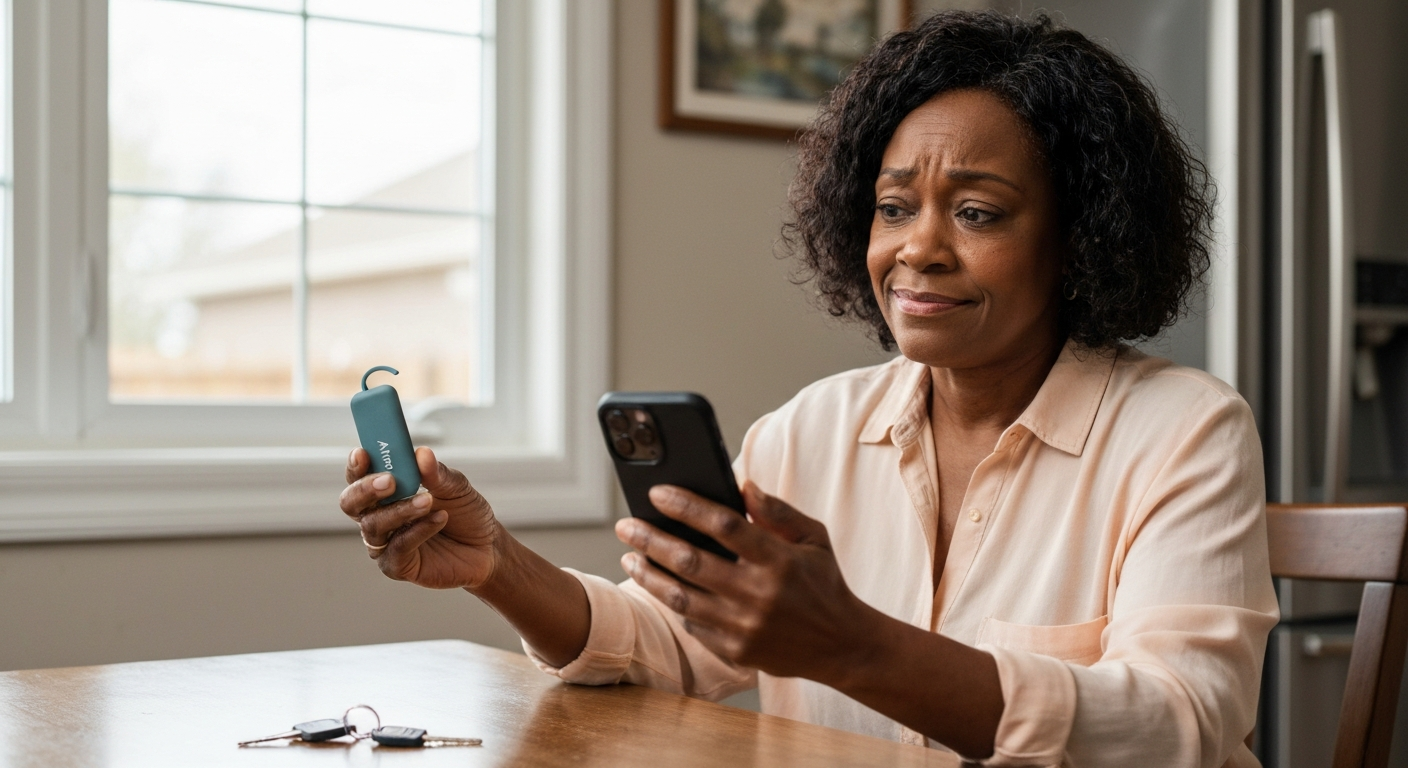

Your AirTag won't connect because of a dead or depleted battery, Bluetooth being disabled on your iPhone, the AirTag being out of range of any Apple device, outdated iOS software, or a temporary firmware glitch — and in most cases, you can fix it yourself in under five minutes.
When your AirTag shows "Not Reachable" or simply refuses to appear in the Find My app, the problem almost always traces back to one of a handful of common issues. The good news is that AirTags are designed to be simple, which means troubleshooting them is equally straightforward once you know where to look.
The "Not Reachable" status means your AirTag hasn't communicated with any device in the Find My network recently — this doesn't necessarily mean it's broken.
AirTags don't have their own GPS or cellular connection. They rely entirely on Apple's Find My network, which uses nearby iPhones, iPads, and Macs to relay their location back to you. When no Apple device has passed within Bluetooth range of your AirTag recently, the Find My app can't update its location, and you'll see "Not Reachable" or "No Location Found."
This is important to understand because it explains why an AirTag might appear disconnected even when it's functioning perfectly — it's simply in a location without nearby Apple devices to relay its signal.
A depleted CR2032 battery is the single most common reason an AirTag stops connecting, especially if it's been in use for over a year.
Apple rates the AirTag battery life at approximately one year with normal use. However, real-world performance varies based on how often the AirTag communicates with the Find My network and environmental factors like temperature extremes.
Signs your AirTag battery needs replacement:
Replacing the battery takes about 30 seconds. Press down on the stainless steel back of your AirTag and rotate counterclockwise until the cover releases. Remove the old CR2032 battery, insert a new one with the positive side facing up, and press the cover back into place until you hear a click. If the AirTag chimes, the battery is properly seated and the device should reconnect shortly.
"Make sure that you remove the plastic tab or any other coating from both sides of the battery before you replace the battery, because coatings can prevent the battery from making a proper connection." — Apple Support
Important: Some store-brand CR2032 batteries have a bitterant coating to prevent accidental swallowing. This coating can interfere with electrical contact. If your new battery doesn't work, try a different brand — Duracell and Energizer batteries without coatings are known to work reliably.
Also Read: Why Is My Alarm Not Going Off? 9 Causes & Quick Fixes
Your iPhone communicates with AirTags exclusively through Bluetooth — if Bluetooth is off, your phone can't detect or connect to any AirTag.
This seems obvious, but it catches more people than you'd expect. Check your Bluetooth status by opening Settings > Bluetooth and confirming the toggle is green. Also verify that you haven't accidentally enabled Airplane Mode, which disables Bluetooth by default.
A less obvious issue involves Bluetooth being technically "on" but not functioning correctly due to software conflicts. If Bluetooth appears enabled but your AirTag still won't connect, try this reset sequence:
If the problem persists after this soft reset, restart your iPhone entirely. Press and hold the side button and either volume button until the power-off slider appears, slide to power off, wait 30 seconds, then press the side button to restart.
Yes — Apple periodically updates the Find My network protocol, and running an outdated iOS version can cause compatibility issues with AirTag communication.
Apple releases iOS updates that include improvements to the Find My network, Bluetooth stack, and AirTag-specific features. If you've been postponing updates, your iPhone may be running code that doesn't properly communicate with your AirTag's current firmware.
To check for updates, go to Settings > General > Software Update. As of early 2026, ensure your iPhone is running iOS 17.4 or later for optimal AirTag compatibility. If an update is available, download and install it, then test your AirTag connection again.
Your AirTag itself also receives firmware updates automatically. These happen invisibly when the AirTag is within Bluetooth range of your iPhone, but you can't manually trigger them. If your iPhone is up to date and the connection issue persists, the AirTag may simply need time to receive its own firmware update.
AirTags have an effective Bluetooth range of approximately 30 feet (10 meters) for direct connection to your iPhone — beyond that, they rely entirely on the crowdsourced Find My network.
When you're trying to connect or set up an AirTag, it must be within Bluetooth range of your iPhone. For day-to-day tracking of items outside your home, the AirTag depends on passing Apple devices to pick up and relay its signal.
This means location accuracy and update frequency depend heavily on where your AirTag is located:
| Location Type | Typical Update Frequency | Accuracy |
|---|---|---|
| Urban area with high foot traffic | Every few minutes | Within 10-30 feet |
| Suburban neighborhood | Every 1-4 hours | Within 50-100 feet |
| Rural area with minimal traffic | Sporadic or none | Last known location only |
| Inside a moving vehicle | Frequent (when near other cars) | Varies widely |
| Inside a building with no visitors | May never update | Last known location only |
If your AirTag is in a location with minimal Apple device traffic, it may appear "Not Reachable" for extended periods even though it's functioning normally. This is a limitation of how the technology works, not a malfunction.
Setup failures typically result from the AirTag being too far from your iPhone, the battery being improperly seated, or your Apple ID not being signed in correctly.
If you're setting up a brand-new AirTag and it won't appear when you bring it close to your iPhone, work through these steps:
Remove the battery tab completely — New AirTags ship with a plastic tab preventing battery contact. Pull it out entirely; don't just loosen it.
Check battery orientation — The positive (+) side must face up. If it's upside down, the AirTag won't power on.
Verify your Apple ID — Go to Settings and tap your name at the top. Confirm you're signed in with the Apple ID you want the AirTag linked to.
Enable Find My — Go to Settings > [Your Name] > Find My > Find My iPhone. Both "Find My iPhone" and "Find My network" must be enabled.
Bring the AirTag closer — Hold the AirTag directly against your iPhone, not just nearby. Some phone cases can interfere with the NFC signal used during setup.
If setup still fails, try resetting the AirTag by removing the battery, reinserting it, and pressing down until you hear a sound — repeat this battery removal and reinsertion process five times total. On the fifth insertion, the sound will be different, indicating the AirTag has been reset.
Also Read: Why Is My Tablet So Slow? 9 Causes & Quick Fixes
The Find My app needs Background App Refresh enabled to receive location updates when you're not actively using the app.
If you've disabled Background App Refresh to save battery life — a common power-saving tip — your AirTag's location updates may not appear until you manually open the Find My app.
To check this setting, go to Settings > General > Background App Refresh. Ensure the master toggle is on, then scroll down to find the Find My app and confirm it's enabled.
While you're in settings, also verify that Location Services are enabled for Find My. Go to Settings > Privacy & Security > Location Services > Find My and select "While Using the App" or "Always." The "Always" option provides the most reliable tracking.
Your iPhone needs an active internet connection to receive AirTag location updates from Apple's servers — Wi-Fi or cellular data must be working.
The Find My network operates like this: when another Apple device detects your AirTag's Bluetooth signal, that device anonymously uploads the encrypted location to Apple's servers. Your iPhone then downloads this information. If your iPhone can't connect to the internet, you won't receive updates even if your AirTag is being detected by other devices.
Test your connection by opening Safari and loading any website. If pages won't load, troubleshoot your Wi-Fi or cellular connection before assuming the AirTag is the problem.
If your AirTag worked previously but has stopped connecting, forcing your iPhone to refresh its Bluetooth connections often resolves the issue.
Try this sequence:
If your AirTag is within Bluetooth range and has a good battery, this process usually reestablishes the connection within a few seconds.
For persistent connection issues, remove the AirTag from your account and re-add it:
This clears any corrupted pairing data and gives you a fresh start.
If your AirTag has been removed from your item or deliberately disabled, connection may be impossible until it's recovered.
An AirTag that's been removed from its holder and had the battery taken out won't broadcast any signal. Similarly, thieves who know about AirTag tracking may immediately remove and discard them.
If your AirTag hasn't updated its location in an extended period and you suspect theft, enable Lost Mode in the Find My app. This does several things:
Lost Mode won't help if the battery has been removed, but it ensures you'll be notified the moment the AirTag comes back online.
For AirTags that won't connect despite trying all basic fixes, a complete network settings reset on your iPhone may resolve deep-seated Bluetooth issues.
Go to Settings > General > Transfer or Reset iPhone > Reset > Reset Network Settings. This erases all saved Wi-Fi passwords and Bluetooth pairings, so only use it as a last resort. After the reset, you'll need to reconnect to your Wi-Fi networks and re-pair Bluetooth devices.
If network reset doesn't help, the issue may be hardware-related. AirTags can be damaged by water exposure (despite their IP67 rating), physical impact, or manufacturing defects. Apple doesn't repair AirTags, but they may replace a defective unit under warranty — contact Apple Support if your AirTag is less than a year old and still won't function after all troubleshooting steps.
| ✓Our Pick |
Browse dashcams and diagnostic tools on Carputech One of the highest-rated products in its category — a reliable fix used by thousands of people. Learn More → |
Your AirTag stops connecting due to a dead CR2032 battery, Bluetooth being disabled, outdated iOS software, being out of range of Apple devices, or a temporary firmware glitch. Start by replacing the battery — it's the most common fix. Then verify Bluetooth is enabled, update your iPhone's software, and try playing a sound through the Find My app to force a reconnection. If none of that works, remove the AirTag from your account and set it up fresh. Most connection issues resolve within minutes once you identify the root cause.
A new battery doesn't guarantee connection if the battery type is incompatible. Some CR2032 batteries have a bitterant coating that prevents proper electrical contact. Try a Duracell or Energizer battery without coating. Also verify the battery is inserted with the positive side up and fully seated — you should hear a chime when it's correctly installed. If you still see "Not Reachable," the AirTag may need a full reset by removing and reinserting the battery five times.
No, having multiple AirTags registered to your account doesn't cause connection problems. Each AirTag has a unique identifier and communicates independently with the Find My network. If one AirTag won't connect while others work fine, the issue is specific to that device — check its battery, try resetting it, or remove and re-add it to your account.
The Find My app displays "Not Reachable" when no device in Apple's network has detected the AirTag recently — typically within a few hours of the last detection. In areas with minimal Apple device traffic, this status may appear even though the AirTag is functioning normally. The time threshold isn't publicly documented by Apple and appears to vary based on your location history and typical update frequency.
Yes. Airplane Mode disables Bluetooth by default, which prevents your iPhone from communicating with AirTags. However, you can manually re-enable Bluetooth while in Airplane Mode by tapping the Bluetooth icon in Control Center. Once Bluetooth is active again, your AirTags should function normally even with cellular and Wi-Fi disabled.
A factory reset is extreme and usually unnecessary for AirTag problems. Before taking that step, try resetting network settings only (Settings > General > Transfer or Reset iPhone > Reset > Reset Network Settings). This clears Bluetooth pairings and often resolves connection issues without erasing your data. Reserve a full factory reset for severe iOS problems affecting multiple features, not just AirTag connectivity.
Reviewed and Updated on June 3, 2026 by George Wright