DIY
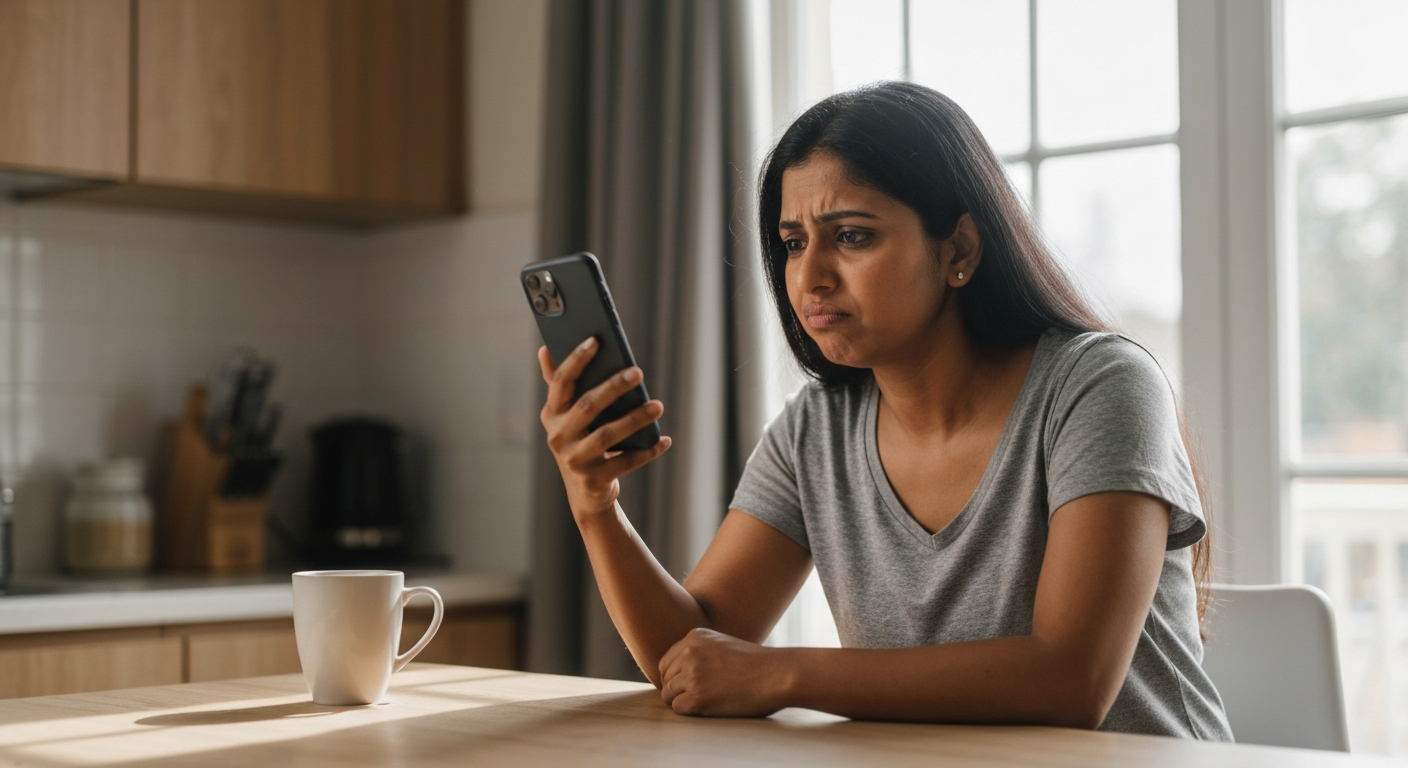

Your email isn't updating because the app has lost its connection to the mail server — usually due to a sync setting being turned off, an expired password, a weak internet connection, or the app running an outdated version that can no longer communicate properly with your email provider.
| ✓Our Pick |
Recover deleted emails and corrupted files with MiniTool data recovery This is what many people find solves the problem quickly, without a costly professional visit. Learn More → |
Email sync failures happen when your device can't successfully exchange data with your email provider's server — think of it as a broken conversation where one side stops listening or responding.
Your phone, tablet, or computer regularly "checks in" with your email provider (Gmail, Outlook, Yahoo, iCloud) to download new messages and upload any changes you've made. When this check-in fails, your inbox appears frozen in time. The timestamp of your last email becomes a clue — if nothing newer than yesterday appears, that's roughly when the connection broke.
The frustrating part is that email often fails silently. Unlike a webpage that shows an error message, email apps frequently just stop updating without telling you why. You might assume nothing new has arrived when, in reality, dozens of messages are waiting on the server.
A weak or unstable internet connection is the most common reason your email stops updating — and it's the easiest to rule out first.
Your email app needs a stable data connection to sync. Even if you can browse social media or stream video, your email might still fail to update if the connection drops briefly during the sync attempt. Email sync is less forgiving than video streaming, which can buffer through brief interruptions.
Here's a quick test: open your browser and load a new webpage. If it loads slowly or fails, your internet connection is the culprit, not your email app.
Wi-Fi connections can appear solid while actually being broken. Your device shows full bars, but the router may have lost its connection to the internet. This is especially common after power outages or when routers haven't been restarted in months.
Try these steps in order:
"Most email sync issues we see are resolved simply by cycling the network connection. The app gets stuck in a failed state and needs a fresh handshake with the server." — Dave Johnson, Senior Technology Writer at Business Insider
Many email sync failures trace back to sync being accidentally disabled — either globally in your device settings or within the email app itself.
Both iOS and Android have multiple places where sync can be switched off, and it's surprisingly easy to disable it without realizing. A single toggle in the wrong place stops all incoming mail.
On iOS devices, email sync settings live in two places — the Settings app and within the Mail app itself.
For the Mail app:
1. Open Settings > Mail > Accounts
2. Tap your email account (Gmail, Outlook, Yahoo, etc.)
3. Make sure Mail is toggled ON (green)
4. Tap Fetch New Data and confirm Push is enabled or Fetch is set to a reasonable interval (15 or 30 minutes)
If "Push" is grayed out, your email provider may not support push notifications, and you'll need to use Fetch instead. Gmail through the iOS Mail app, for example, only supports Fetch — not Push.
Android sync settings are scattered across system settings and individual app settings:
Also check that background data isn't restricted:
1. Open Settings > Apps > [Your Email App]
2. Tap Mobile data & Wi-Fi
3. Ensure Background data is allowed
Also Read: Why Is My eSIM Not Working? 8 Causes & How to Fix It
If you recently changed your email password — or if your organization's IT department forced a password reset — your email app doesn't know the new password and can't log in.
This is one of the sneakier causes because many email apps don't show an obvious error. They simply stop syncing. Some will show a small notification or banner saying "Account needs attention," but it's easy to miss or dismiss.
| Platform | Steps to Update Password |
|---|---|
| iPhone/iPad | Settings > Mail > Accounts > [Your Account] > tap account again > re-enter password |
| Gmail App (Android) | Usually prompts automatically; if not, remove and re-add account |
| Outlook App (iOS/Android) | Tap account icon > tap gear icon > tap account > Update Password |
| Windows Mail | Settings > Manage Accounts > [Account] > Change mailbox sync settings |
If you use two-factor authentication (2FA) and changed your authentication app or phone number, you may need to generate a new app-specific password for your email client.
Battery-saving modes on phones and tablets aggressively limit background activity — including email sync — to extend battery life.
When your iPhone enters Low Power Mode or your Android enters Battery Saver, email apps often stop checking for new messages automatically. You'll only see new emails when you manually open the app and pull down to refresh.
On iPhone:
- The battery icon turns yellow when Low Power Mode is active
- Disable it in Settings > Battery > Low Power Mode
On Android:
- Check Settings > Battery > Battery Saver
- Some phones also have "Adaptive Battery" that may limit email apps it considers low-priority
If you want to save battery while still receiving important emails, consider adjusting your fetch interval to every 30 minutes instead of disabling sync entirely.
Outdated email apps can lose the ability to communicate with servers after providers update their security protocols — and corrupted app data can cause sync to fail even on the latest version.
Email providers regularly update their authentication methods for security. If your email app hasn't been updated in months (or years), it may be using a protocol the server no longer accepts. This is especially common with the built-in Mail app on older devices.
If you're using an older device that no longer receives app updates, consider switching to a third-party email client like Outlook or Gmail's official app, which tends to maintain broader device compatibility.
Gmail has specific quirks when used through Apple's Mail app — most notably, it doesn't support Push notifications, which means there's always a delay.
When you add a Gmail account to the iPhone's built-in Mail app, Apple forces you to use Fetch instead of Push. This means your phone only checks for new Gmail messages at intervals (every 15, 30, or 60 minutes) rather than receiving them instantly.
To get true instant Gmail notifications on iPhone, you have two options:
The tradeoff with shorter Fetch intervals is slightly higher battery consumption, but for most people the difference is negligible.
"Apple's Mail app works differently with Gmail than it does with iCloud or Outlook accounts. For real-time Gmail notifications, the Gmail app is your best bet." — Apple Support Community
Outlook accounts have their own common failure points, including expired Microsoft 365 subscriptions, disabled IMAP access, and authentication loops that require re-logging in.
If you're using the Outlook app on your phone or tablet, try these targeted fixes:
| Issue | Solution |
|---|---|
| Account shows error banner | Tap the banner, re-enter password, verify 2FA code |
| Mailbox shows as empty | Check spam/junk folder settings; mailbox may be filtering to wrong location |
| Sync stuck on specific date | Force-close app, clear cache, re-sync by pulling down on inbox |
| Work/school account not syncing | Contact IT department — organization may block mobile access |
For Outlook accounts accessed through other email apps (Apple Mail, Gmail app), the issue is often that Microsoft has disabled "less secure app access." You may need to generate an app-specific password in your Microsoft account security settings.
Yahoo Mail sync failures are often caused by outdated third-party app settings or Yahoo's security blocking what it considers an "unrecognized" device.
Yahoo made significant security changes in recent years that broke compatibility with many third-party email apps. If your Yahoo mail suddenly stopped syncing after working for years, this is likely the cause.
To fix Yahoo Mail sync issues:
Yahoo also throttles sync for free accounts during high-traffic periods, so occasional delays during peak hours are normal.
Sometimes your email genuinely isn't updating because your email provider's servers are down — and there's nothing you can do but wait.
Before spending hours troubleshooting your device, check whether the email provider itself is experiencing an outage:
If you see a red or orange indicator, the problem is confirmed on their end. Service outages typically resolve within a few hours.
Before diving into advanced troubleshooting, run through this checklist — it resolves the vast majority of email sync problems in under five minutes:
| Step | What to Do | Why It Helps |
|---|---|---|
| 1 | Toggle Airplane Mode on and off | Forces new network connection |
| 2 | Force-close email app completely | Clears stuck sync processes |
| 3 | Check sync/fetch is enabled in Settings | Confirms app is allowed to check mail |
| 4 | Verify password is current | Ensures app can authenticate |
| 5 | Check for app updates | Gets latest server compatibility |
| 6 | Restart your device | Clears system-level bugs |
| 7 | Check provider status page | Rules out server outages |
If you've completed every step and email still won't update, the nuclear option is to remove the account entirely from your device and add it fresh. This forces a complete re-sync and clears any corrupted local data.
Also Read: Why Is My Jabra Elite 75t Not Working? 7 Causes & Fixes
Your email stops updating when the connection between your device and the mail server breaks — most often because of a disabled sync setting, an outdated password, a weak internet connection, or an app that needs updating. Start with the simple fixes: toggle Airplane Mode, verify sync is enabled, and check that your password is current. If your provider's status page shows an outage, there's nothing to fix on your end — just wait. For persistent issues, removing and re-adding the email account forces a fresh start that resolves most stubborn sync failures.
Gmail doesn't support Push notifications through Apple's Mail app, so your iPhone only checks for new messages at scheduled intervals (every 15, 30, or 60 minutes by default). To get instant Gmail updates, either install Google's official Gmail app and enable notifications, or reduce the Fetch interval in Settings > Mail > Accounts > Fetch New Data. The Gmail app delivers messages immediately and includes better spam filtering.
Yahoo tightened security in recent years and now blocks many third-party email apps that worked previously. If your Yahoo mail stopped syncing, you likely need to generate an app-specific password from your Yahoo account settings and use that instead of your regular password. Alternatively, switching to Yahoo's official app bypasses these authentication issues entirely.
iPad email sync issues usually trace back to Fetch settings, Low Power Mode, or background app refresh being disabled. Check Settings > Mail > Accounts > Fetch New Data to confirm your accounts are set to Fetch or Push. Also verify in Settings > General > Background App Refresh that the Mail app is enabled — otherwise it can only check for new mail when you manually open it.
When you change your email password on the web, your phone or tablet still has the old password saved. The email app tries to log in, fails silently, and stops syncing. You need to update the saved password in your device's mail settings — go to your account settings, tap your email account, and re-enter the new password when prompted.
If your internet is working but email won't sync, the issue is likely within the email app or your account settings. Common causes include sync being toggled off in settings, Battery Saver mode blocking background activity, an outdated app version, or corrupted app data. Try updating the app, clearing its cache (on Android), or deleting and re-adding the account to force a fresh sync.
Reviewed and Updated on June 1, 2026 by George Wright