Skin
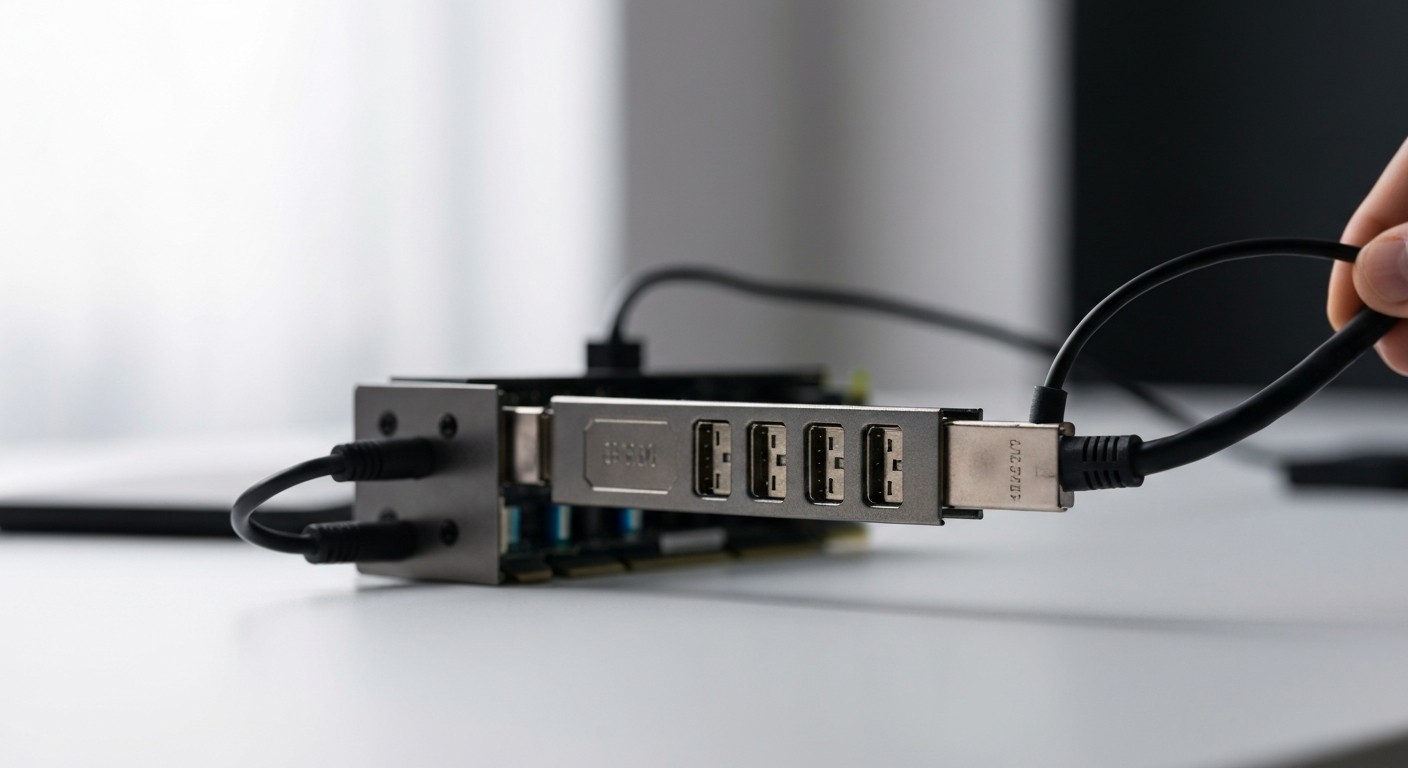

A DisplayPort that stops working is almost always caused by a loose or faulty cable, an incorrect input source selected on the monitor, a driver that needs updating, or a GPU output that has failed — all diagnosable in under 10 minutes without any special tools.
| ✓Our Pick |
Shop DisplayPort cables, adapters, and monitor accessories Used by over 10,000 satisfied customers — an easy, affordable option you can start using today. See on Amazon → |
When a DisplayPort connection fails, the screen shows "No Signal," goes black, or simply never detects the monitor. The cause is almost always one of the physical cable, the monitor input setting, the GPU driver, or the port itself.
DisplayPort connectors have a small locking tab that clicks when fully inserted. A cable that is 90% seated will often show an intermittent signal or a black screen. Unplug the cable from both ends, then press it firmly back in until you hear or feel the tab click.
If reseating does not fix it, test with a different DisplayPort cable. DisplayPort cables are not all equal — passive adapters and cheap cables often fail at resolutions above 1080p or at refresh rates above 60Hz. A cable rated for DisplayPort 1.4 or 2.1 is required for 4K 144Hz or 1440p 240Hz signals.
"DisplayPort cable quality directly affects signal integrity. Cables that are not certified to the relevant DisplayPort standard frequently cause intermittent signal loss, especially at higher resolutions and refresh rates." — VESA DisplayPort Technical Overview, Video Electronics Standards Association
Most monitors with multiple inputs (HDMI, DisplayPort, USB-C) must be manually switched to the active input. If your monitor shows "No Signal" immediately, press the monitor's input selection button and confirm DisplayPort (or DP) is selected — not HDMI or VGA.
Some monitors have auto-detect input switching that takes 5–10 seconds after a signal is present. If you see a brief flash and then black screen, hold on 10 seconds before assuming it is broken.
A fresh Windows install, a GPU driver crash, or a Windows update that broke the driver can cause DisplayPort to stop working entirely — even when HDMI on the same card still functions. This happens because DisplayPort uses more GPU-driver-level control of the signal protocol than HDMI does.
To check and update your GPU driver:
1. Right-click the Start button → Device Manager → Display Adapters
2. Right-click your GPU → Update Driver → Search Automatically
3. Alternatively, download the latest driver directly from NVIDIA or AMD and run the installer with the Clean Install option
After driver reinstallation, restart fully before testing the DisplayPort connection.
GPUs typically have multiple DisplayPort outputs. If one port fails — from physical stress, static discharge, or a failed controller — other ports on the same card may still work. Try plugging your cable into a different DisplayPort output on the back of your GPU.
If you are using a desktop PC, also confirm the cable is connected to the GPU ports and not the motherboard video outputs. Motherboard video outputs (which handle integrated graphics) are often disabled when a discrete GPU is installed.
On some GPUs and monitors, a firmware bug can prevent DisplayPort from negotiating the link correctly. Signs include the monitor detecting the signal briefly and then going black, or the Windows display settings showing the monitor at a limited resolution (e.g. 640x480) or not at all.
For monitors: check the manufacturer's website for a firmware update specific to your model number. Several Dell, LG, and BenQ monitors released in 2023–2024 had firmware bugs that caused DisplayPort handshake failures with NVIDIA 40-series cards, resolved by monitor firmware updates.
For GPUs: BIOS updates from NVIDIA or AMD board partners occasionally fix DisplayPort link training bugs.
DisplayPort versions 1.2, 1.4, and 2.1 are backward-compatible but not always flawlessly. A 4K 144Hz monitor connected to an older GPU that only supports DisplayPort 1.2 will either not display at the rated resolution and refresh rate, or may not connect at all if the monitor's firmware does not fall back gracefully.
Check your GPU's supported DisplayPort version in its spec sheet and compare it to the monitor's minimum requirement. If your GPU is limited to DP 1.2, you may need to reduce the refresh rate or resolution in Windows Display Settings before the signal stabilizes.
"DisplayPort 1.4 introduced Display Stream Compression and support for 8K at 60Hz and 4K at 120Hz, while backward compatibility with 1.2 devices is maintained, though some features and bandwidth limitations apply." — VESA DisplayPort 1.4 Specification Summary, VESA
Windows sometimes misdetects or forgets a monitor after a driver update or system sleep. If the physical connection is working but the monitor is not showing content:
Also check that the display is not set to "Disconnect" or "Show only on 1" — this suppresses output on secondary monitors.
Also Read: Why Is My TV Glitching? 9 Causes & Quick Fixes
If you are using a DisplayPort-to-HDMI or DisplayPort-to-DVI adapter, the adapter type matters. Most DisplayPort outputs operate in DP++ (dual-mode) which supports passive adapters for HDMI and DVI. However, some GPU outputs — particularly on AMD cards — require active adapters for DVI-D connections and will not output any signal with passive DVI adapters.
Check the adapter packaging for "Active" or "Passive" designation. If you are using a passive DVI adapter, replace it with an active adapter.
| Check | What to Do |
|---|---|
| Cable not seated | Unplug and press in firmly until the tab clicks |
| Wrong input selected | Use monitor's menu to switch to DP input |
| Driver issue | Reinstall GPU driver with Clean Install option |
| Wrong GPU port | Try a different DP output on the back of the GPU |
| Connected to motherboard port | Move cable to the discrete GPU ports |
| Firmware bug | Check monitor and GPU firmware update pages |
| Version mismatch | Reduce resolution/refresh rate in Windows Display Settings |
| Passive adapter issue | Replace with active adapter for DVI connections |
If your DisplayPort is not working, start with the cable — reseat it, then test a different cable. Confirm the monitor input is set to DisplayPort, not HDMI. Reinstall the GPU driver with the Clean Install option. If one port is dead, try another port on the GPU. A DisplayPort version mismatch between GPU and monitor can usually be resolved by lowering the refresh rate in Windows Display Settings until both devices negotiate correctly.
HDMI and DisplayPort use different signal protocols and are handled by separate output controllers on the GPU. A failure in one protocol does not automatically affect the other. If DisplayPort works but HDMI does not, the HDMI port or its controller has failed. If HDMI works but DisplayPort does not, suspect the DisplayPort cable, driver, or port.
Intermittent DisplayPort signal loss is almost always caused by a faulty cable, a loose connection, or the GPU entering power-saving states that interrupt the DisplayPort link. Try a higher-quality certified cable, disable Deep Sleep mode in the monitor's OSD menu, and set Windows power plan to Balanced or High Performance to prevent GPU clock throttling that can disrupt the signal.
Yes. DisplayPort carries both audio and video in a single cable. If you have DisplayPort audio enabled in Windows (Settings → Sound → select the DisplayPort monitor as output), you can send audio from your PC to any monitor or audio device that supports DisplayPort audio input. Many monitors pass this audio through to their speakers or headphone jack.
Windows feature updates frequently roll back or replace GPU drivers with generic Microsoft display drivers that lack full DisplayPort support. After any major Windows update, download and reinstall the latest GPU driver directly from NVIDIA or AMD, using the Clean Install option. This resolves the majority of post-update DisplayPort failures.
Reviewed and Updated on June 6, 2026 by George Wright