Technology
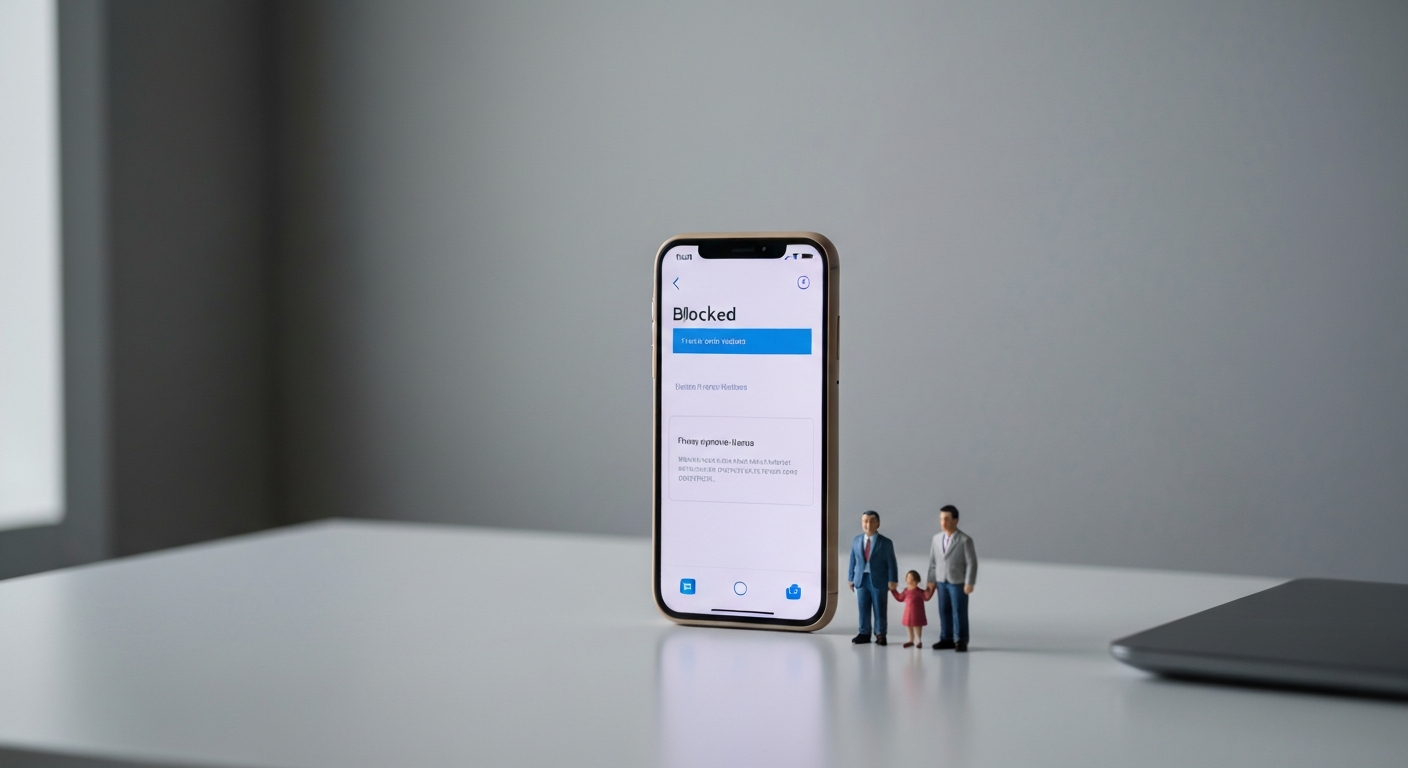

T-Mobile Web Guard is a free parental control and content filtering feature that blocks access to websites categorized as adult content, gambling, illegal content, or hate sites. It is enabled by default for T-Mobile lines that are designated as belonging to a minor, and can be managed by the account holder in the T-Mobile app or at account.t-mobile.com.
Our Pick: Parental control routers and family internet safety tools for home networks
T-Mobile Web Guard is a network-level content filter that T-Mobile applies at their servers before the traffic reaches your phone. Unlike app-based parental controls, Web Guard works on every browser and app on the device because the filtering happens at the carrier level -- not on the device itself.
When Web Guard is active on a line, any attempt to visit a blocked website category returns an error page rather than the site's content. Common reasons the feature trips a false positive: legitimate news articles, medical information sites, or educational resources that have been incorrectly categorized by T-Mobile's filtering system.
Web Guard filters content into these general categories:
- Adult content (explicit material)
- Gambling sites
- Illegal and harmful content
- Hate speech and extremist content
- Phishing and malware sites (this filtering applies to all T-Mobile lines regardless of Web Guard status)
If a website is loading an error page that says something like "This site is blocked by T-Mobile Web Guard" (or just returns a generic error on otherwise-working websites), Web Guard is active on that line.
You can also check the status directly:
Alternatively, log in at account.t-mobile.com > Account > Line details > Content controls.
"T-Mobile Web Guard provides network-level content filtering that helps account owners manage what content is accessible on individual lines in their account. Account owners can enable or disable Web Guard for each line through the T-Mobile app or account portal." -- T-Mobile Support, T-Mobile Web Guard: Managing Content Controls.
Only the account owner (the primary account holder) can disable or modify Web Guard -- individual line users cannot override this setting without account-level access.
The change typically takes effect within a few minutes. You may need to toggle airplane mode off and on to refresh the connection.
If you do not have access to the account owner login, call 611 (from your T-Mobile phone) or 1-800-937-8997 and request that Web Guard be disabled on the relevant line. T-Mobile may require verification of the account owner's identity.
As the account owner, you can also enable Web Guard on a specific line or customize which categories are filtered:
Web Guard is most commonly used by parents managing lines for children on the account. T-Mobile's FamilyMode service (a separate paid add-on, typically $10/month) provides more advanced parental controls including screen time limits, content scheduling, and location tracking beyond what the free Web Guard feature offers.
Web Guard uses automated content categorization, and false positives are common. The filtering system analyzes website content and assigns it to categories -- but the categories are broad, and legitimate sites are sometimes incorrectly flagged.
Common false-positive scenarios:
- Medical or health information sites that discuss topics (sexual health, substance use) flagged as adult or illegal
- News sites that contain reporting on violence, extremism, or adult topics
- Small business websites that happen to share an IP address with a filtered site (IP-level filtering)
- VPN or proxy service websites flagged as circumvention tools
If Web Guard is blocking a specific site you believe is legitimate, your options are:
1. Disable Web Guard on that line if you are the account owner and content filtering is not a priority for that user.
2. Report a miscategorized site to T-Mobile customer care -- they can escalate to their content filtering partner to review the categorization.
3. Use a different network (Wi-Fi without Web Guard) to access the specific site if you do not want to disable filtering entirely.
No -- T-Mobile Web Guard only filters traffic that routes through T-Mobile's cellular network. When your device is connected to Wi-Fi, Web Guard is not active.
This is a fundamental limitation of network-level carrier filtering: it only applies to traffic that passes through T-Mobile's infrastructure. A site that is blocked on mobile data will be accessible on any Wi-Fi network (unless that Wi-Fi network has its own filtering in place).
Also Read: Find parental control routers, content filters, and family internet safety tools on Amazon
| Feature | Web Guard (Free) | FamilyMode (~$10/month) |
|---|---|---|
| Content category filtering | Yes | Yes |
| Screen time limits | No | Yes |
| Location tracking | No | Yes |
| Content scheduling | No | Yes |
| In-app purchase controls | No | Yes |
| Applies on Wi-Fi | No | Yes (app-based) |
| App-level blocking | No | Yes |
For families who need basic content filtering only, Web Guard is sufficient. Families who need more comprehensive controls (screen time limits, location awareness, app-level blocking) benefit from upgrading to FamilyMode.
T-Mobile Web Guard is a free, account-level content filter that blocks adult, gambling, illegal, and harmful content on the cellular network. Only the account owner can enable, disable, or modify it -- through the T-Mobile app, at account.t-mobile.com, or by calling 611. Web Guard does not apply on Wi-Fi -- only on T-Mobile cellular data. False positives (legitimate sites incorrectly blocked) are common with automated categorization systems; the fix is to disable Web Guard for that line or report the miscategorized site to T-Mobile support. FamilyMode ($10/month) adds screen time, location tracking, and app-level controls beyond what free Web Guard provides.
Only the account owner (primary account holder) can change Web Guard settings. Individual line users (family members on the account) cannot override this setting without the account owner's login credentials.
Web Guard is T-Mobile's basic parental control -- it provides content category filtering at the carrier level. For more comprehensive parental controls (screen time limits, location tracking, app blocking, content scheduling), T-Mobile's FamilyMode add-on or a third-party parental control app (Circle, Bark, Google Family Link) provides additional capabilities.
Yes -- if Web Guard is blocking a site and a user activates a VPN on the device, the VPN encrypts the traffic before it leaves the phone, which prevents T-Mobile's network-level filters from inspecting or blocking the content. Account owners who use Web Guard for parental control should be aware that a VPN can circumvent it. FamilyMode's app-level controls are harder to circumvent than network-level filtering.
Web Guard filters at the network level -- it blocks HTTP/HTTPS requests to filtered domain names or IP addresses regardless of which app makes the request. A blocked domain will be inaccessible from any browser, social media app, or other application on the device when Web Guard is active.
The blocked page typically displays a message stating that the site has been blocked by T-Mobile, often with a Web Guard branding or a generic T-Mobile error page, rather than a standard 404 or connection error. If you see a plain "connection refused" or DNS error instead, the issue may be the site itself rather than Web Guard.
Reviewed and Updated on June 30, 2026 by George Wright