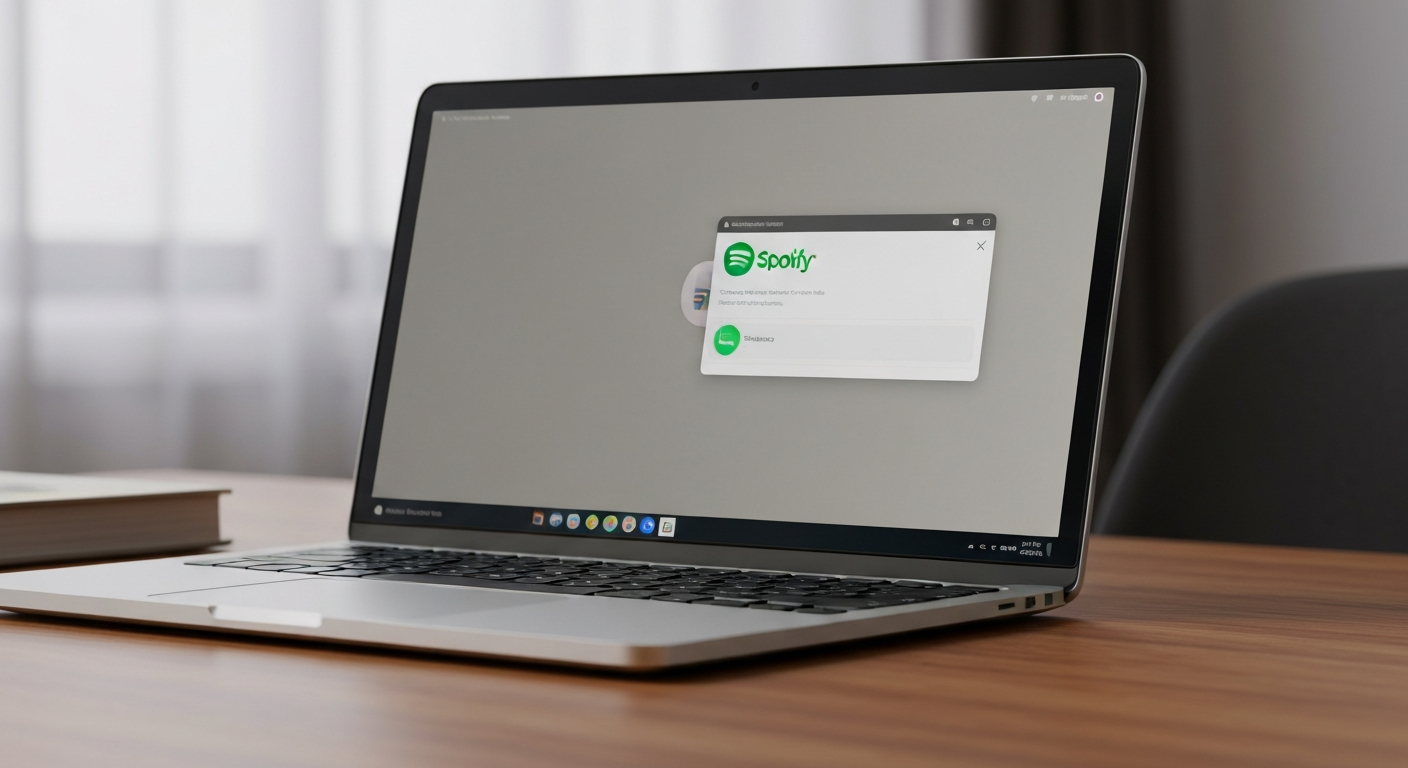
Spotify shows as a half screen because it's running in Compact Mode or Mini Player mode, the app window has been resized below the threshold that triggers full-width layout, or a display scaling mismatch on Windows or macOS is making the window appear to fill only half the monitor.
| ✓Our Pick |
Wireless earbuds and headphones for the best Spotify listening experience Consistently earns five-star reviews — reliable, well-supported, and genuinely effective. See on Amazon → |
Why Is My Spotify Half Screen? The 4 Most Common Causes
Spotify's "half screen" problem is almost entirely a window or display setting issue, not a Spotify bug. The desktop app has three display states: Full Window, Compact Mode (Mini Player), and Windowed. Identifying which state you're in takes seconds.
"Spotify offers a mini player mode on desktop that makes the app compact. If your Spotify looks small or only shows half the screen, check whether you're in compact mode by looking for the Expand button in the top-right of the mini player." — Spotify Support at Spotify
Is Spotify in Compact Mode (Mini Player)?
Spotify's desktop app has a built-in Compact Mode that shrinks the window to a small controller showing only playback controls, album art, and volume. It activates when you click the downward arrow icon (or "Compact Player" toggle) in the top-right corner of the Now Playing view.
To exit Compact Mode: Look for a small Spotify window with an upward arrow or expand icon in the top-right corner — click it to return to the full window.
Is the Window Resized Too Small?
If you manually resized the Spotify window by dragging its edges, it may have a minimum-width layout that drops the sidebar and collapses to a narrow two-panel layout. This looks like "half screen" but is just the Spotify responsive layout adapting to a narrow window.
Fix: Drag the Spotify window edges to make it wider, or double-click the title bar to maximize it. Press Windows + Up Arrow (Windows) or drag the window to the top of the screen to snap it to full size.
Is It a Display Scaling Issue?
On Windows with multiple monitors or non-standard DPI settings (125%, 150%, etc.), Spotify can open on the wrong monitor or at an unexpected size. This is common when you change your primary monitor or disconnect an external display — the app remembers its last position and may open partially off-screen.
Fix: Right-click the Spotify icon in the taskbar → "Move" (or press Alt+Space → Move on Windows) → use arrow keys to drag the window back onto the visible screen area.
Is Spotify Running on the Wrong Window Mode?
On macOS, Spotify can enter a Split View arrangement if you accidentally triggered Mission Control. On Windows, it can be snapped to half the screen via Windows Snap (which is a feature, not a bug).
Fix on Windows: Click the Spotify title bar and drag it away from the snapped position, or press Windows + Left/Right arrow to un-snap it.
Fix on macOS: Hover over the green full-screen button → choose "Zoom" to return to a windowed state, or press the green button while holding Option to maximize without entering full-screen.
Spotify Mobile Half Screen
On iPhone and Android, Spotify's "half screen" is the Mini Player at the bottom of the app — a compact now-playing bar that floats above the main navigation. Tap it to expand to the full Now Playing screen. This is intentional design, not a bug.
If the full-screen Now Playing view on mobile shows a split layout (artwork on top, lyrics/queue on bottom), tap the artwork to toggle the full-size album art view.
Also Read: Portable Bluetooth speaker for Spotify listening anywhere
Spotify Half Screen Fix Summary
| Platform |
Cause |
Fix |
| Windows desktop |
Compact Mode |
Click expand arrow in mini player |
| Windows desktop |
Snapped to half screen |
Drag away from snap or Win+Arrow |
| Windows desktop |
Display scaling issue |
Move window back to primary monitor |
| Mac desktop |
Split View or mismatched monitor |
Click green button → Zoom |
| iPhone / Android |
Mini Player |
Tap the mini player to expand |
In Short
Spotify in half screen is almost always Compact Mode, Windows Snap, or a window that's been resized too small. Click the expand arrow in the mini player to exit Compact Mode, or drag the window edges wider and maximize. On mobile, tap the bottom mini player bar to open the full Now Playing screen.
What You Also May Want To Know
How do I make Spotify full screen on desktop?
Press F11 (Windows) while the Spotify window is in focus to enter full-screen mode. On Mac, click the green button in the top-left corner of the Spotify window. On Windows, you can also double-click the title bar to maximize the window.
Why does Spotify keep opening as a small window?
Spotify remembers its last window size and position. If you closed it while it was small or in Compact Mode, it reopens that way. To fix it permanently: resize Spotify to your preferred size, then close it — it will remember the new size next time.
Why is Spotify showing only the player bar and nothing else?
You're in Compact Mode / Mini Player. There's a small expand arrow in the top-right corner of the mini player view. Click it to restore the full library, sidebar, and navigation.
How do I get out of Spotify Compact Mode?
Look for a small window with only playback controls visible. In the top-right of that window, there's an expand or upward-arrow icon. Click it. If you can't find the icon, right-click the Spotify icon in the taskbar → "Maximize" to force the full window.
Why does my Spotify open on the wrong monitor?
Spotify stores its last position between sessions. If you changed your monitor setup (disconnected an external display, changed which is primary), Spotify tries to open where it was and may land off-screen or on the wrong display. Use Right-click the taskbar icon → Move, then arrow keys to bring the window into view.
Reviewed and Updated on July 3, 2026 by Adelinda Manna