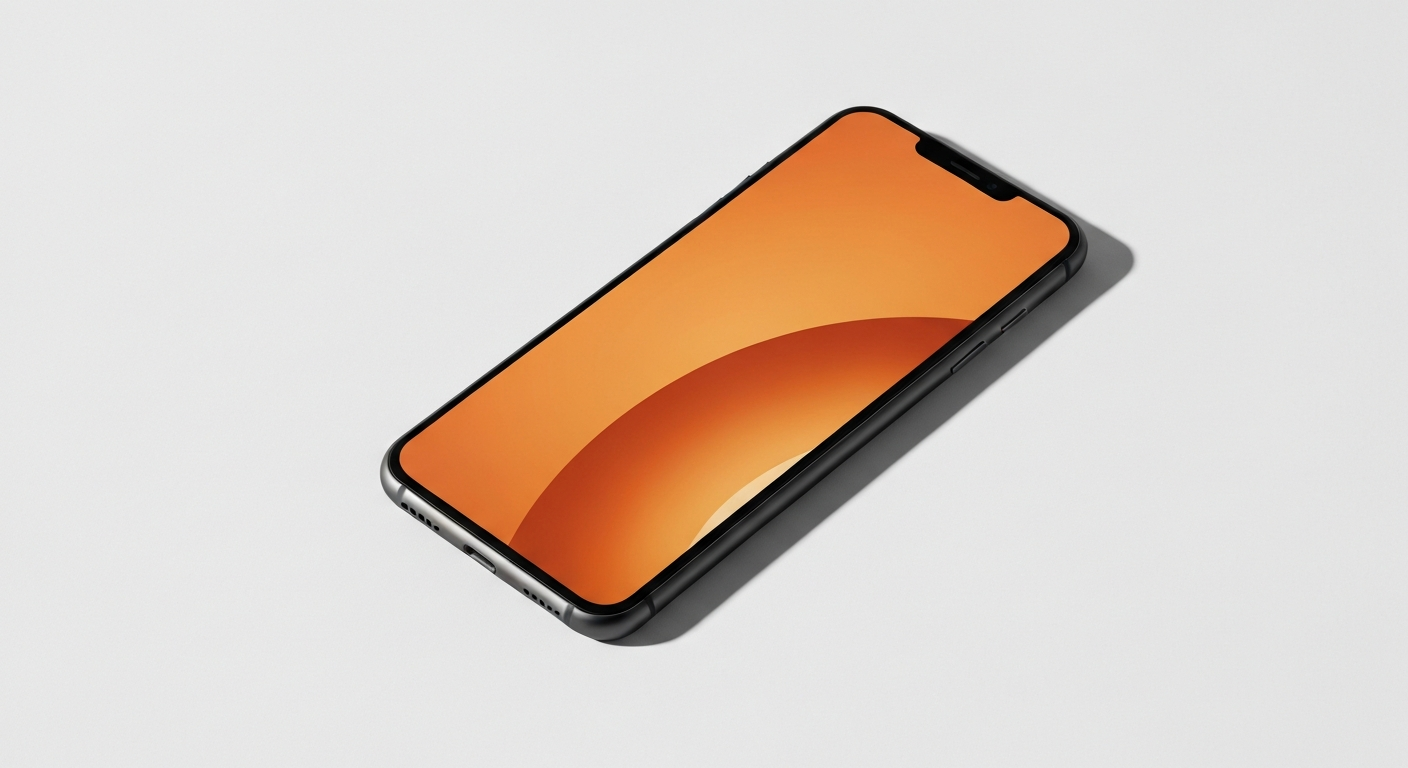
Your screen looks orange or yellow because a color-shifting feature — Night Shift, Night Mode, or a blue light filter — is active on your device. Disabling it takes under 30 seconds, and your screen returns to its normal white balance immediately.
Our Pick: Blue-light-blocking screen protector for phones and tablets on Amazon
What Causes an Orange Screen Tint
Every major operating system now ships with a built-in feature that shifts the screen's color temperature toward warmer, amber tones after sunset. The logic is that blue-heavy white light suppresses melatonin production and disrupts sleep; a warm orange or yellow display reduces that effect in the evening hours.
The main culprits by device type:
iPhone / iPad — Night Shift. Apple introduced Night Shift in iOS 9.3. When enabled, it gradually shifts the screen from its default cool white toward a warmer orange hue on a schedule you set, or manually on demand. It can also activate automatically from sunrise to sunset or remain on all day if toggled manually without a schedule configured.
iPhone / iPad — True Tone. True Tone is a separate Apple feature that uses ambient light sensors to match the screen's white balance to the color temperature of the room. In warm indoor lighting (incandescent bulbs, candles), True Tone makes the screen look noticeably orange. It is enabled by default on all iPhones from the XS generation onward.
Android — Night Mode / Comfort View / Reading Mode. The feature appears under different names depending on manufacturer: Night Mode (Samsung One UI), Night Light (stock Android), Comfort View (OnePlus, LG), Reading Mode (Xiaomi), or Eye Comfort Shield (Samsung). All shift the screen toward warm colors, and some manufacturers enable the feature by default on new devices.
Windows — Night Light. On Windows 10 and 11, the Night Light feature in Settings > System > Display shifts the monitor's color temperature on a schedule or manually. It is a common source of confusion when it activates automatically at sunset the first time a user notices it.
Mac — Night Shift / True Tone (on newer displays). macOS has its own Night Shift under System Settings > Displays and True Tone on Retina displays. Both can make an external monitor or laptop screen appear orange if enabled.
Third-party apps. Apps like f.lux (desktop), Twilight (Android), and similar blue light filter applications override the system color settings and can make the screen deeply orange even when native features are disabled. Check your installed apps if disabling the system-level feature doesn't resolve the tint.
Damaged display or loose cable (hardware). A true hardware failure — a cracked OLED panel, a partially disconnected flex cable, or a failing backlight — can produce an orange cast that is asymmetric (one side of the screen is more orange than the other) or doesn't disappear when you adjust display settings. This is rare but worth noting because the fix is completely different from a software adjustment.
How to Turn Off the Orange Tint
iPhone or iPad:
1. Open Settings > Display & Brightness > Night Shift. Toggle it off. Also check the Schedule field — if it is set to "Sunset to Sunrise," it activates automatically each evening.
2. To disable True Tone: Settings > Display & Brightness > True Tone. Toggle off.
3. For a quick one-time override: open Control Center (swipe down from the top right on Face ID iPhones, or swipe up on older models), long-press the Brightness slider, then tap the Night Shift icon to toggle it.
Android (Samsung):
1. Settings > Display > Eye Comfort Shield (or Blue Light Filter on older models). Toggle off.
2. If you're running a Samsung with a Comfort View mode, it may also be under Settings > Display > Screen Mode.
Android (stock / Pixel):
1. Settings > Display > Night Light. Toggle off. Set the Schedule to "None" to prevent it from reactivating automatically.
Windows:
1. Settings > System > Display > Night Light. Toggle off. Also check the Schedule dropdown and set it to "Off" rather than "Sunset to Sunrise."
2. Alternative: right-click the desktop > Display Settings > Night Light.
Mac:
1. System Settings > Displays > Night Shift. Set it to Off or Manual and toggle off.
2. True Tone: System Settings > Displays > True Tone (uncheck the box).
f.lux and similar apps:
Right-click or open the app from the system tray / menu bar and set the color temperature to "Daytime" mode, or disable the app entirely by setting it to quit at startup. On Windows, press Win + A to open the Action Center and confirm no third-party overlay is running.
Also Read: Shop screen calibration tools and display accessories on Amazon
When the Orange Tint Is a Hardware Problem
If disabling every software feature described above doesn't fully remove the orange cast, you are looking at a hardware issue. According to iFixit's display repair database, OLED and AMOLED panels can develop warm-toned discoloration when individual sub-pixels begin to degrade unevenly — a process that accelerates with high brightness settings over a screen's lifetime. iFixit notes that "OLED burn-in and pixel degradation manifest as color shifts that are not uniform across the display and do not respond to software calibration." (iFixit, OLED Display Repair Guide, ifixit.com, accessed 2026.)
Signs that hardware is the cause:
- The orange region is limited to one corner or edge of the screen rather than affecting it uniformly
- The discoloration is visible even at maximum blue-light output (brightness cranked, all warm features off, the screen showing a pure white image)
- The tint changes when you apply light pressure to the back of the device near the screen connector
For a hardware-caused orange screen, the fix is a panel replacement or connector reseating — both best handled by an authorized repair center or a reputable third-party shop. For phones under warranty, contact the manufacturer before paying out of pocket; irregular display coloration is often covered.
Keeping Your Screen's Color Accurate
Once you've resolved the orange tint, a few settings keep your display's colors reliable going forward:
Set Night Shift and Night Light on a schedule, not "always on." This way the warm tint only appears when you actually want it — in the hours before sleep — and doesn't confuse you during daytime use.
Use adaptive brightness rather than manual dimming. On iPhones with True Tone, letting the phone auto-adjust is generally better than disabling the feature entirely; it reduces eye strain in varied lighting without permanently shifting the white point.
Run a display calibration test occasionally. A white image (open a blank document or a white-background webpage and go full screen) makes color issues immediately visible. Any uneven orange, pink, or green patches that persist with all color filters disabled are worth investigating.
Our Pick: Anti-glare matte screen protectors with neutral color accuracy on Amazon
Reviewed and Updated on July 2, 2026 by Adelinda Manna