

Health
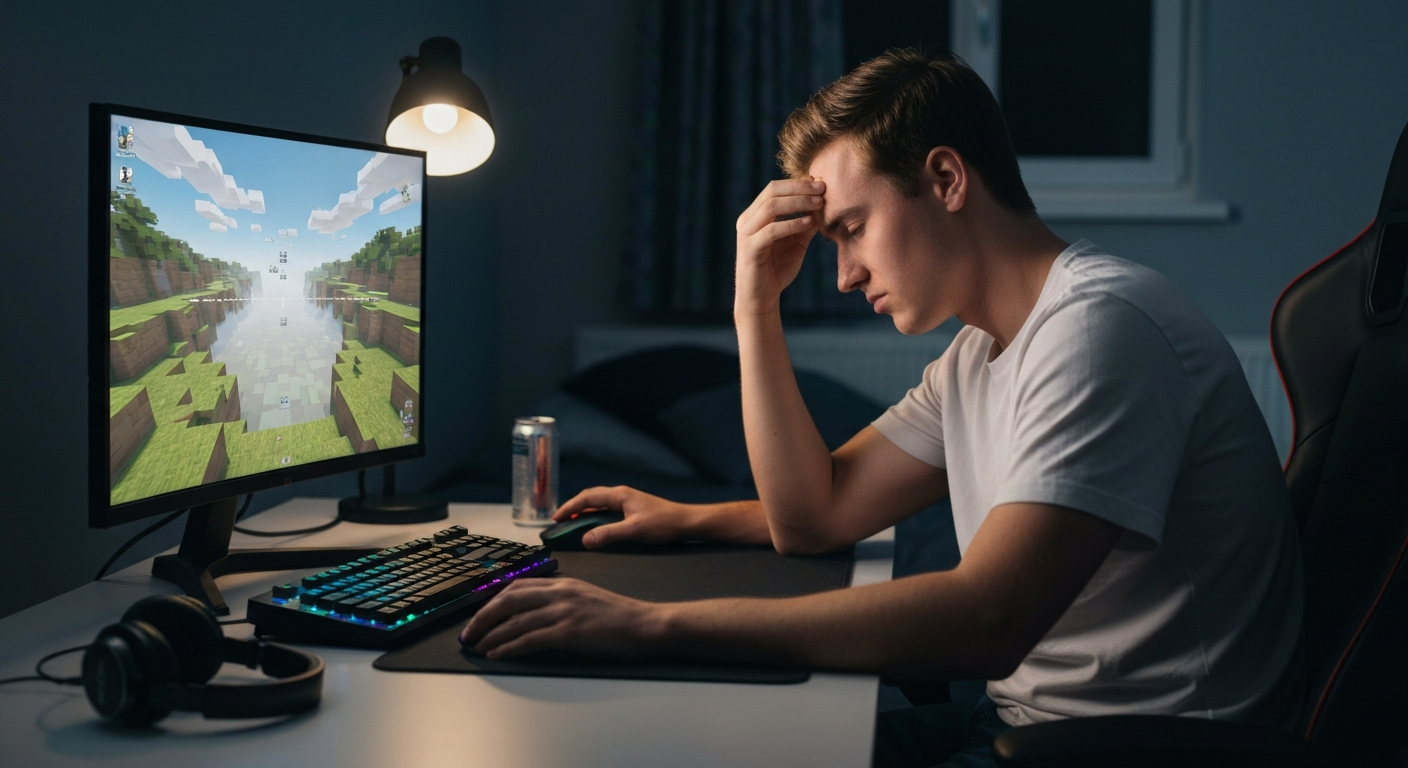

Your render distance isn't changing because a game setting, hardware limit, or software conflict is overriding your manual adjustment — the most common culprits are a separate video-quality preset that caps the slider, outdated graphics drivers, or insufficient VRAM to load distant chunks.
Adjusting render distance should be straightforward: move a slider, watch the horizon expand. When that slider seems stuck or your game ignores the new value entirely, something else is interfering with the setting. Below, you'll find every reason this happens in 2026, from in-game toggles you may have missed to GPU bottlenecks and corrupted config files.
Render distance determines how far from your character the game engine loads and displays terrain, objects, and entities — measured in chunks (typically 16×16 blocks) or meters depending on the title.
When you raise render distance, your graphics card must store more geometry and textures in video memory (VRAM), and your CPU must process more physics and AI calculations. Lower it, and the game loads a smaller bubble around you, reducing both memory demand and processing overhead. Understanding this relationship is key to diagnosing why your change isn't taking effect.
| Render distance value | Approximate visible range | Typical VRAM demand |
|---|---|---|
| 8 chunks | ~128 blocks / 128 m | 2–3 GB |
| 16 chunks | ~256 blocks / 256 m | 4–5 GB |
| 24 chunks | ~384 blocks / 384 m | 6–8 GB |
| 32 chunks | ~512 blocks / 512 m | 8–10 GB |
These figures vary by game and graphics settings, but they illustrate why your hardware may silently cap your selection.
Many games lock individual settings when you select a bundled preset like "High" or "Ultra" — including render distance.
If you've chosen a preset in the main graphics menu, the game may ignore manual slider adjustments until you switch to "Custom." In Minecraft Java Edition, for example, selecting "Fast" graphics can cap simulation distance and render distance to preserve performance. Check whether a master preset is active and change it to Custom or Manual before adjusting individual sliders.
When your graphics card lacks the video memory to load more chunks, the game may accept the new value but internally clamp it to what your hardware can handle.
This silent clamping happens frequently in open-world titles and Minecraft with shaders. If your GPU has 4 GB of VRAM and you request 32-chunk render distance with high-resolution textures, the engine may quietly reduce the effective distance to prevent crashes. Open your GPU monitoring tool (Task Manager on Windows, Activity Monitor on Mac, or a utility like MSI Afterburner) and watch VRAM usage as you increase the slider. If it maxes out, your hardware is the bottleneck.
Outdated or corrupted GPU drivers can cause settings to fail silently — the UI shows your new value, but the driver doesn't apply it.
NVIDIA, AMD, and Intel release driver updates that fix game-specific bugs, including settings not applying correctly. Visit your manufacturer's website and install the latest driver for your card. After updating, restart your computer fully before relaunching the game.
Also Read: Why Is My Mouse Not Working? 8 Causes & Quick Fixes
Performance mods like OptiFine, Sodium, or Iris can take control of render distance and ignore vanilla settings entirely.
If you have OptiFine installed in Minecraft, the render distance slider in OptiFine's video settings takes precedence over the vanilla menu. Similarly, shader packs often include their own distance and fog parameters. Open your mod's configuration screen and adjust render distance there, not in the base game menu.
Games store your settings in configuration files — if that file is corrupted, locked, or set to read-only, changes won't save.
Locate your game's config file (in Minecraft Java, it's options.txt in the .minecraft folder). Right-click the file, select Properties, and ensure "Read-only" is unchecked. If the file contains garbled text or repeated errors, delete it and let the game generate a fresh one on next launch. You'll need to reconfigure your settings, but corrupted values will be cleared.
Some games split "render distance" (what you see) from "simulation distance" (what the engine actively calculates) — adjusting one without the other creates the illusion of no change.
In Minecraft Bedrock Edition and Java 1.18+, simulation distance controls how far mobs, redstone, and crop growth are processed. If you raise render distance but leave simulation distance low, distant terrain appears but looks static and lifeless, making players think the setting didn't apply. Increase both sliders together for a noticeable difference.
On multiplayer servers, the host's render distance setting limits what your client can display — no local adjustment can exceed it.
If a server admin sets render distance to 10 chunks to reduce lag, your client's 32-chunk setting is clamped to 10. You can confirm this by opening the debug screen (F3 in Minecraft Java) and checking the "Render Distance" line, which shows the effective value. The only fix is asking the server admin to raise the limit or playing single-player.
Run through these steps in order — most players resolve the issue within the first three.
| Symptom | Most likely cause | Fastest fix |
|---|---|---|
| Slider moves but visuals don't change | Preset override or server cap | Switch to Custom preset / check server |
| Game crashes when slider raised | VRAM limit exceeded | Lower textures or render distance |
| Setting resets on relaunch | Read-only config or mod conflict | Fix file permissions or disable mods |
| Distant terrain static, no mobs | Simulation distance too low | Raise simulation distance |
| ✓Our Pick |
Remove malware locking your PC settings with SpyHunter Used by over 10,000 satisfied customers — an easy, affordable option you can start using today. Learn More → |
Render distance refuses to change when a preset, mod, driver issue, or hardware limit overrides your input. Start by switching to a Custom graphics preset, updating your GPU drivers, and checking whether VRAM usage is maxing out. On multiplayer servers, the host's cap always wins — your local slider can't exceed it. Work through the diagnostic table above, and you'll pinpoint the block within minutes.
Your config file may be set to read-only, preventing the game from saving changes. Navigate to the file, uncheck read-only in its properties, and relaunch. If a mod manager resets configs on launch, adjust settings within the mod manager instead of the in-game menu.
Yes — higher render distance demands more VRAM and CPU power. If your hardware can't keep up, you'll experience frame drops, stuttering, or even crashes. Lower the distance incrementally until performance stabilizes, or reduce other settings like shadows and particle effects first.
Multiplayer servers enforce their own render distance limit to manage bandwidth and performance. Your client setting cannot exceed the server's cap. The only way around this is to host your own server or ask the admin to increase the limit.
Yes. OptiFine adds its own video settings menu that overrides vanilla values. If you change render distance in the standard Minecraft options while OptiFine is installed, the change won't apply. Always use OptiFine's settings panel for mods that replace core graphics functions.
In Minecraft Java Edition, press F3 to open the debug screen — the "Render Distance" line shows the value actually in use, which may differ from your slider if a server or mod is capping it. Other games typically show effective settings in their debug or performance overlay menus.
Reviewed and Updated on May 30, 2026 by George Wright