Health
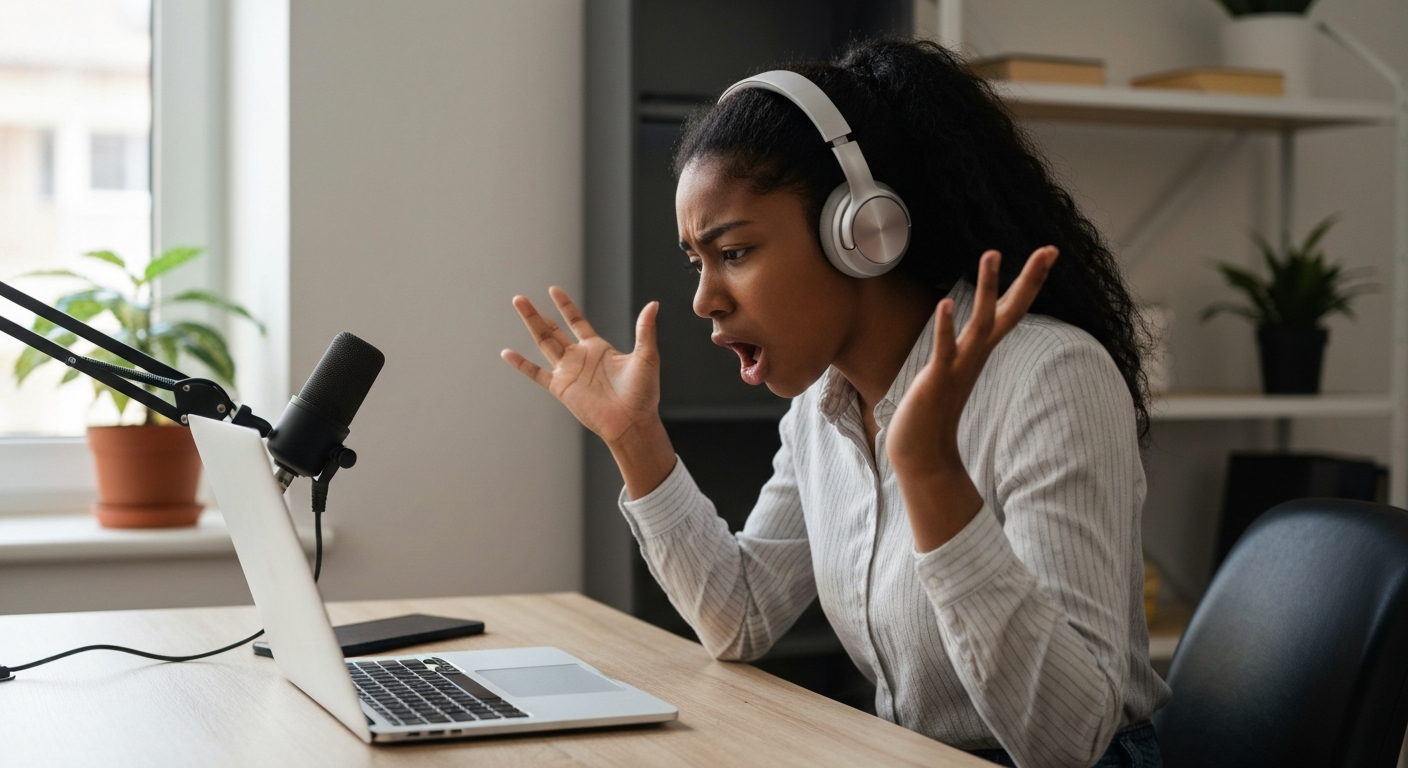

Your microphone isn't working because of one of these common issues: the wrong input device is selected, the mic is muted at the hardware or software level, your app doesn't have microphone permission, the audio driver is outdated or corrupted, or there's a physical connection problem with the mic itself.
A non-working microphone can derail a work call, ruin a gaming session, or leave you silent in a video chat when you desperately need to speak. The good news? Most microphone problems are software-related and fixable in under five minutes. This guide walks you through every cause — from quick settings checks to driver reinstalls — so you can get your voice heard again.
Your microphone converts sound waves into electrical signals, which your computer's audio interface processes and sends to whatever app is trying to use it — and any break in that chain causes the mic to "not work."
When you speak into a microphone, a diaphragm vibrates in response to sound pressure. These vibrations create an electrical signal (analog for XLR mics, digital for USB mics) that travels through cables or wireless connections to your computer's sound card or audio interface. Your operating system then routes that signal to the specific application requesting audio input.
This means a "not working" microphone could be failing at any point: the physical mic, the connection, the driver software, the operating system settings, or the individual app's permissions. Understanding this chain helps you troubleshoot systematically rather than guessing.
Also Read: Why Is My Email Not Updating? 9 Causes & Fast Fixes
The most common reason your microphone doesn't work is that your computer is listening to the wrong device — perhaps a webcam mic, a disconnected headset, or a non-existent input.
Modern computers often have multiple audio input options: built-in laptop microphones, webcam microphones, USB headsets, Bluetooth earbuds, and external mics. When you plug in a new device or update your system, Windows or macOS may switch to a different default input without telling you.
"The default audio device selection is the first thing to verify when troubleshooting microphone issues. In most support cases, the system is simply listening to the wrong input." — Microsoft Support at Microsoft
Mute switches exist at multiple levels — on the physical mic, on your headset, in your operating system, and inside individual apps — and any one of them can silence you completely.
This sounds obvious, but mute buttons are everywhere and easy to trigger accidentally. Before diving into complex fixes, check every mute point:
| Mute location | What to check |
|---|---|
| Physical mic | Look for a mute button or switch on the microphone body itself |
| Headset inline controls | Check the cable-mounted volume/mute buttons |
| Keyboard | Look for a dedicated mic mute key (often F4 or F8 with a mic icon) |
| Windows system | Right-click the speaker icon → Sound settings → Input → ensure volume isn't at 0% |
| macOS system | System Settings → Sound → Input → check input volume slider |
| App-level | Check Zoom, Discord, Teams, etc. for their own mute toggle |
Laptop keyboards frequently have function keys that mute the microphone system-wide. You may have pressed one without realizing it. Look for an LED indicator near the mute key — if it's lit, your mic is muted.
Privacy settings in Windows 11, Windows 10, and macOS block apps from accessing your microphone unless you explicitly grant permission — and these settings reset after major updates.
Operating systems now treat microphone access as a privacy-sensitive permission. If an app doesn't have permission, it simply receives silence, even though the mic works fine elsewhere.
After a Windows feature update or macOS upgrade, these permissions sometimes reset to "Off" as a security measure. If your mic suddenly stopped working after an update, permissions are the likely culprit.
Also Read: Why Is My Jabra Elite 75t Not Working? 7 Causes & Fixes
Audio drivers translate between your hardware and operating system — when they're outdated, corrupted, or incompatible, your microphone can fail even though the physical device is fine.
Driver issues are especially common after Windows updates, which sometimes install generic audio drivers that don't fully support your specific hardware.
For USB microphones like Blue Yeti, HyperX, or Elgato Wave, visit the manufacturer's website to download their specific driver or companion software. Generic Windows drivers work but may miss features or have compatibility issues.
Realtek audio chipsets power most laptop and desktop built-in audio. If you're having issues:
"Generic audio drivers may provide basic functionality but often lack full feature support and can cause intermittent microphone detection issues." — Realtek at Realtek Semiconductor Corp.
Loose cables, damaged USB ports, broken 3.5mm jacks, and failing Bluetooth connections account for a significant portion of microphone failures — especially with frequently used headsets.
Physical troubleshooting is straightforward but often overlooked:
Try your microphone on a different computer or phone. If it works there, the problem is with your computer's settings or hardware, not the mic itself.
Some applications request exclusive access to your microphone, preventing other apps from using it simultaneously — this is especially common with recording software and communication tools.
When one app has exclusive control of your mic, other apps receive no input. Here's how to check and fix this:
Also, check your running applications. Close Zoom, Discord, OBS, Audacity, or any other app that might be using the mic, then try your target application again.
macOS handles audio sharing better than Windows, but some apps still conflict. If your mic works in one app but not another:
Web browsers have their own microphone permission systems separate from your operating system — a site might be blocked even when system permissions are correct.
If your mic doesn't work in Google Meet, browser-based Discord, or other web apps:
Alternatively: Chrome menu (three dots) → Settings → Privacy and security → Site settings → Microphone → ensure your site is in the "Allowed" list.
Both browsers have similar permission systems accessible via the padlock icon or through Settings → Privacy & Security → Permissions.
Microphones do fail — especially budget USB mics after a few years of use, headset mics with worn cables, and built-in laptop mics exposed to dust and debris.
Signs of hardware failure:
If your microphone doesn't work on any computer, phone, or console, the hardware itself has likely failed. For built-in laptop microphones, debris in the mic hole can block sound — try gently cleaning with compressed air.
USB microphones can fail due to worn USB connectors or internal component failure. If your mic is out of warranty and confirmed dead, replacement is usually more practical than repair.
| ✓Our Pick |
Search USB microphones and audio accessories on Amazon Save yourself the frustration — a proven solution with consistently positive feedback from real buyers. See on Amazon → |
Follow this systematic checklist to diagnose and fix 95% of microphone problems in under ten minutes.
| Step | Action | Expected result |
|---|---|---|
| 1 | Check the correct input device is selected in system settings | Your intended mic appears as the active input |
| 2 | Check all mute switches (physical, keyboard, system, app) | All mute indicators are off |
| 3 | Verify app-level microphone permissions | Your app has permission granted |
| 4 | Test in the system sound settings (speak and watch input meter) | Level meter responds to your voice |
| 5 | Try a different USB port or cable | Mic is detected when connected |
| 6 | Update or reinstall audio drivers | Device Manager shows no warning icons |
| 7 | Disable exclusive mode in sound properties | Other apps can access the mic |
| 8 | Test on another device (phone, different PC) | Determines if hardware is faulty |
| 9 | Check browser permissions for web apps | Site shows "Allow" for microphone |
If your microphone passes steps 1–4 in system settings but fails in a specific app, the problem is app-specific. If it fails at step 4 (system test), the issue is with connections, drivers, or hardware.
Most microphone problems come down to five things: wrong input device selected, a mute switch flipped somewhere, missing app permissions, outdated drivers, or a physical connection issue. Start by selecting the correct device and checking every mute switch. Then verify permissions in both your operating system and individual apps. Update your audio drivers if nothing else works. Physical failures happen but are less common than software issues — test your mic on another device to rule out hardware problems before buying a replacement.
Zoom has its own audio settings separate from your system. Open Zoom, click the arrow next to the microphone icon, and select the correct input device. Also go to Settings → Audio and ensure your mic is selected and the input level responds when you speak. If Zoom shows the mic working but others can't hear you, check that you're not muted in the meeting itself.
Windows updates frequently reset privacy permissions and sometimes install generic audio drivers that conflict with your hardware. Go to Settings → Privacy & Security → Microphone and re-enable permissions. Then open Device Manager, uninstall your audio driver, and restart so Windows reinstalls it fresh. For best results, download the latest driver directly from your computer manufacturer.
If your USB mic doesn't appear in Device Manager or sound settings, it's either a port issue, cable issue, or driver issue. Try different USB ports — avoid hubs and use ports directly on your computer. Try a different USB cable if possible. Check Device Manager for unknown devices or error icons under "Audio inputs and outputs" or "Universal Serial Bus controllers."
Low microphone volume usually means the input gain is set too low. In Windows, go to Sound settings → Input, click your mic, and increase the Input volume slider. You can also go to Sound Control Panel → Recording → Microphone Properties → Levels and boost the level there. Some USB mics have a physical gain knob — turn it up. If volume is still insufficient, your mic may be positioned too far from your mouth.
Laptop mics commonly fail due to driver issues, disabled devices, or physical obstruction. In Device Manager, ensure your internal microphone isn't disabled (right-click → Enable). Update your laptop's audio driver from the manufacturer's support page. Check your laptop's mic hole (often a tiny pinhole near the webcam) for dust or debris blocking sound input.
Reviewed and Updated on June 1, 2026 by George Wright