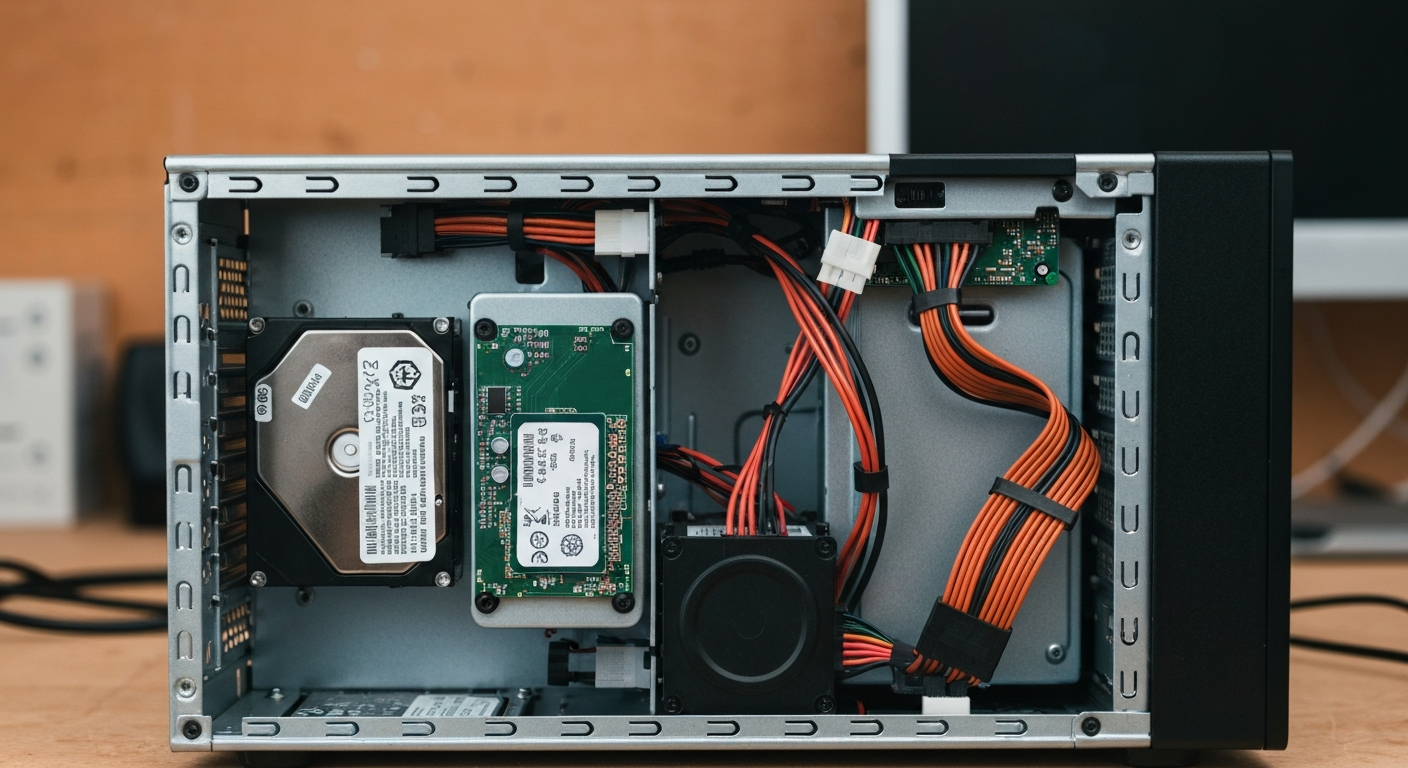
100% disk usage in Task Manager almost always means a background Windows process is overwhelming your drive, not that the drive itself is broken — though an aging traditional hard drive makes the problem far more noticeable than it would be on a newer SSD.
| ✓Our Pick |
External SSD upgrade many people use to replace an aging hard drive You'll wonder why you didn't try this sooner — practical, well-reviewed, and easy to get started. See on Amazon → |
What Causes 100% Disk Usage?
The most common culprits are background services like Windows Search indexing or SysMain, too many programs competing for the same drive at once, low free disk space, or — less often — malware running undetected in the background.
A security software provider's writers summarized the general list well:
"If 100% of your disk is being used, it's likely caused by one of the following issues: High CPU or memory usage, Background processes, Malware or viruses, Insufficient disk space, Fragmented disk, Faulty hardware." — Sandro Villinger & Nica Latto at AVG
One specific Windows service shows up constantly in disk-usage complaints: SysMain (the modern name for SuperFetch), which preloads frequently used programs into memory to speed up launch times. A tech support writer who covers this issue regularly explained:
"SysMain (previously known as SuperFetch) helps reduce boot time and optimize the loading of frequently used programs. However, it has been identified as a potential cause of disk performance issues in Windows 8 and later versions of Windows, including Windows 10." — Enya Zhang at Driver Easy
SysMain was designed with SSDs in mind, where constant background reads barely register. On a traditional spinning hard drive, that same background activity can be enough to peg disk usage at 100% and make the whole system feel sluggish.
Is It Windows Background Processes or Your Hard Drive Itself?
Most 100% disk usage is software-driven and temporary, but a drive nearing the end of its life can also cause sustained high disk activity as it struggles to read and write data reliably.
As Driver Easy's guide put it plainly:
"Hard drives have a limited lifespan and can fail unexpectedly." — Enya Zhang at Driver Easy
A few signs point toward the drive itself rather than a background process: disk usage stays pinned at 100% even right after a fresh restart with nothing open, you hear unusual clicking or grinding noises from the drive, or file transfers and program launches have been getting progressively slower over weeks or months rather than appearing suddenly. Running a disk health check tool can confirm whether the drive's underlying health is the actual issue.
Also Read: RAM upgrade kit many people add when an older PC keeps swapping to disk
Quick Fixes to Reduce Disk Usage
Most disk usage spikes resolve with one of these steps, roughly in order of how often they fix the problem:
- Open Task Manager (Ctrl+Shift+Esc), sort by Disk, and check whether one specific program is responsible before changing any system settings
- Temporarily disable SysMain: open Services (services.msc), find SysMain, and stop it to see if disk usage drops — re-enable it later if it doesn't help
- Pause Windows Search indexing temporarily if a recent large file move or update triggered a re-index, which can spike disk usage for a while before settling down
- Run a full malware scan, since malware running in the background is a less common but real cause of sustained high disk usage
- Free up disk space if the drive is nearly full, since very low free space can itself cause performance problems
If low free space turns out to be the actual issue rather than a background process, we've covered that specific situation in more depth separately:
Also Read: Why Is My Hard Drive Full?
In Short
100% disk usage is usually caused by a background Windows process like SysMain or search indexing, not a broken drive — though an aging traditional hard drive makes the slowdown far more noticeable. Checking Task Manager for the specific culprit, temporarily disabling SysMain, and running a malware scan resolve most cases. Disk usage that stays pinned at 100% even when nothing is running, especially alongside unusual noises from the drive, points toward the hardware itself rather than software.
What You Also May Want To Know
Why is my disk usage 100% even when I'm not doing anything?
This is usually a background process like SysMain (SuperFetch) or Windows Search indexing running without your input. Checking Task Manager's Disk column will show which specific process is responsible.
Does 100% disk usage mean my hard drive is failing?
Not usually, but it can be a sign in some cases. Software causes like background services are far more common, but a drive that's pinned at 100% even right after restart, or that makes unusual noises, may be nearing the end of its life.
Will disabling SysMain hurt my computer?
No, but you may notice frequently used programs take slightly longer to open the first time after disabling it, since SysMain's job is to preload them into memory in advance.
Does upgrading from a hard drive to an SSD fix 100% disk usage?
Often, yes, especially if the cause is background processes like SysMain that were designed with SSDs in mind. SSDs handle the same background read/write activity far more easily than traditional spinning hard drives.
How do I check if my hard drive is actually failing?
Most disk health tools (including Windows' own CHKDSK, or third-party SMART monitoring tools) can check a drive's underlying health and flag warning signs before a drive fails completely.
Reviewed and Updated on June 25, 2026 by Adelinda Manna