Technology
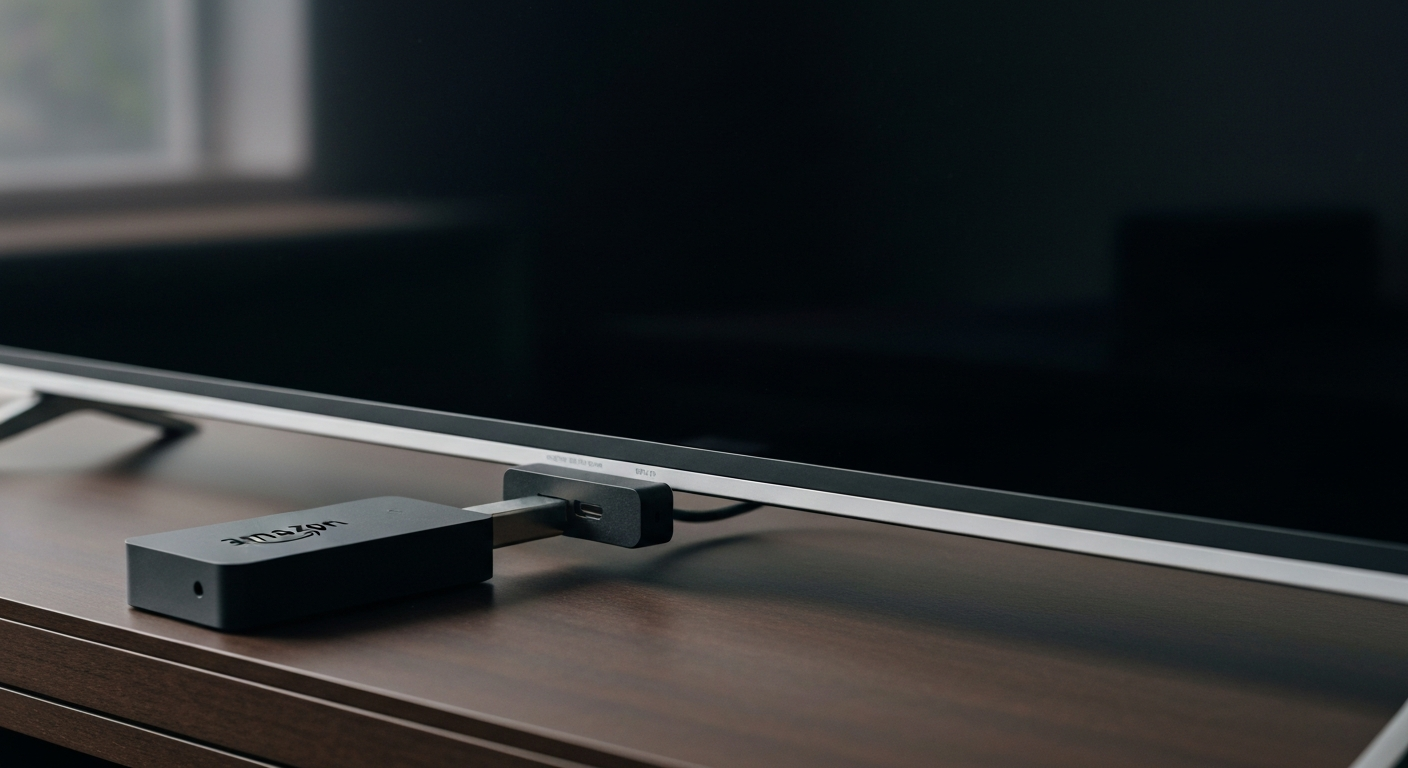

A Fire Stick stops working because of HDMI handshake failures (wrong input or resolution), network connectivity loss, an overheated device, outdated Fire OS, a stuck remote, or a crashed app. Unplugging and replugging resolves most Fire Stick problems in under 60 seconds.
| ✓Our Pick |
Protect your Fire Stick with a VPN to unblock streaming and avoid throttling No special skills required — straightforward to use and most orders ship quickly. Learn More → |
Fire Stick problems fall into four categories: power (inadequate power supply), display (HDMI handshake failure), network (Wi-Fi disconnection, ISP throttling), and software (crashed apps, outdated OS). Power and display issues are the most overlooked because they look like a software problem from the outside.
"If your Fire TV device isn't responding or displaying a black screen, the first troubleshooting step is to unplug the device from the power source, wait 30 seconds, then plug it back in. Most Fire TV issues are resolved with a restart." — Amazon Fire TV Help at Amazon
The Fire Stick requires a 5V/1A (5W) power input minimum; the Fire Stick 4K requires 9V/1A (9W) via USB-C. Plugging it into a TV's USB port delivers only 500 mA — not enough for the 4K model and marginal for the standard model. This causes random freezes, reboots, and black screens that look like software failures.
Always use the included power adapter (the square adapter with a micro-USB or USB-C cable). If yours is missing, use a 5W or higher certified charger — not a phone charger with an adapter.
Fire Sticks connect via HDMI. If your TV has multiple HDMI ports, you must select the correct input. Press your TV remote's Input or Source button and cycle through inputs until the Fire OS home screen appears.
Also check that the HDMI port supports the Fire Stick's output resolution. The Fire Stick 4K requires an HDMI 2.0 port; connecting it to an HDMI 1.4 port limits resolution to 1080p and can cause intermittent display issues.
A Fire Stick that shows a home screen but won't load content has lost its Wi-Fi connection or the Wi-Fi signal is too weak. Navigate to Settings → Network and check the connection status. If the Wi-Fi is connected but streaming is slow, ISP throttling of streaming traffic may be affecting content delivery speeds.
Step 1 — Unplug and replug. Unplug the Fire Stick from both the HDMI port and the power adapter. Wait 30 seconds. Replug the power first, then the HDMI. Wait 60 seconds for the Fire OS to fully boot before concluding it isn't working.
Step 2 — Check the power source. Confirm you're using the included power adapter, not a TV USB port. The included adapter is rated for the Fire Stick's power requirement; most other USB sources are not.
Step 3 — Select the correct HDMI input. Press the Input/Source button on your TV remote and select the HDMI port the Fire Stick is plugged into.
Step 4 — Restart from the menu. If the Fire Stick is responsive but sluggish: Settings → My Fire TV → Restart. This is a cleaner restart than unplugging.
Step 5 — Check network connectivity. Settings → Network → check if your Wi-Fi is connected and shows a good signal. If disconnected, reconnect via the Wi-Fi Setup option. If the signal is weak, move your router closer or use a Wi-Fi extender.
Step 6 — Clear app cache. If a specific app (Netflix, Prime Video, Disney+) crashes or won't load: Settings → Applications → Manage Installed Applications → select the app → Clear Cache → Force Stop → relaunch.
Step 7 — Update Fire OS. Settings → My Fire TV → About → Check for Updates. Running outdated Fire OS can cause app crashes, connection failures, and playback errors that a software update resolves.
Step 8 — Factory reset. Settings → My Fire TV → Reset to Factory Defaults. This wipes all accounts and apps and returns the Fire Stick to its out-of-box state. Use as a last resort after all other steps fail.
"Clearing the cache of individual apps on Fire TV can resolve issues with apps that crash, won't load, or display error messages. Go to Settings > Applications > Manage Installed Applications to access the cache clearing option for each app." — Amazon Fire TV Help at Amazon
| Symptom | Likely Cause | Fix |
|---|---|---|
| Black screen only | Wrong HDMI input or power issue | Check input selection, use included power adapter |
| Home screen loads, apps don't | Network issue or app cache | Check Wi-Fi, clear app cache |
| Keeps restarting | Insufficient power | Use included power adapter |
| Remote not responding | Low battery or pairing lost | Replace batteries, re-pair via Fire TV settings |
| Loading very slowly | Throttled internet or overheating | Clear storage, ensure airflow |
Also Read: See what accessory most Fire Stick owners buy to improve streaming quality
| ✓Our Pick |
Fire Stick accessories including remotes and power adapters No special skills required — straightforward to use and most orders ship quickly. See on Amazon → |
A Fire Stick that won't work is almost always a power supply problem (use the included adapter), a wrong HDMI input selection, a Wi-Fi disconnect, or an app that needs its cache cleared. Unplug, wait 30 seconds, replug using the correct power adapter, and select the right TV input — those four steps resolve the vast majority of Fire Stick failures.
A black screen is almost always one of three things: the wrong HDMI input is selected (press Source/Input on your TV remote), the power supply is insufficient (switch to the included power adapter), or the HDMI connection is loose. Press Source/Input on your TV remote first — that's the fastest check.
Fire Stick remotes use Bluetooth, not infrared. Replace the AAA batteries with fresh ones. If new batteries don't help, re-pair the remote by holding the Home button for 10 seconds from within 3 feet of the Fire Stick. An alternative is the Fire TV app on your phone, which works as a remote over Wi-Fi.
Yes, any TV with an HDMI port. The Fire Stick 4K requires HDMI 2.0 with HDCP 2.2 for 4K/HDR content. Older TVs with HDMI 1.4 will still work but display content at 1080p maximum.
Over time, installed apps and their cached data fill the Fire Stick's limited internal storage (typically 8–16 GB). Go to Settings → My Fire TV → About → Storage to check. Uninstall apps you don't use and clear the cache of apps you do. If storage is nearly full, a factory reset (then reinstall only needed apps) restores full speed.
Freezing is usually caused by an overheating Fire Stick (ensure the space around it is not enclosed), insufficient power (use the included adapter), or a full storage/RAM situation. Restart the Fire Stick from Settings → My Fire TV → Restart, and ensure the device has adequate airflow behind the TV.
Reviewed and Updated on July 3, 2026 by Adelinda Manna