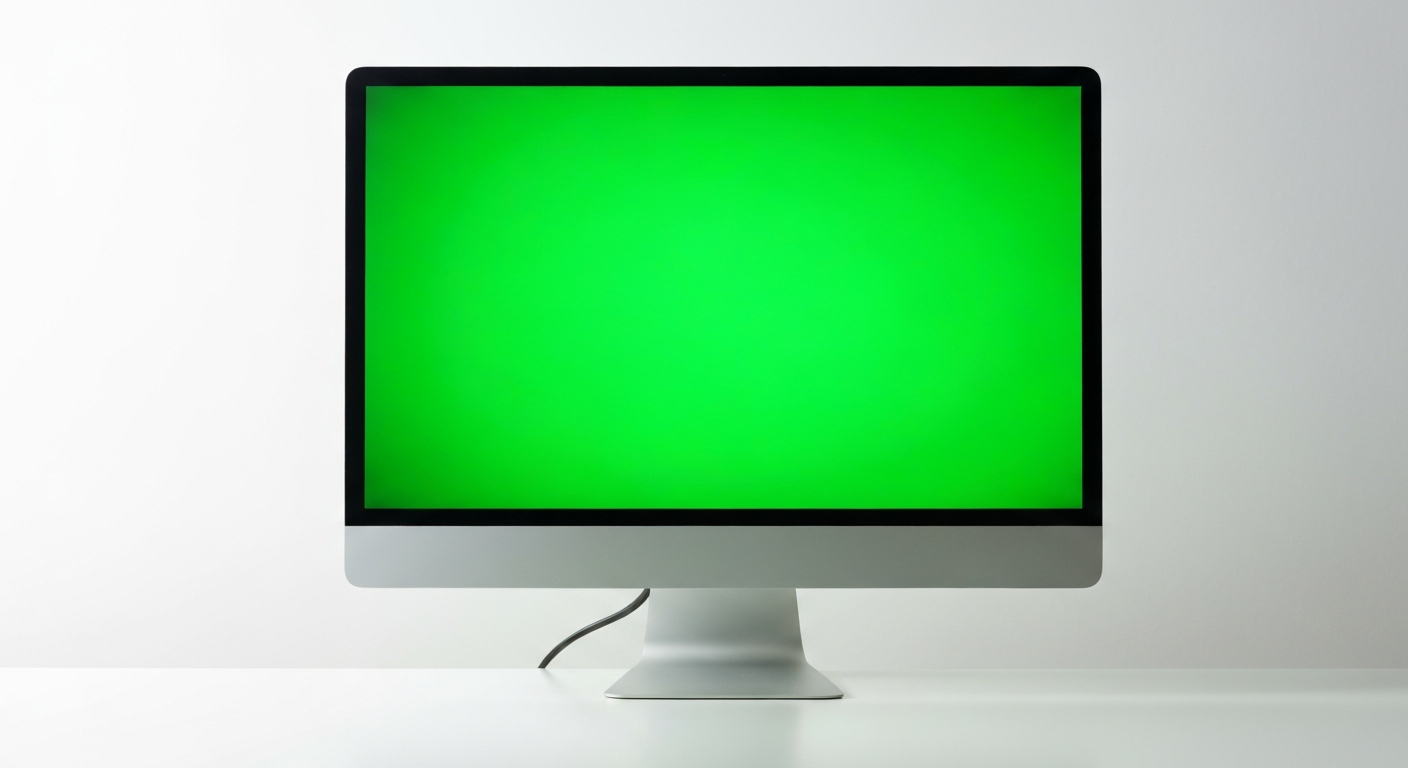
A green-tinted or all-green computer monitor is caused by a damaged or loose VGA/HDMI/DisplayPort cable (the green color channel stays active while others fail), a broken cable pin, an incorrect color profile in display settings, or a failing monitor panel where the red and blue subpixel drivers are failing.
Why Is My Computer Monitor Green? The 4 Main Causes
A green-colored monitor display is a signal path problem. Your monitor receives color information through three channels — red, green, blue. When the red and blue channels fail or lose their signal while green remains, everything on screen appears green. The cable or connector is the most likely break point.
Green monitor tints are almost always cable or connector problems, not GPU or monitor panel failures. Before assuming anything is broken beyond repair, test the simplest physical causes first — they take less than five minutes.
"Monitor color problems, including a green tint or green display, are most often caused by a loose or damaged display cable. Disconnecting and firmly reconnecting the cable at both ends is the first troubleshooting step." — Dell Support at Dell Technologies
Is the Cable Damaged or Loose?
The single most common cause of a green monitor is a damaged or poorly seated cable. This is especially common with VGA cables, which have 15 physical pins — individual pins carrying the red or blue signal channels can bend or break, leaving only green functional.
Check the cable: Inspect the connector at both the monitor end and the PC/GPU end. Look for bent pins (VGA), corrosion, or physical damage. Unplug the cable completely, inspect it, and firmly reseat it. If it has screw-locks (VGA), tighten them.
Test with a different cable: If you have a spare HDMI, DisplayPort, or VGA cable, swap it in. If the green tint disappears, the original cable is defective.
Is It a Color Profile or Night Light Setting?
Windows and macOS allow custom color profiles, calibration settings, and blue light filters that can shift the monitor's color rendering significantly toward green. This is software-side and entirely reversible.
On Windows: Right-click the desktop → Display Settings → Advanced Display → Display Adapter Properties → Color Management tab → check if a non-default color profile is applied. Remove any custom profiles and restore the default sRGB IEC61966-2.1 profile.
Night Shift or blue light filters reduce blue light, which can make content appear more yellow-green. Check Settings → Display → Night Light (Windows) or System Settings → Displays → Night Shift (Mac) and toggle both off.
Is the GPU Output Damaged?
If you've tested multiple cables and the green tint persists, the GPU's video output port itself may be damaged — a bent pin in an HDMI port, or a damaged DisplayPort connector after a forceful cable insertion. Try connecting the monitor to a different output port on the same GPU (e.g., move from HDMI port 1 to HDMI port 2, or try DisplayPort instead of HDMI).
If testing on a different GPU port resolves the issue, the original port is physically damaged.
Is the Monitor Panel Failing?
If the green tint appears on all inputs and with multiple cables, the monitor's internal electronics are failing — specifically, the panel's LED driver or color processing circuit. This is more common on monitors over 5–6 years old. The fix is a monitor replacement or professional repair (which typically costs nearly as much as a replacement for consumer monitors).
Step-by-Step: How to Fix a Green Monitor
Step 1 — Power cycle both devices. Turn the monitor and PC completely off. Unplug both from power. Wait 30 seconds. Reconnect and power on.
Step 2 — Reseat all cables. Disconnect the display cable at both ends. Inspect for bent pins or damage. Reconnect firmly. If using VGA, tighten the thumb screws.
Step 3 — Try a different cable. If the green tint disappears with a new cable, the original cable is defective. Replace it.
Step 4 — Test on a different GPU output port. Move the cable from one HDMI/DP port to another on the GPU or try a completely different connection type.
Step 5 — Check display color settings. Windows: Color Management in Display Adapter Properties. Mac: System Settings → Displays → Color Profile → restore sRGB. Turn off Night Shift and Night Light.
Step 6 — Update GPU drivers. Open Device Manager → Display Adapters → Update Driver. A corrupted graphics driver can output incorrect color signals.
Step 7 — Test the monitor on a different PC. Plug your monitor into another computer with a different cable. If the green tint appears on another system too, the monitor panel is failing. If it looks fine, the issue is with the first PC's GPU or software.
Also Read: What most people pick up when they need to replace their monitor cable
| ✓Our Pick |
Replacement HDMI and DisplayPort cables Simple to use and genuinely effective — for many people this is all they ever needed. See on Amazon → |
In Short
A green monitor is almost always a cable problem — a damaged pin, a loose connection, or a defective cable. Test a replacement cable first; this resolves the problem in the majority of cases. If the cable is fine, check display color profiles and GPU driver settings. If all else fails and the green tint appears on all inputs and cables, the monitor's internal panel electronics are failing and the monitor needs replacement.
What You Also May Want To Know
Why is my monitor suddenly all green?
A sudden all-green display (the entire screen is a solid green or heavily green-tinted) usually means the red and blue color channels dropped out simultaneously. This is almost always a cable failure or a GPU port failure. Test a new cable immediately before anything else.
Can a GPU cause a green monitor?
Yes, but it's less common than cable failure. A failing GPU can produce incorrect color output including green tints. Test by trying the monitor on a second PC or testing the PC with a second monitor. If the second monitor shows the same green tint, the GPU is the likely cause.
Does a green screen mean my monitor is dying?
A green tint alone doesn't mean the monitor is dying — it almost always means the cable is failing. A truly dying monitor panel typically shows dead pixels, backlight failure (dark patches), or image retention before it produces a color shift.
Why is my green tint only on one monitor but not the other?
With a dual-monitor setup, a green tint on only one monitor means the cable to that specific monitor is failing, or the GPU output port for that monitor has a damaged pin. Test by swapping which GPU port each monitor uses.
How do I reset my monitor's color to default?
Most monitors have a physical menu button on the bezel. Press it to open the OSD (On-Screen Display) menu → Color Settings → Reset to Default. This returns the monitor's own color settings to factory defaults without changing Windows or macOS color profiles.
Reviewed and Updated on July 3, 2026 by Adelinda Manna