
Technology
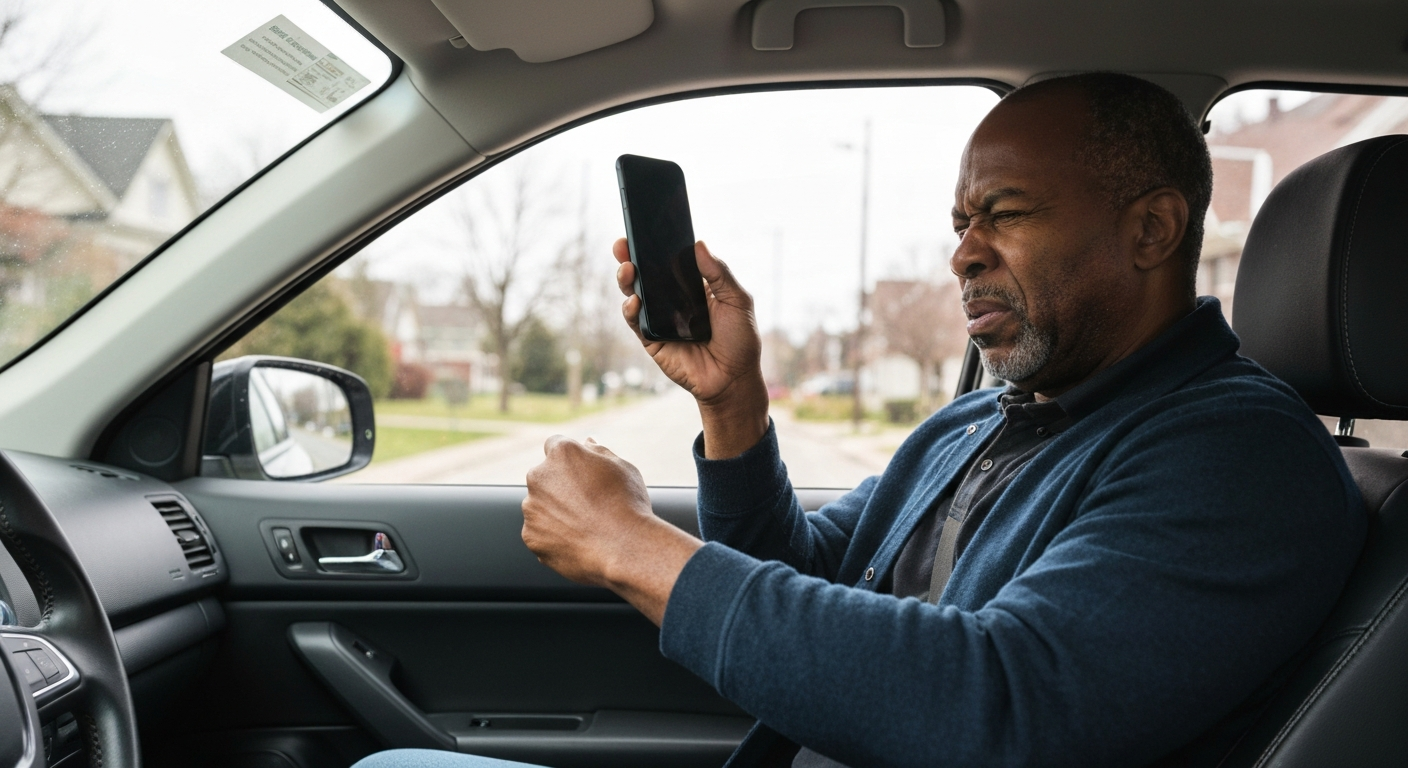

Your Verizon phone displays "SOS" or "SOS Only" in the status bar when it can no longer connect to Verizon's cellular network but can still reach emergency services through any available tower — this typically happens due to SIM card issues, being outside Verizon's coverage area, an unpaid bill suspending your service, network outages, or incorrect network settings on your device.
The SOS indicator is a safety feature built into both iPhones and Android devices. It tells you that while normal calls, texts, and data won't work, you can still dial 911 if needed. The good news: most causes are fixable in under five minutes without calling Verizon support.
SOS mode means your phone has lost its authenticated connection to Verizon's network but remains capable of connecting to any nearby cell tower for emergency calls only — a requirement mandated by FCC regulations for all mobile carriers.
When your phone connects normally, it authenticates with Verizon's towers using your SIM card credentials. This authentication gives you full access to voice, text, and data services. When that authentication fails for any reason, your phone drops into SOS mode. The device will still scan for and connect to the strongest available signal — even from competing carriers like AT&T or T-Mobile — but only for 911 calls.
On iPhones, you'll see "SOS" or "SOS Only" in the upper-right corner where your signal bars normally appear. Android phones vary by manufacturer, but most Samsung, Google Pixel, and Motorola devices display similar indicators in the status bar.
This behavior is intentional and regulated. The FCC requires that all cell towers accept emergency calls from any phone, regardless of carrier or account status. Your phone essentially becomes an emergency-only device until the underlying issue is resolved.
Also Read: Why Is My Internet Going In and Out? 9 Causes & Fixes
The SOS indicator appears when something breaks the chain between your phone and Verizon's authenticated network — the cause is usually one of these seven issues, listed from most to least common.
A loose, dirty, or damaged SIM card is the most frequent cause of sudden SOS mode. The SIM card contains your subscriber identity — without it reading correctly, Verizon's towers won't recognize your phone as an authorized device.
Physical SIM cards can shift slightly after drops or bumps, breaking the electrical contact. Corrosion from humidity or pocket lint can also interfere with the connection. Even eSIMs can glitch, requiring a re-download of the carrier profile.
Verizon's 4G LTE and 5G networks cover approximately 99% of the US population, but that doesn't mean 99% of the land area. Rural regions, mountainous terrain, and some indoor locations have weak or no Verizon signal.
Your phone shows SOS when it can detect cell towers from other carriers but not from Verizon. This commonly happens when traveling through remote areas, inside buildings with heavy concrete or metal construction, or near the edges of Verizon's coverage map.
Unpaid bills, suspected fraud, or account verification issues can trigger an immediate service suspension. When Verizon suspends your line, their towers actively reject your phone's connection attempts, forcing it into SOS mode.
Verizon typically sends text and email warnings before suspension, but if you've missed those notifications or changed contact information, the suspension can seem sudden. Prepaid accounts are especially vulnerable — once your balance hits zero, service stops immediately.
| ✓Our Pick |
NordVPN for securing your connection on public networks A well-reviewed choice that delivers real results — worth every penny for anyone dealing with this. Learn More → |
Network outages affect even the largest carriers. Equipment failures, severe weather, fiber cuts, and maintenance windows can temporarily disable towers in your area. During outages, your phone loses its connection and drops into SOS mode along with everyone else nearby.
Verizon's outage map (available at verizon.com/support/network-status) shows reported problems in real time. Third-party sites like DownDetector also track user-reported outages with geographic detail.
Airplane mode disables all wireless radios in your phone, including cellular. When you turn it back off, the phone must re-register with the network. Sometimes this re-registration fails, leaving you stuck in SOS mode even though airplane mode appears to be off.
This glitch happens more often after software updates or when toggling airplane mode in areas with weak signal. The phone's radio may not fully reinitialize, requiring a manual restart.
Your phone stores network preferences, carrier configurations, and roaming settings that tell it how to connect to Verizon. Software bugs, failed updates, or app conflicts can corrupt these settings, preventing proper network authentication.
Carrier settings updates — pushed periodically by Verizon to optimize network performance — can also fail to install correctly, leaving your phone with outdated or broken configuration data.
Phones reported stolen, purchased with fraudulent financing, or owing an unpaid balance to another carrier can be added to a shared industry blacklist. Verizon checks this database when your phone attempts to connect — blacklisted devices are rejected.
Compatibility is another factor. Older phones or devices originally purchased for other carriers may lack the specific frequency bands Verizon uses. Even if the phone worked previously, Verizon's ongoing 3G shutdown (completed in 2022) and network modernization efforts have rendered some older devices incompatible.
Also Read: Why Is My Phone Bill So High? 9 Causes & How to Lower It
Work through these fixes in order — each step eliminates a potential cause, and most users resolve the issue within the first three steps.
Open your phone's quick settings (swipe down from the top of the screen) and tap the airplane icon to enable airplane mode. Wait 30 seconds, then tap it again to disable. This forces your phone to completely disconnect from and re-register with the cellular network.
A full restart clears temporary software glitches and reinitializes all radios. Hold the power button (or power + volume on newer iPhones), select restart, and wait for the device to fully boot. Check signal status after the home screen loads.
For physical SIM cards:
1. Power off your phone
2. Eject the SIM tray using the included tool or a paperclip
3. Remove the SIM card and inspect for visible damage or debris
4. Clean the gold contacts gently with a dry microfiber cloth
5. Reinsert the SIM firmly and power on
For eSIM:
1. Go to Settings > Cellular (iPhone) or Settings > Network & internet > SIMs (Android)
2. Remove the eSIM profile
3. Re-add it using your Verizon account credentials or the original QR code
Log into your Verizon account via the My Verizon app or verizon.com. Look for any alerts about payment issues, account holds, or service suspensions. If your account is suspended, you'll need to resolve the underlying issue (usually payment) before service restores.
Visit verizon.com/support/network-status or check DownDetector.com for reported outages in your area. If there's an active outage, the only fix is waiting for Verizon to resolve it — typically within a few hours for most incidents.
This erases all saved WiFi passwords, Bluetooth pairings, and cellular configurations, forcing your phone to rebuild them from scratch:
iPhone: Settings > General > Transfer or Reset iPhone > Reset > Reset Network Settings
Android (varies by manufacturer): Settings > System > Reset options > Reset WiFi, mobile & Bluetooth
After the reset, your phone will restart and attempt a fresh connection to Verizon's network.
Carrier settings updates contain the latest network configurations from Verizon:
iPhone: Settings > General > About. If an update is available, a prompt will appear.
Android: Settings > About phone > Software update, or Settings > System > Carrier settings.
If none of the above steps work, the issue likely requires Verizon's intervention — account problems, network-side blocks, or IMEI/device issues can only be resolved by their support team. Call 1-800-922-0204 or use the My Verizon app's chat feature.
| Symptom | Most Likely Cause | First Fix to Try |
|---|---|---|
| SOS after traveling | Left coverage area | Check coverage map; wait for better signal |
| SOS after phone drop | SIM card dislodged | Reseat SIM card |
| SOS after missing payment | Account suspended | Pay balance via My Verizon |
| SOS after update | Corrupted settings | Reset network settings |
| SOS on used phone | Blacklisted IMEI | Contact Verizon to verify |
| SOS with many nearby affected | Network outage | Check Verizon status page |
Satellite SOS — available on iPhone 14 and later — is a separate feature that lets you contact emergency services via satellite when no cell towers are reachable at all.
If you're using an iPhone 14 or newer, "SOS" might indicate you're in satellite emergency mode, not just regular SOS-only cellular mode. Apple's Emergency SOS via satellite connects to orbiting satellites when you're completely off the grid — useful for hikers, boaters, and remote travelers.
This feature activates automatically when no cellular signal is available. You'll see on-screen prompts guiding you to point your phone at the sky to establish a satellite connection. Regular SOS mode (the issue covered in this article) still connects to terrestrial cell towers.
Your Verizon phone shows SOS when it loses its authenticated connection to Verizon's network — the most common causes are SIM card issues, coverage gaps, unpaid bills, and network outages. Toggle airplane mode, restart your phone, and reseat your SIM to fix most cases. If those steps don't work, reset your network settings or contact Verizon directly. The SOS indicator means you can still call 911, so you're never completely without emergency access.
If your phone previously had good signal at home but now shows SOS, either Verizon made network changes (tower maintenance, frequency reallocation) or something changed inside your home. New construction, metal roofing, or even large appliances can block cellular signals. Try moving near a window or stepping outside to test. If the problem persists, contact Verizon about potential network changes or consider their network extender device.
No — SOS mode restricts your phone to emergency calls only (911 in the US). Regular calls, texts, and mobile data are all disabled. You can still use WiFi calling if you're connected to a WiFi network and have that feature enabled in your phone's settings, which bypasses the cellular network entirely.
Service typically restores within 15 minutes to 2 hours after payment processes. If you paid via the My Verizon app or website with a debit/credit card, restoration is usually faster. Payments made by check or through third-party services can take up to 24 hours to reflect. Restart your phone after paying to speed up reconnection.
No — SOS mode indicates a network connectivity issue, not a security breach. Your phone is simply unable to authenticate with Verizon's towers. However, if you're experiencing SOS mode alongside other suspicious behavior (unexplained charges, apps you didn't install, or contacts reporting strange messages from you), those are separate issues worth investigating.
Removing your SIM card will not delete any data stored on your phone — photos, apps, contacts (if saved to the phone or cloud), and files remain intact. The SIM only stores your carrier authentication information and, on very old phones, some contacts. You can safely remove and reseat it without losing anything.
Reviewed and Updated on June 13, 2026 by Adelinda Manna