
Skin
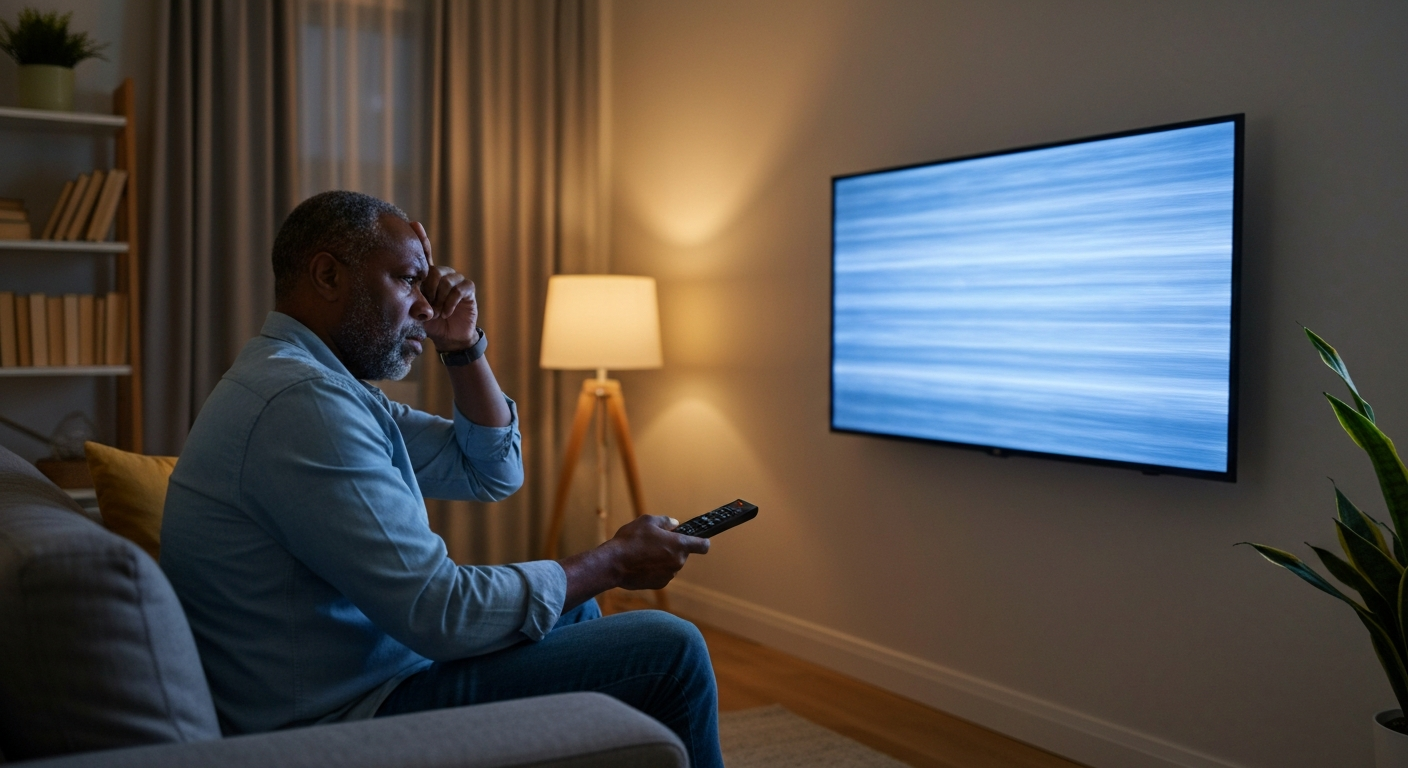

Your TV is flickering because of a loose or damaged HDMI cable, incorrect picture settings, a failing LED backlight, electromagnetic interference from nearby devices, outdated firmware, or a faulty power supply — and in most cases, you can fix it yourself in under 10 minutes.
A flickering TV screen is one of the most frustrating viewing experiences, whether you're watching the big game or settling in for a movie night. The good news is that the majority of flickering issues stem from external factors like cables and settings rather than internal hardware failure. Before you start shopping for a replacement, work through the causes below — you'll likely find your culprit and have your screen steady again without spending a dime.
TV flickering happens when the display receives inconsistent signals, power fluctuations disrupt the backlight, or internal components begin to fail — and identifying which category your problem falls into determines whether it's a quick fix or a repair job.
Modern televisions rely on a complex chain of components working in perfect sync: the video source sends a signal through a cable, the TV's processor interprets that signal, and the backlight illuminates millions of pixels. When any link in this chain falters, you see flickering, flashing, or blinking on your screen.
The flickering pattern itself offers clues. Rapid flickering across the entire screen usually points to cable or connection issues. Flickering that appears in specific areas suggests backlight problems. Intermittent blinking that coincides with turning on certain appliances indicates electromagnetic interference or power supply issues.
A loose, bent, or internally damaged HDMI cable is the single most common cause of TV screen flickering — and it's the easiest to fix.
HDMI cables carry both video and audio signals digitally, and even slight damage to the internal wiring can cause signal dropouts that manifest as flickering. The connection points at either end of the cable are particularly vulnerable. Over time, repeatedly plugging and unplugging cables, or accidentally yanking them, can damage the delicate pins inside the connector.
Start by unplugging the HDMI cable from both your TV and your source device (streaming stick, cable box, gaming console). Inspect both ends for bent pins, corrosion, or visible damage. Plug everything back in firmly — you should feel a satisfying click when the cable seats properly.
If the flickering continues, try a different HDMI port on your TV. Most TVs have multiple ports, and a single faulty port can cause issues while others work perfectly. Still flickering? Swap in a different HDMI cable entirely. Cables rated for HDMI 2.1 or "Ultra High Speed" handle modern 4K signals more reliably than older cables.
"A significant portion of display issues we see are traced back to cable problems rather than the TV itself. Always test with a known-good cable before assuming hardware failure." — David Katzmaier at CNET
Also Read: Why Is My DisplayPort Not Working? 8 Causes & Fixes
Energy-saving modes, motion smoothing features, and auto-brightness settings can all trigger flickering by constantly adjusting your TV's backlight or refresh rate.
Many Samsung, Vizio, LG, and Sony TVs ship with eco-friendly settings enabled by default. These settings automatically adjust screen brightness based on ambient light or content — a feature that can create a flickering effect, especially in scenes that alternate between bright and dark imagery.
Navigate to your TV's picture or display settings menu and look for these common culprits:
| Setting Name | What It Does | Fix |
|---|---|---|
| Eco Mode / Energy Saving | Dims backlight to save power | Turn off or set to "Low" |
| Ambient Light Detection | Adjusts brightness based on room lighting | Disable |
| Motion Smoothing (TruMotion, MotionFlow, etc.) | Adds artificial frames for smoother motion | Turn off or reduce |
| Auto Brightness / Dynamic Contrast | Varies backlight intensity per scene | Set to "Standard" or disable |
| Variable Refresh Rate (VRR) | Syncs refresh rate with game console output | Test with VRR disabled |
On Samsung TVs, go to Settings > General > Eco Solution and disable Ambient Light Detection and Energy Saving Mode. On Vizio TVs, check Menu > Picture > More Picture > Backlight Control. These manufacturer-specific settings are often the reason your Samsung TV keeps flickering or your Vizio TV screen flashes during certain content.
| ✓Our Pick |
Browse AOSU smart home security cameras One of the highest-rated products in its category — a reliable fix used by thousands of people. Learn More → |
When individual LED segments in your TV's backlight begin to fail, you'll notice flickering, uneven brightness, or sections of the screen that appear darker than others.
LED TVs use strips of light-emitting diodes behind or along the edges of the LCD panel to illuminate the picture. These LEDs have a finite lifespan, typically rated for 40,000 to 60,000 hours of use. As they age, some LEDs may flicker before failing completely, or the driver board that powers them can develop faults.
Backlight flickering often appears as a pulsing or strobing effect across the whole screen, distinct from the signal-related flickering caused by cables. You might notice it's more pronounced when displaying darker content or when the TV has been running for a while and components heat up.
This depends on your comfort level with electronics repair. Backlight strips are replaceable, and replacement LED strips for popular TV models cost between $20 and $80. However, the repair requires opening the TV, which voids any remaining warranty and involves handling fragile components. Many owners find it more practical to contact a repair technician or consider whether the repair cost justifies fixing an older TV versus upgrading.
If your TV is still under warranty and you suspect backlight failure, contact the manufacturer before attempting any DIY repairs.
Also Read: Why Is My Kindle So Slow? 7 Causes & Fixes
Electronics positioned too close to your TV — particularly unshielded speakers, routers, microwaves, or LED light strips — can create electromagnetic interference that causes screen flickering.
Electromagnetic interference (EMI) disrupts the delicate signals flowing through your TV's circuits. This is especially common in entertainment centers where multiple devices sit in close proximity, sharing power strips and tangled cables. Certain LED light bulbs and dimmer switches are notorious for emitting electrical noise that affects nearby TVs.
Test by temporarily relocating other electronics away from your TV. Turn off LED light strips, lamps on dimmer switches, and any device with a motor or transformer near the TV. If the flickering stops, you've found your culprit.
Permanent solutions include:
Smart TV operating systems occasionally develop bugs that cause display issues — and manufacturers regularly release firmware updates specifically to fix flickering problems.
Your TV runs software just like your phone or computer, and that software can contain bugs. Firmware updates address these issues, improve compatibility with streaming apps, and sometimes optimize how the TV handles different video formats. A TV that hasn't been updated in months may exhibit flickering that newer firmware resolves.
Most modern TVs check for updates automatically when connected to the internet. To manually check:
If your TV connects via Wi-Fi and struggles with updates, try using an Ethernet cable for a more stable connection during the download. For TVs not connected to the internet, you can typically download firmware to a USB drive from the manufacturer's website and install it manually.
"We push regular software updates to address performance issues, including display anomalies reported by users. Keeping your TV's firmware current is one of the simplest maintenance steps owners overlook." — Samsung Support Documentation
Also Read: Why Is My Copy and Paste Not Working? 9 Causes & Fixes
A degrading internal power supply can deliver inconsistent voltage to your TV's components, causing the screen to blink on and off or flicker erratically.
Power supply issues often reveal themselves through symptoms beyond just flickering: the TV may take multiple attempts to turn on, shut off unexpectedly, or produce a clicking sound from the back panel. These boards contain capacitors that can swell or leak over time, especially in older TVs or those subjected to power surges.
If your TV is blinking on and off (not just flickering during playback), the power supply board is a prime suspect. Unlike backlight strips, power supply boards are standardized components that repair technicians can replace relatively affordably — often between $100 and $200 for parts and labor on TVs worth repairing.
Before assuming the worst, run through this systematic checklist to isolate whether your flickering is caused by external factors or internal hardware.
Unplug the TV completely for 60 seconds. This discharges residual power and resets the internal processor. Plug back in and test.
Switch input sources. If flickering only occurs on one HDMI input, the issue is likely that specific port or connected device — not the TV itself.
Test with no external devices. Use the TV's built-in apps (Netflix, YouTube) with all external devices disconnected. If the flickering stops, your source device or cable is the problem.
Check your streaming device or cable box. These devices can overheat or malfunction, causing flickering that appears to be a TV problem.
Try a different power outlet. Outlets on overloaded circuits or sharing connections with high-draw appliances may deliver unstable power.
| Symptom | Most Likely Cause | First Fix to Try |
|---|---|---|
| Flickering on all inputs | Picture settings, backlight, or power supply | Disable eco modes and motion smoothing |
| Flickering on one input only | HDMI cable or port | Swap cable, try different port |
| Flickering with specific content | Motion smoothing or VRR settings | Disable motion enhancement features |
| TV blinks off and back on | Power supply or main board | Test different outlet, contact repair |
| Flickering near edges only | Edge-lit backlight failing | Inspect for warranty coverage |
If you've tested cables, adjusted settings, updated firmware, and ruled out interference — and your TV still flickers — it's time to weigh repair costs against replacement.
Internal component repairs (backlight, power supply, T-con board) typically run between $100 and $300 depending on your location and TV size. For a TV that's three to five years old, this can be worthwhile. For a seven-year-old TV with multiple issues, the math often favors buying new.
Contact your manufacturer's support line to ask about repair options, especially if your TV is within or just outside the warranty period. Some manufacturers extend goodwill repairs for known issues, and certain credit cards offer extended warranty protection you may have forgotten about.
TV flickering in 2026 usually traces back to simple causes: loose HDMI cables, aggressive eco settings, or electromagnetic interference — all fixable at home in minutes. When the problem is internal (failing backlight or power supply), you'll need to decide whether repair costs justify saving the TV or whether it's time for an upgrade. Start with the cable and settings checks, update your firmware, and only then consider hardware issues.
Vizio TVs commonly flicker due to the Backlight Control setting, which dynamically adjusts brightness and can create a strobing effect on some content. Go to Menu > Picture > More Picture and set Backlight Control to "Off." Also check for firmware updates through Admin & Privacy > Check for Updates, as Vizio has released multiple patches addressing display flickering in recent models.
Samsung TVs often flicker because of the Ambient Light Detection and Energy Saving features, which adjust brightness automatically. Navigate to Settings > General > Eco Solution and disable both options. If flickering persists, try turning off Motion Smoothing under Picture Settings > Expert Settings > Auto Motion Plus. A factory reset (Settings > General > Reset) resolves software glitches in many cases.
A TV that blinks on and off (powering down completely, not just screen flickering) typically has a failing power supply board or overheating main board. Try unplugging the TV for five minutes to let it cool, then test again. Persistent blinking usually requires professional diagnosis, as the TV's protection circuits are shutting it down to prevent damage.
Yes — a damaged, low-quality, or improperly seated HDMI cable is the most frequent cause of TV screen flickering. The cable may look fine externally while having internal wire breaks or corroded connectors. Testing with a different HDMI cable is always the first troubleshooting step and resolves the issue in a significant percentage of cases.
Not necessarily. While flickering can indicate failing backlight LEDs or other aging components, it's far more often caused by fixable issues: cable problems, incorrect settings, firmware bugs, or interference. Only persistent flickering that continues after you've ruled out all external causes suggests potential hardware failure requiring repair or replacement.
Reviewed and Updated on June 9, 2026 by George Wright