
Technology
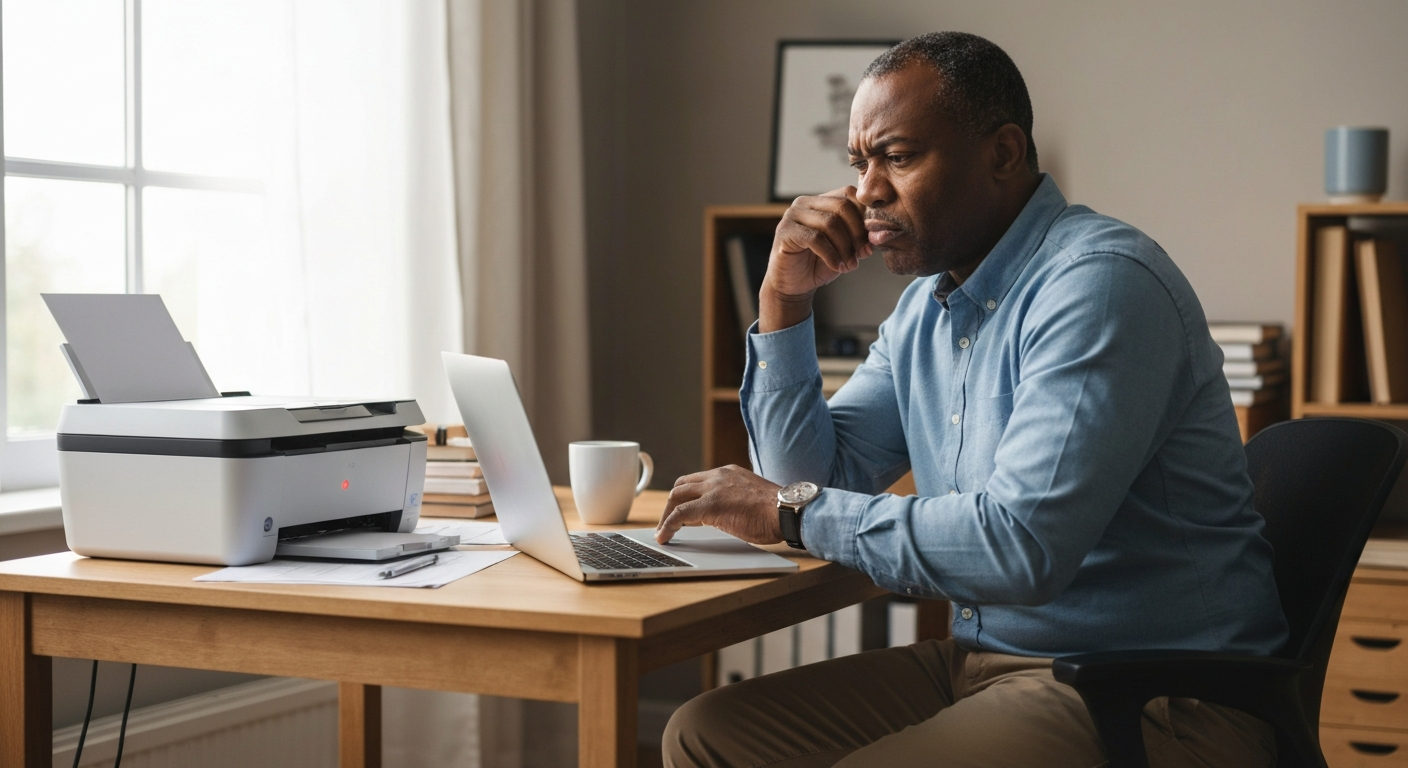

Your printer isn't connecting because of a communication breakdown between the printer and your device—most commonly caused by the printer being set to "offline" mode, a Wi-Fi network mismatch, outdated or corrupted drivers, or a simple IP address conflict that takes about two minutes to fix.
Printer connection failures rank among the most frustrating tech problems precisely because they seem random. Your HP, Canon, Epson, or Brother printer worked fine yesterday, and today it stubbornly displays "offline" despite being powered on and apparently connected. The good news: nearly every "printer not connecting" issue traces back to one of a handful of predictable causes, and most resolve without calling tech support or buying new hardware.
Also Read: Why Is My Internet Cutting In and Out? 9 Causes & Fixes
The "offline" status means your computer or phone cannot establish communication with the printer—even if the printer itself is powered on and showing ready. This happens because the operating system has lost the network path to the printer or has flagged the connection as unavailable.
Windows and macOS maintain a print queue that monitors whether your printer responds to status checks. When your computer sends a query and receives no reply within a set timeout (usually a few seconds), it marks the printer offline. The printer may still be functioning perfectly on its end—but the digital handshake has failed.
Windows includes a manual offline toggle that users sometimes enable accidentally. When this setting is active, your computer will not attempt to send print jobs regardless of the actual connection status.
To check this on Windows 11 or Windows 10:
If that option shows a checkmark, your HP, Canon, Epson, or Brother printer will display offline indefinitely until you disable it.
Wireless printers receive their IP addresses from your router, and that address can change—especially after a router restart or power outage. When your computer tries to reach the printer at its old IP address, the connection fails.
This IP mismatch accounts for a significant percentage of "my wireless printer is offline" complaints. Your computer remembers the printer at, say, 192.168.1.45, but the router has now assigned 192.168.1.78 to the printer.
Most printers let you print a network configuration page directly from the control panel. Compare the IP address shown on that page with the one your computer has stored. If they differ, you'll need to either update the printer port in your computer's settings or assign a static IP to the printer through your router's admin panel.
Printers lose Wi-Fi connections when the network password changes, the router switches bands, signal strength drops too low, or the printer's wireless module encounters interference. Unlike phones and laptops, most printers don't gracefully recover from network changes—they require manual reconnection.
If someone changed your Wi-Fi password or network name (SSID), your Canon, Epson, HP, or Brother printer will continue trying to connect with the old credentials. It won't prompt you for new ones—it simply fails silently.
Access your printer's wireless setup menu (usually through the control panel or touchscreen) and run the wireless setup wizard again. You'll need your current Wi-Fi password.
Many routers broadcast both 2.4 GHz and 5 GHz networks. While 5 GHz offers faster speeds, it has shorter range and worse wall penetration. Here's the critical issue: most printers—especially models more than two years old—only support 2.4 GHz connections.
If your phone or computer connects to the 5 GHz band while your printer sits on 2.4 GHz, they may struggle to communicate depending on your router's configuration. Some routers isolate devices on different bands.
"Many wireless printers only operate on the 2.4 GHz frequency band, and if your mobile device is connected to a 5 GHz network, you may experience connectivity issues during setup." — HP Support at HP Customer Support
Ensure your printing device connects to the same band as your printer, or configure your router to allow cross-band communication.
Printers positioned far from the router or behind thick walls receive weak signals. Unlike streaming devices that buffer content, printers need stable connections during the entire print job—a brief dropout can cause the job to fail and the printer to appear offline.
Test this by temporarily moving the printer closer to the router. If it connects reliably at close range, consider a Wi-Fi extender, mesh network node, or repositioning either device.
Also Read: Why Is My T-Mobile WiFi So Slow? 9 Causes & Quick Fixes
USB-connected printers fail when cables degrade, ports malfunction, or drivers become corrupted. Network printers connected via Ethernet or Wi-Fi fail when the computer and printer end up on different network segments or when firewall settings block the print protocol.
The printer driver translates your print commands into instructions your specific printer model understands. Corrupted or outdated drivers cause symptoms ranging from "printer not responding" to garbled output to complete connection failures.
Windows Update includes basic drivers for most printers, but these generic drivers often lack features or stability. For best results:
After installation, restart your computer before testing.
The "driver unavailable" error appears when Windows detects the printer but cannot load the software needed to communicate with it. This typically occurs after Windows updates, when switching user accounts, or when the driver files become corrupted.
To resolve this on Windows:
For persistent driver issues, HP offers their HP Smart app, Canon provides IJ Scan Utility, and Epson has Epson Connect—all of which handle driver management more gracefully than Windows' built-in tools.
HP printers specifically suffer from a known issue where the printer maintains its Wi-Fi connection but still shows offline in Windows. This stems from HP's print spooler services, power-saving features, or the "HP Smart" app losing sync with the printer.
The HP Envy series and HP OfficeJet models exhibit this behavior frequently. Several HP-specific solutions exist:
The Windows print spooler manages all print jobs in a queue. When it gets stuck—often due to a failed print job that never cleared—every subsequent job fails and the printer appears offline.
To clear and restart the spooler:
"Restarting the print spooler can resolve many common printing problems, including jobs stuck in the queue and printer communication errors." — Microsoft Support at Microsoft Windows Help
HP printers with energy-saving modes may enter deep sleep and fail to wake for incoming print jobs. While the printer technically remains connected to Wi-Fi, it doesn't respond to print commands quickly enough, causing timeout errors.
Access your printer's settings menu (on the control panel or through HP Smart) and adjust or disable sleep/power-saving modes. Alternatively, press a button on the printer to wake it before sending print jobs.
Mobile printing fails when the printer and phone use different Wi-Fi networks, when the printer lacks mobile printing support, or when required printing services aren't enabled on your phone.
This sounds obvious, but phones automatically switch between saved Wi-Fi networks and cellular data. If your phone connected to a neighbor's open network or your cellular hotspot, it cannot reach your home printer.
Verify both devices show the same network name in their Wi-Fi settings.
iPhones use AirPrint, while Android devices typically use Mopria Print Service or the manufacturer's app. Printers manufactured before 2015 may not support these protocols natively.
| Mobile OS | Required Protocol | Setup Needed |
|---|---|---|
| iOS/iPadOS | AirPrint | None if printer supports it |
| Android | Mopria Print Service | Install from Play Store |
| Android | HP Smart / Canon PRINT / Epson iPrint | Install manufacturer app |
| Any | Wi-Fi Direct | Enable on printer, connect phone directly |
If your printer lacks native mobile support, Wi-Fi Direct offers a workaround—the phone connects directly to the printer's own mini network, bypassing your router entirely.
For printers that repeatedly drop offline despite working temporarily, the root cause is usually network instability, DHCP lease expiration, or power management settings—not a hardware defect.
DHCP (Dynamic Host Configuration Protocol) lets your router assign IP addresses automatically, but it can reassign different addresses after leases expire. A static IP prevents this.
Routers with outdated firmware sometimes drop connections to devices using older Wi-Fi protocols. Manufacturers release updates that improve compatibility.
Windows uses SNMP (Simple Network Management Protocol) to check printer status. Some printers respond slowly or incorrectly to SNMP queries, causing false "offline" reports.
To disable SNMP status checking:
| ✓Our Pick |
Recover deleted files and repair corrupted data with MiniTool Consistently earns five-star reviews — reliable, well-supported, and genuinely effective. Learn More → |
Most printer connection failures trace to five causes: the "Use Printer Offline" setting is accidentally enabled, the printer's IP address changed and your computer has the old one cached, Wi-Fi credentials changed without updating the printer, drivers are corrupted or outdated, or the print spooler service is stuck. Work through the Wi-Fi network match first, then check the offline toggle, clear the spooler, and update drivers. For printers that repeatedly drop offline, a static IP address assignment solves the problem permanently for most users.
Epson printers commonly show offline due to their specific power-saving modes and Wi-Fi sleep features. Check Epson's control panel for any sleep or power settings and disable them. Also verify the printer's IP address matches what your computer expects—Epson's network status sheet (printable from the printer menu) shows the current IP. If they differ, delete and re-add the printer using the correct IP address.
Brother printers frequently lose connection when the router assigns a new IP address after a lease expiration. The most reliable fix is assigning a static IP through your router's DHCP reservation feature, then updating the printer port in Windows to match that IP. Brother also provides a "Connection Repair Tool" on their support website that automatically diagnoses and fixes common connection issues.
When an HP printer shows as connected but won't print, the issue usually lies with a stuck print spooler or corrupted print queue. Stop the Print Spooler service in Windows, delete all files in C:\Windows\System32\spool\PRINTERS, then restart the spooler. Also try the HP Smart app's diagnostic feature, which can identify and resolve communication issues between Windows and HP-specific drivers.
Canon printers lose Wi-Fi connection most often after router changes—new password, new network name, or switching from 2.4 GHz to 5 GHz. Most Canon printers only support 2.4 GHz Wi-Fi. Run the wireless setup wizard from the printer's control panel to reconnect with your current network credentials. Ensure you're connecting to a 2.4 GHz network, not the 5 GHz band.
The "driver unavailable" error means Windows cannot load your printer's driver software. Uninstall the printer completely through Device Manager, restart your computer, then download and install the latest driver directly from your printer manufacturer's website (HP, Canon, Epson, or Brother). Avoid using the generic Windows drivers when possible—manufacturer-specific drivers provide better compatibility and features.
Reviewed and Updated on June 13, 2026 by Adelinda Manna