
Health
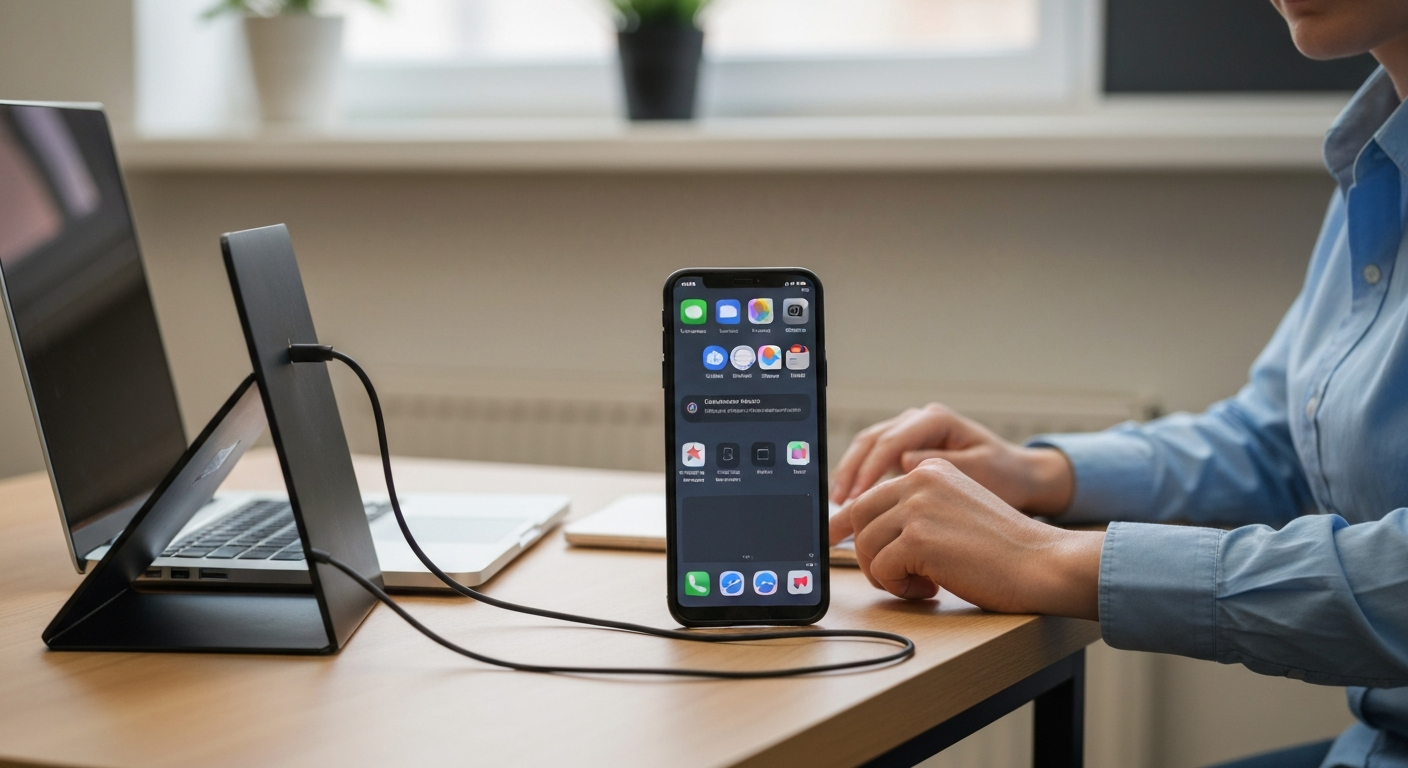

Recovery Mode is a low-level startup screen your iPhone drops into when its normal operating system can't load — usually after a failed software update, a boot loop, or corrupted system files — so your computer can step in and reinstall iOS.
| ✓Our Pick |
Recover photos, contacts, and files if your iPhone won't restore cleanly You'll wonder why you didn't try this sooner — practical, well-reviewed, and easy to get started. Learn More → |
Recovery Mode is a controlled, minimal startup environment built into iPhone firmware that bypasses the normal operating system entirely so your computer — not your iPhone's broken software — can take control.
"You can put your iOS device in recovery mode, then restore your iOS device using your computer." — Apple Support
Apple's own guidance points people toward this exact restore process any time the device is stuck on the Apple logo with no progress, caught in a boot loop, disabled by a forgotten passcode, or left unresponsive by a failed software update.
Apple lists several specific on-screen symptoms that indicate your iPhone needs Recovery Mode rather than a simple restart.
"Your screen displays the Apple logo for several minutes with no progress bar" or "your computer doesn't recognize your device or says it's in recovery mode." — Apple Support
If you see either of those, or your iPhone repeatedly restarts without fully turning on, Recovery Mode (and ultimately a restore through Finder or iTunes) is the intended fix — not a sign you've done something wrong.
Corrupted software files are the most common root cause, usually triggered by an interrupted update, a failed jailbreak attempt, or — less often — early hardware failure.
| Cause | How It Leads to Recovery Mode |
|---|---|
| Failed or interrupted iOS update | Update process stops mid-write, leaving system files incomplete |
| Boot loop | Device restarts before finishing startup, repeatedly |
| Forgotten passcode (disabled device) | Apple routes you through Recovery Mode to erase and restore |
| Third-party jailbreak/modification | Unsupported system changes corrupt boot files |
| Rare hardware fault | Storage or logic board issue prevents normal boot |
Restoring through Finder (Mac) or iTunes (Windows) is the standard fix, and it usually resolves the issue within 15–30 minutes depending on your connection speed.
If your iPhone repeatedly drops back into Recovery Mode after a successful restore, or won't restore at all, that's a sign of a hardware-level issue rather than a software glitch a restore can fix.
In that case, the priority shifts from "get it running again" to "get your data off it" — especially if you don't have a recent backup, since a full hardware failure may mean the device needs professional repair before anything else.
The Quick Fix Most People Reach for First: See what people use to back up and recover iPhone data fast
The single biggest difference between a stressful Recovery Mode experience and a routine one is whether you have a recent backup — with one, Restore is a minor inconvenience; without one, it can mean losing months of photos, messages, and data.
iCloud and Finder/iTunes backups both work, but they serve slightly different purposes: iCloud backs up automatically over Wi-Fi when your phone is locked and charging, while a computer-based backup through Finder gives you a complete local copy you control directly, without depending on iCloud storage limits. Many people who get caught off guard by Recovery Mode either had backups turned off, hadn't backed up in months, or were near their iCloud storage limit so newer backups silently failed.
Checking that backups are actually completing — not just enabled — is worth doing periodically. Go to Settings > [your name] > iCloud > iCloud Backup to confirm the date of your last successful backup. If it's been more than a few days and you regularly add photos or messages, it's worth triggering a manual backup before doing anything else.
Recovery Mode and a factory reset overlap but aren't identical — Recovery Mode reinstalls or repairs the operating system, while a factory reset specifically wipes all data and settings back to default, with or without reinstalling iOS itself.
Choosing "Restore" within Recovery Mode does perform a full erase similar to a factory reset, but you can also factory-reset a working iPhone through Settings > General > Transfer or Reset iPhone without ever needing Recovery Mode at all. The two processes intersect specifically when Recovery Mode's restore option is the chosen path, which is why people sometimes use the terms interchangeably even though they describe different starting situations — one for a device that's stuck, one for a device that's working fine but needs a clean slate — but the data-loss outcome of choosing "erase" is the same either way, which is exactly why having a current backup matters regardless of which path led you there.
Recovery Mode is Apple's built-in fail-safe for an iPhone whose software can't start normally — most often triggered by a failed update, a boot loop, or a forgotten passcode. Restoring through Finder or iTunes resolves the large majority of cases within half an hour. If the device keeps returning to Recovery Mode after a successful restore, that points to a hardware issue, and protecting your data should take priority over further software troubleshooting.
Choosing "Update" attempts to preserve your data while reinstalling iOS, but choosing "Restore" erases the device completely. If you have a recent backup, Restore is the more reliable fix when Update fails.
Most restores complete in 15 to 30 minutes, though the exact time depends on your internet speed for downloading the iOS software and how much data needs to be reinstalled afterward.
A critically low battery is more likely to cause a normal shutdown or charging-screen loop than true Recovery Mode, but it can contribute to a failed update if the phone loses power mid-installation.
Recovery Mode itself is a standard, Apple-documented troubleshooting step that's safe to try at home. If it doesn't resolve the issue after a full restore attempt, that's the point to involve Apple Support or a repair provider.
Reviewed and Updated on June 21, 2026 by Adelinda Manna