Finance
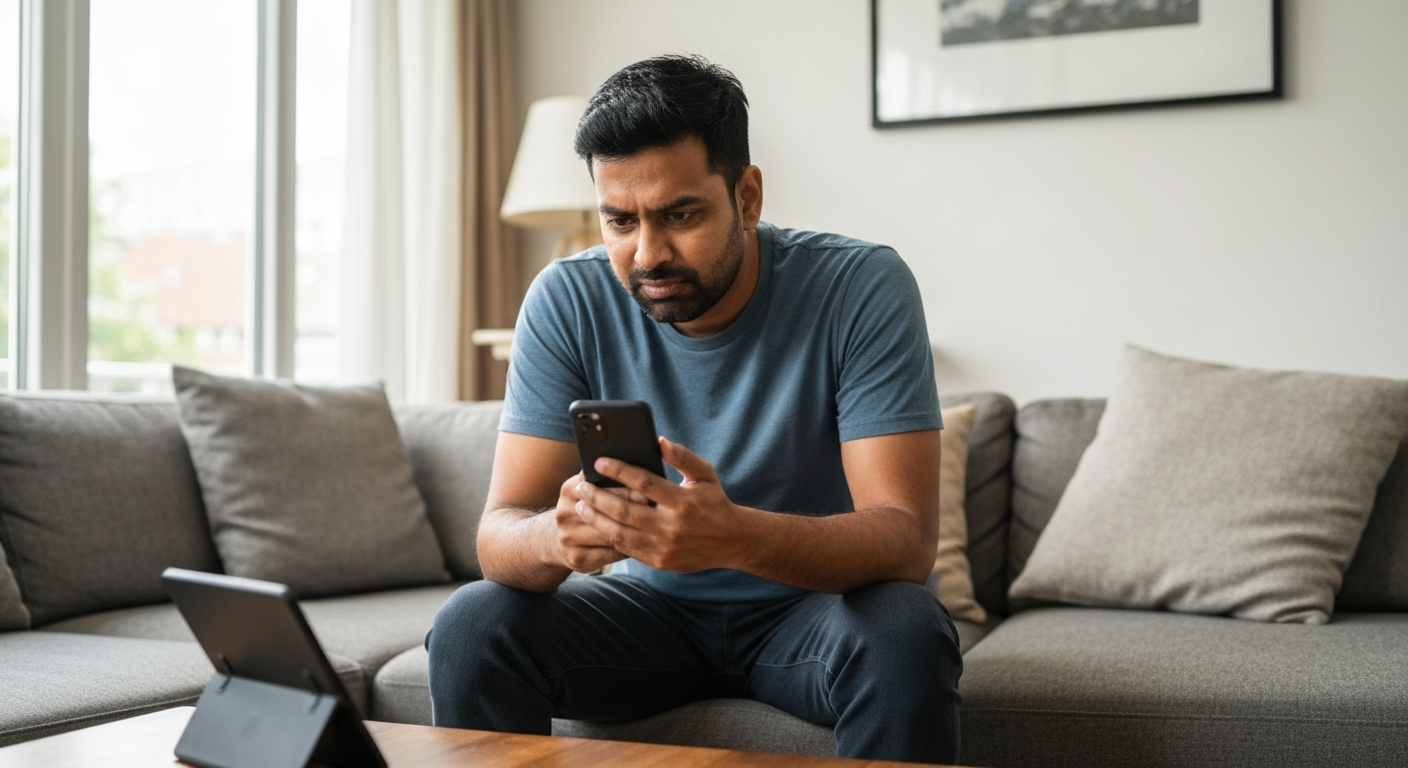

Your Google Play Store isn't opening because of a corrupted cache, an outdated app version, insufficient storage, or a software conflict on your Android device — and in most cases, you can fix it yourself in under five minutes by clearing the cache or forcing the app to stop and restart.
When you tap the Play Store icon and nothing happens — or the app briefly flashes then closes — your phone isn't broken. Something is blocking the store from launching properly, and the fix is usually simpler than you'd expect. This guide walks you through every cause and the exact steps to get your app store working again in 2026.
The Play Store fails to open when its cached data becomes corrupted, the app is out of date, your device runs low on storage, or background processes conflict with the store's operation.
Understanding the root cause helps you pick the right fix. Here's what's likely happening on your device.
The Play Store saves temporary files (cache) to load faster. Over time, these files can become corrupted — especially after interrupted downloads or system updates. When the app tries to read damaged cache data, it crashes before the interface even loads.
This is the single most common reason the Play Store won't open, and it's also the easiest to fix.
Google regularly updates the Play Store to patch bugs and maintain compatibility with Android security changes. If your Play Store version falls too far behind, it may refuse to open entirely. This happens more often on devices that have been offline for extended periods or have automatic updates disabled.
The Play Store needs working space to operate — not just to download apps, but to run its own processes. When your device drops below roughly 500 MB of free space, apps start behaving unpredictably. The Play Store is particularly sensitive to storage constraints because it constantly checks for updates in the background.
Your Play Store is tightly integrated with your Google account. If there's an authentication problem — an expired session, a password change you made on another device, or a sync error — the Play Store may fail to load because it can't verify your identity.
Third-party download managers, VPNs, or security apps sometimes intercept the Play Store's network requests. Certain "cleaner" apps also aggressively kill background processes, including ones the Play Store needs to function.
System updates occasionally introduce bugs that affect Google services. If your Play Store stopped opening right after an Android update or a security patch, the timing isn't coincidental.
Rarely, Google's servers have issues. Before spending time troubleshooting your device, it's worth checking whether the problem is on Google's end.
Work through these fixes in order — each one builds on the last, and most users solve the problem within the first three steps.
This clears the app from memory and gives it a fresh start.
If the app opens, you're done. If not, continue to the next step.
This removes corrupted temporary files without deleting your account or download history.
"Clearing the cache removes temporary files that may be causing app issues, without affecting your personal data or app settings." — Google Support
If clearing the cache didn't work, clearing the app's data resets it to factory settings. You'll need to sign back into your Google account.
Google Play Services is the backend system that powers the Play Store. Corrupted Play Services data can prevent the store from opening even if the store's own data is clean.
Important: Clearing Play Services data will sign you out of most Google apps. You'll need to re-enter your Google account credentials.
The Play Store requires an active internet connection to open — it won't launch in offline mode.
| Connection Type | What to Check |
|---|---|
| Wi-Fi | Toggle Wi-Fi off and on; forget and reconnect to your network |
| Mobile data | Ensure mobile data is enabled for the Play Store in app settings |
| VPN | Temporarily disable any VPN to rule out interference |
| Airplane mode | Toggle airplane mode on, wait 30 seconds, then off again |
If your device has less than 1 GB free, the Play Store may refuse to open.
Aim for at least 1–2 GB of free space for smooth Play Store operation.
This forces a fresh authentication with Google's servers.
Rolling back to the factory version can fix bugs introduced in recent updates.
Incorrect date or time settings can cause SSL certificate errors that prevent the Play Store from connecting to Google's servers.
Safe mode disables all third-party apps, helping you identify if another app is causing the conflict.
If the Play Store works in safe mode, a third-party app is the culprit. Boot normally and uninstall recently added apps one by one until you find the problem.
| Symptom | Most Likely Cause | First Fix to Try |
|---|---|---|
| Play Store won't open at all | Corrupted cache | Clear cache (Step 2) |
| Opens then immediately closes | App data corruption | Clear data (Step 3) |
| Stuck on white/blank screen | Play Services issue | Clear Play Services cache (Step 4) |
| "No connection" error | Network or date/time | Check connection (Step 5), verify date/time (Step 9) |
| Works in safe mode only | Third-party app conflict | Uninstall recent apps |
| Problem started after update | Buggy update | Uninstall updates (Step 8) |
Before extensive troubleshooting, spend 30 seconds confirming Google's services are online.
Visit Google's status dashboard or check social media for reports of Play Store outages. If thousands of other users are experiencing the same issue simultaneously, the problem isn't your device — it's Google's infrastructure. In this case, waiting an hour or two is your only option.
You can also try accessing the Play Store through a web browser at play.google.com. If the website works but the app doesn't, the issue is definitely local to your device.
Also Read: Why Is My File Explorer So Slow? 7 Causes & Fast Fixes
If you're on iOS and your App Store won't open, the causes are similar — corrupted cache, outdated software, or account issues — but the fixes differ slightly due to Apple's system architecture.
Apple doesn't let you clear the App Store cache directly, but you can achieve a similar effect:
If the App Store still won't open after these steps, contact Apple Support — there may be an issue with your Apple ID or device that requires their intervention.
A few maintenance habits keep the Play Store running smoothly year-round.
| ✓Our Pick |
Recover corrupted files and repair data with professional tools Great value for money — this product tackles the root cause rather than just masking the symptoms. Learn More → |
The Google Play Store usually won't open due to corrupted cache data, outdated software, low storage, or account sync issues. Clear the Play Store cache first — this solves the problem for most users in under a minute. If that fails, work through clearing app data, refreshing Google Play Services, checking your connection, and removing then re-adding your Google account. For persistent issues, uninstalling Play Store updates or booting into safe mode will identify deeper conflicts. iPhone users with App Store problems should force-close the app, restart the device, and verify their Apple ID is signed in correctly.
The "Play Store keeps stopping" error typically means the app is crashing due to corrupted data or a conflict with Google Play Services. Clear the cache and data for both the Play Store and Google Play Services, then restart your device. If the crashes continue, uninstall Play Store updates to roll back to a stable version — the app will automatically update again once the fix is applied.
Yes. VPNs can interfere with the Play Store's ability to connect to Google's servers, especially if the VPN routes your traffic through a region where certain Google services are restricted. Temporarily disable your VPN to test whether it's the cause. If the Play Store works without the VPN, try switching to a different VPN server location or whitelisting the Play Store in your VPN app's settings.
If the Play Store won't open on a freshly reset device, your date and time settings are likely incorrect — this prevents the device from establishing a secure connection with Google. Go to Settings > Date & time and enable automatic date and time. Also ensure you have a stable internet connection during the initial setup process.
Open the Play Store, tap your profile icon in the top right, then tap Settings > About > Update Play Store. If an update is available, it will download automatically. If this option isn't available or the Play Store won't open at all, go to Settings > Apps > Google Play Store and tap "Uninstall updates" — the store will then update itself to the latest version when you next open it.
Cache files are temporary data that apps store to load faster. Over time, this data can become outdated, corrupted, or bloated — especially after app updates or interrupted downloads. Clearing the cache forces the app to rebuild its temporary files from scratch, eliminating any corrupted data that was causing crashes or launch failures. It's the digital equivalent of "turning it off and on again."
Reviewed and Updated on May 28, 2026 by George Wright