
Technology
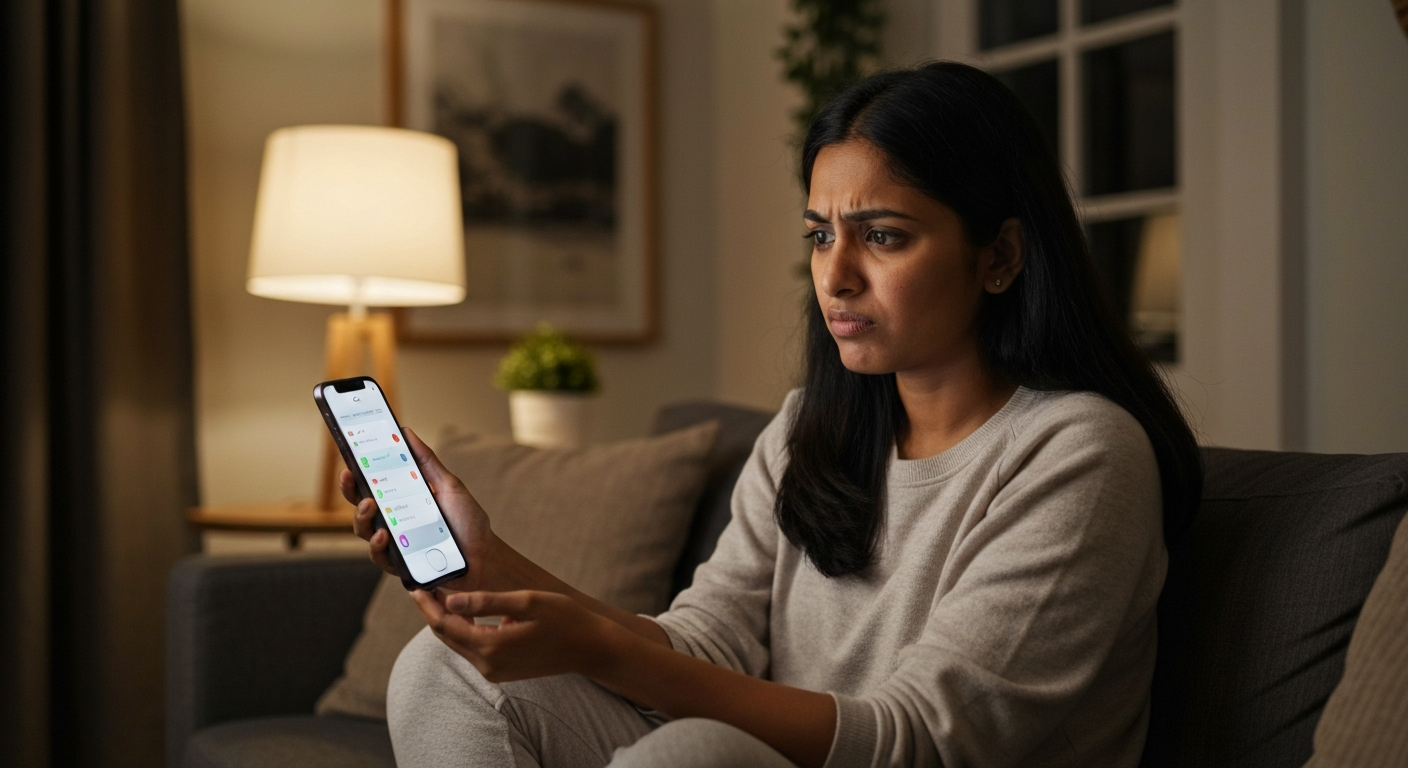

Do Not Disturb (DND) stops working when a scheduled exception, focus mode conflict, or outdated software overrides your settings — calls and notifications slip through even though the crescent moon icon appears active on your device.
The most common culprits in 2026 are repeated callers bypassing the block, allowed apps still pushing notifications, and iOS or Android updates that reset your preferences silently. The fix usually takes under two minutes once you know where to look.
| ✓Our Pick |
Protect your phone and browsing with a trusted VPN — blocks unwanted connections No special skills required — straightforward to use and most orders ship quickly. Learn More → |
DND lets calls through when you've enabled the "Allow Repeated Calls" feature, added contacts to your exceptions list, or set Focus modes that permit certain communication types.
Both iOS and Android include a safety feature that allows a second call from the same number within three minutes to break through DND. The logic assumes emergencies — if someone truly needs you, they'll call right back.
On iPhone, navigate to Settings > Focus > Do Not Disturb > People > Calls From, then scroll down and toggle off "Allow Repeated Calls." On Android, go to Settings > Sound & vibration > Do Not Disturb > Calls and disable "Allow repeat callers."
Many users enable this once and forget about it, then wonder why their ex or a persistent telemarketer keeps waking them at 2 AM.
When you set up DND, both platforms ask which contacts can still reach you. If you selected "Favorites" on iPhone or "Starred contacts" on Android, anyone in those groups rings through regardless of DND status.
Check your allowed contacts list:
- iPhone: Settings > Focus > Do Not Disturb > People
- Android: Settings > Sound & vibration > Do Not Disturb > People > Calls
Remove contacts you no longer want bypassing DND, or switch to "No One" for complete silence.
Apple's Focus system (introduced in iOS 15 and refined through 2026) creates multiple DND-style profiles — Work, Sleep, Personal, Driving, and custom options. Each Focus mode has its own exception list.
If your iPhone shows the crescent moon but notifications still arrive, you may have an active Focus that overrides standard DND. Go to Settings > Focus and check each profile's "Allowed Notifications" section. An app permitted in your Work Focus will ping you even during scheduled DND hours if the Focus activates automatically based on location or time.
Also Read: Why Is My Copy and Paste Not Working? 9 Causes & Fixes
App-level notification permissions, silenced versus off settings, and system notification categories each control whether alerts appear on your lock screen even with DND enabled.
iOS introduced "Time Sensitive" notifications as a category that bypasses DND and Focus modes. Apps like banking, delivery tracking, and smart home security often request this permission during setup.
To audit which apps have this privilege, go to Settings > Notifications, select each app, and look for "Time Sensitive Notifications." Toggle it off for apps you don't consider urgent.
DND silences notifications by default — meaning they still appear on your lock screen and in Notification Center, just without sound or vibration. If you expected a completely blank screen, you need to adjust your settings.
On iPhone, go to Settings > Focus > Do Not Disturb > Options and enable "Silence Notifications" with "Always" selected. You can also toggle on "Dim Lock Screen" to minimize visual distraction.
On Android, within DND settings, look for "What can interrupt Do Not Disturb" and set notifications to "None" rather than "Alarms only" or "Priority only."
Major operating system updates sometimes reset DND preferences to defaults. Both iOS 18 and Android 15 updates throughout 2025 and early 2026 introduced new Focus and DND features that occasionally wiped custom configurations.
"System updates can modify or reset notification settings, especially when new privacy or focus features are introduced." — Android Developers Documentation
After any significant update, revisit Settings > Focus (iPhone) or Settings > Sound & vibration > Do Not Disturb (Android) to confirm your preferences remain intact.
Scheduled DND, location-based automation, and Bedtime/Sleep mode settings can deactivate DND automatically without any manual input from you.
If DND turns off at the same time each day, you've likely enabled a schedule. This is helpful for automatically enabling quiet hours at night, but frustrating if you manually activate DND during the day and it shuts off at 7 AM.
| Platform | How to Check Schedule |
|---|---|
| iPhone | Settings > Focus > Do Not Disturb > Set a Schedule |
| Android | Settings > Sound & vibration > Do Not Disturb > Schedules |
| Samsung | Settings > Notifications > Do Not Disturb > Turn on as scheduled |
Delete or modify any schedules that conflict with when you need silence.
Focus modes can activate or deactivate based on your location, the time, or which app you open. If you set Work Focus to enable when you arrive at the office, DND may turn off automatically when that Focus takes over.
Review your automation triggers in Settings > Focus and check the "Turn On Automatically" section for each mode.
Apple's Sleep Focus and Google's Bedtime Mode are specialized DND variants designed for sleep tracking. They have separate settings from regular DND and can override your manual toggles.
On iPhone, check Health app > Sleep > Full Schedule & Options and ensure Sleep Focus isn't conflicting with your DND setup. On Android, review Settings > Digital Wellbeing > Bedtime mode.
Resetting Focus settings, updating iOS, and auditing notification permissions resolves most iPhone DND issues in under five minutes.
A simple restart clears temporary glitches that cause Focus modes to misbehave. Hold the side button and volume button, slide to power off, wait 30 seconds, then restart.
Go to Settings > Focus and tap through each mode — Do Not Disturb, Sleep, Work, Personal, and any custom modes. For each:
- Review "People" allowed to contact you
- Review "Apps" permitted to send notifications
- Check "Options" for notification silencing preferences
- Examine "Turn On Automatically" triggers
If your configuration has become too tangled, reset everything. Navigate to Settings > General > Transfer or Reset iPhone > Reset and select "Reset All Settings." This preserves your data but returns all system settings (including Focus) to defaults.
"When troubleshooting Focus issues, resetting notification settings can clear corrupt configurations that cause unexpected behavior." — Apple Support
Apple regularly patches Focus and DND bugs. Go to Settings > General > Software Update and install any available updates. As of early 2026, iOS 18.3 addressed several Focus-related notification leaks reported in user forums.
Android's DND troubleshooting focuses on priority settings, app exceptions, and manufacturer-specific notification controls that vary by device brand.
Go to Settings > Sound & vibration > Do Not Disturb. Tap "What can interrupt Do Not Disturb" and audit:
- People: Set calls and messages to "None" if you want complete silence
- Apps: Remove any apps from the exceptions list
- Alarms & other interruptions: Disable media sounds, touch sounds, and reminders if needed
Android allows apps to request notification importance levels. An app set to "Urgent" may bypass DND.
Go to Settings > Apps > [App Name] > Notifications and review each notification category. Lower the priority or disable channels you don't need.
Samsung, OnePlus, Xiaomi, and other manufacturers add their own notification and DND features that sit on top of stock Android:
| Brand | Where to Check |
|---|---|
| Samsung | Settings > Notifications > Advanced settings |
| OnePlus | Settings > Notifications & status bar > Do Not Disturb |
| Xiaomi | Settings > Notifications & Control Center |
| Google Pixel | Settings > Sound & vibration > Do Not Disturb |
These manufacturer-specific menus sometimes contain additional toggles that override the standard DND menu.
On many Android devices, clearing the system cache partition removes corrupted temporary files without deleting personal data. The exact method varies by manufacturer — search "[Your Phone Model] clear cache partition" for specific steps.
Also Read: Why Is My Gmail Not Receiving Emails? 9 Causes & Fixes
| Symptom | Most Likely Cause | Fix |
|---|---|---|
| Calls ring through | Repeated callers allowed | Disable "Allow Repeated Calls" |
| Texts from certain contacts arrive | Contact in Favorites/Starred | Remove from exceptions list |
| App notifications appear | Time-sensitive alerts enabled | Revoke permission in app settings |
| DND turns off at same time daily | Scheduled DND active | Delete or modify the schedule |
| DND icon shows but nothing blocked | Focus mode with broad exceptions | Audit Focus mode "People" and "Apps" |
| All settings correct but still broken | System update reset preferences | Reconfigure DND from scratch |
If you've tried every troubleshooting step and DND still fails, a factory reset eliminates software corruption — but back up your data first.
Factory resets should be a last resort. Before wiping your device:
After the reset, set up DND fresh rather than restoring from a backup — a corrupted backup may reintroduce the same bug.
DND failures almost always trace back to allowed exceptions, repeated caller settings, Focus mode conflicts, or system updates that reset your preferences. Audit your People and Apps exceptions first, disable repeated callers if you don't need that safety feature, and check that no Focus mode automation is overriding your manual DND activation. After major iOS or Android updates, revisit your DND settings — they may have reverted to defaults without warning.
Your iPhone lets calls through when "Allow Repeated Calls" is enabled, when the caller is in your Favorites, or when a Focus mode permits them. Go to Settings > Focus > Do Not Disturb > People and review who can reach you. Toggle off repeated calls if persistent callers are the issue.
No, DND does not block alarms on either iOS or Android. Alarms from the Clock app will always sound regardless of DND status. This is intentional so you don't oversleep. However, alarm-style notifications from third-party apps may be silenced depending on your DND settings.
Android DND turns off automatically if you have a schedule set or if a Digital Wellbeing Bedtime mode ends. Check Settings > Sound & vibration > Do Not Disturb > Schedules and delete any you didn't intend. Also review Bedtime mode settings in Digital Wellbeing.
Yes, apps with "Time Sensitive" notification permissions (iOS) or "Urgent" notification channels (Android) can bypass DND. Audit each app's notification settings individually to revoke this permission from apps that abuse it.
On iPhone, a crescent moon icon appears in the status bar and on the lock screen when DND is active. On Android, a circle with a line through it (or a crescent moon on Samsung) appears in the status bar. If the icon shows but DND isn't working, the issue is with your exception settings rather than activation.
Reviewed and Updated on June 9, 2026 by George Wright