Technology
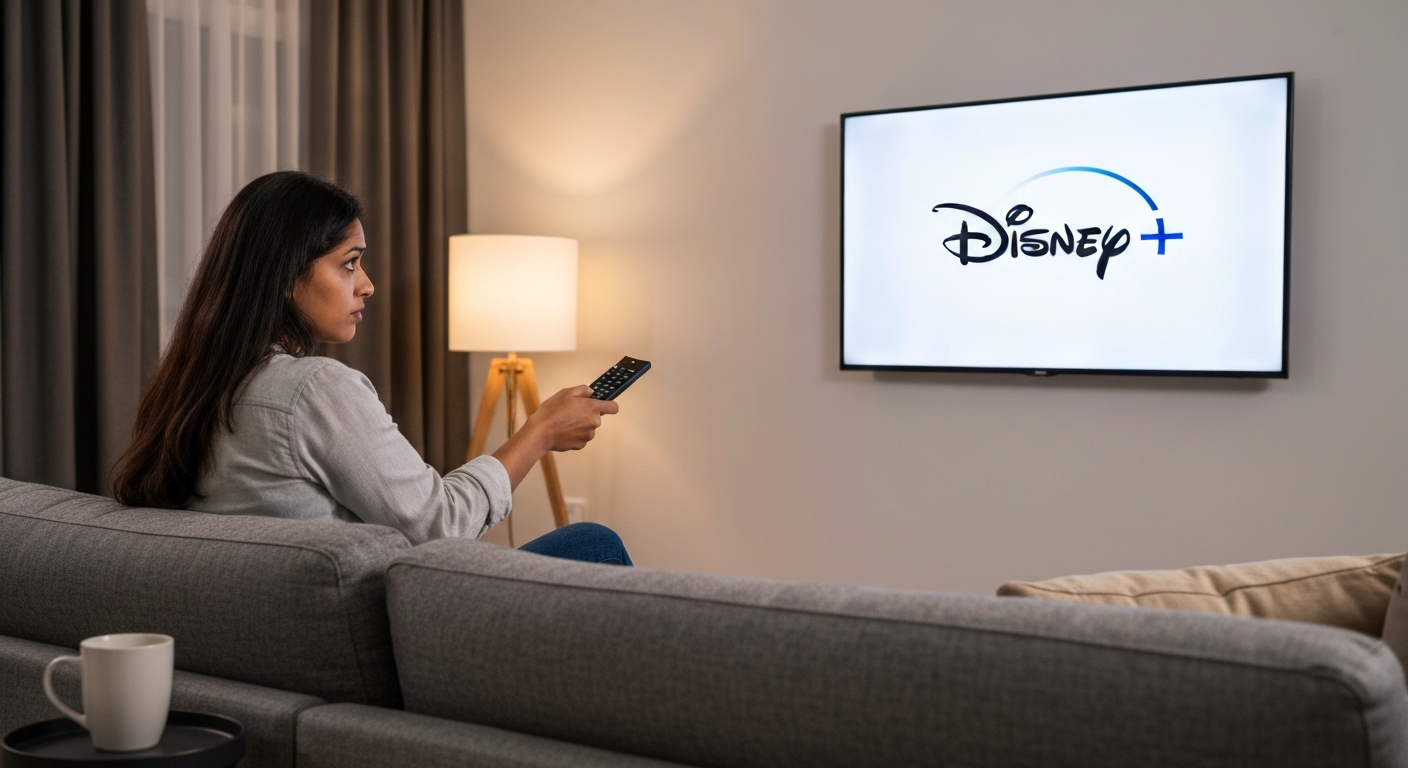

Your Disney Plus home screen is blank because the app is experiencing a loading failure, most commonly caused by a corrupted cache, an outdated app version, a weak internet connection, or a temporary server outage on Disney's end.
This frustrating issue—where you open the app and see nothing but an empty screen—affects smart TVs, streaming sticks, phones, and game consoles alike. The good news is that it's almost always fixable within a few minutes using the troubleshooting steps below, and you won't lose your watchlist or account settings in the process.
The blank home screen happens when the Disney Plus app fails to retrieve content data from Disney's servers, leaving you with an empty interface instead of your usual tiles and recommendations.
When you launch Disney Plus, the app sends a request to Disney's content delivery network asking for your personalized home screen data—your "Continue Watching" row, recommended titles, and category sections. If anything disrupts this handshake, the app displays a blank screen because it has nothing to show you.
The most common culprits fall into four categories: app-side problems (corrupted cache, outdated software), device-side problems (insufficient memory, operating system conflicts), network problems (slow speeds, DNS issues), and server-side problems (Disney outages or regional blocks). Understanding which category your issue falls into will help you fix it faster.
"When streaming apps display blank screens, the root cause is almost always a failure in the content delivery chain—either the request isn't being sent properly, or the response isn't being received and rendered correctly." — Chris Welch at The Verge
A corrupted app cache or an outdated app version is the single most common reason for a blank Disney Plus home screen—clearing the cache fixes the problem about 70% of the time.
Your Disney Plus app stores temporary data (called cache) to help it load faster. Over time, this cache can become corrupted, especially after app updates or device restarts. When the cache contains bad data, the app can't render your home screen properly.
Here's how to clear the cache on the most common devices:
| Device | Steps to Clear Disney Plus Cache |
|---|---|
| Fire TV Stick | Settings → Applications → Manage Installed Applications → Disney+ → Clear Cache → Clear Data |
| Roku | Remove channel → Restart Roku → Reinstall Disney+ |
| Samsung Smart TV | Settings → Apps → Disney+ → Clear Cache |
| Android TV/Google TV | Settings → Apps → Disney+ → Clear Cache → Clear Data |
| iPhone/iPad | Delete app → Reinstall from App Store |
| Android Phone | Settings → Apps → Disney+ → Storage → Clear Cache |
| PlayStation | Delete and reinstall the app |
| Xbox | Manage game & add-ons → Saved data → Delete all |
After clearing the cache, you'll need to sign back into your Disney Plus account. Your watchlist, profiles, and subscription status are all stored on Disney's servers, not your device, so nothing will be lost.
If clearing the cache doesn't work, check whether your app needs an update. Outdated apps often can't communicate properly with Disney's servers because the API (the language the app uses to talk to Disney) has changed. Go to your device's app store and manually check for a Disney Plus update.
Also Read: Why Is My Share Location Unavailable? 9 Causes & Fixes
A completely black screen (not just blank tiles but total darkness) usually indicates a video output problem, HDMI handshake failure, or a hardware acceleration conflict rather than a content loading issue.
If you're seeing a black screen instead of a blank home screen with the Disney Plus logo, you're dealing with a different problem. The black screen typically means the app is actually working, but the video signal isn't reaching your display properly.
Common causes of the black screen include:
One quick fix that works for many users: power cycle your entire setup. Turn off your TV and streaming device, unplug both from power for 60 seconds, then plug the TV in first and turn it on before powering up your streaming device.
| ✓Our Pick |
Data and file recovery tools from Wondershare Highly rated by thousands of buyers — this is one of the most effective solutions for this issue you can try at home. Learn More → |
Lagging, buffering, and low-quality playback on Disney Plus are almost always caused by insufficient internet bandwidth, network congestion, or your device struggling to process the video stream.
Disney Plus requires different internet speeds depending on the quality you're trying to stream:
| Video Quality | Minimum Speed Required |
|---|---|
| SD (720p) | 5 Mbps |
| HD (1080p) | 10 Mbps |
| 4K UHD | 25 Mbps |
| 4K with HDR | 25+ Mbps |
If your internet speed meets these minimums but you're still experiencing lag, the problem might be network congestion. When multiple devices in your home are using the internet simultaneously—someone else streaming Netflix, a kid playing online games, a work laptop on a video call—your available bandwidth gets divided.
Try these fixes for lagging and buffering:
"Streaming quality issues are rarely about the service itself—they're almost always local network problems that the user can fix. A wired connection solves 90% of buffering complaints." — David Gewirtz at ZDNet
Disney Plus appearing in Spanish or another language happens when your app's language settings got changed accidentally, often during an update, or when your device's regional settings override the app's preferences.
This is a surprisingly common complaint, and it's usually an easy fix. Disney Plus uses multiple sources to determine your language: your profile settings within the app, your device's system language, and sometimes your IP address location.
Here's how to change your Disney Plus language back to English:
If the entire app interface is in another language and you can't navigate the menus, look for the gear icon (⚙️) which universally means settings. The language option is usually near the top of the settings menu.
For content that plays in the wrong audio language:
On some devices, the system language overrides app settings. If changing the in-app language doesn't work, check your device's main settings and ensure the system language is set to English.
Before spending time troubleshooting your device, check whether Disney Plus itself is experiencing an outage—server problems can cause blank screens, black screens, and loading failures for everyone.
Disney Plus has had several notable outages over the years, including during major premiere events when millions of users try to access the service simultaneously. When Disney's servers are down, no amount of cache-clearing or router-restarting will fix your blank screen.
To check Disney Plus server status:
If Disney Plus is experiencing an outage, the only solution is to wait. Outages typically resolve within 30 minutes to a few hours. Major outages affecting millions of users usually get fixed faster because Disney prioritizes them.
Also Read: Why Is My Polaroid Flashing Red? 6 Causes & Quick Fixes
Low video quality on Disney Plus is caused by bandwidth limitations, data saver settings being enabled, or your subscription tier not including high-definition streaming.
First, check if Data Saver mode is accidentally turned on. Go to your Profile → App Settings and look for Data Saver or Download Quality options. If Data Saver is enabled, the app deliberately reduces video quality to conserve bandwidth.
Second, verify your subscription tier. The basic Disney Plus plan with ads streams at a maximum of 1080p. Only the Premium tier (ad-free) supports 4K UHD, HDR10, and Dolby Vision. If you're expecting 4K quality but only see pixelated video, your plan might not include it.
Third, check your device's capabilities. Not all devices support 4K streaming:
| Device Category | 4K Support |
|---|---|
| Apple TV 4K | Yes |
| Fire TV Stick 4K | Yes |
| Basic Fire TV Stick | No (1080p max) |
| Roku Ultra | Yes |
| Roku Express | No (1080p max) |
| PlayStation 5 | Yes |
| PlayStation 4 | No (1080p max) |
| Most smart TVs (2018+) | Yes |
Finally, your internet speed directly affects quality. Disney Plus automatically adjusts video quality based on your available bandwidth. If your connection is slow or congested, the app will downgrade quality to prevent buffering. Running a speed test while actively streaming can show you whether bandwidth is the limiting factor.
If you've tried individual fixes without success, work through this complete troubleshooting sequence—it addresses every common cause of Disney Plus problems in order of likelihood.
"The most overlooked troubleshooting step is simply trying the service on a different device. If it works elsewhere, you've immediately narrowed down the problem to one specific device, which saves hours of frustration." — Jason Cross at Macworld
A blank Disney Plus home screen is almost always caused by a corrupted app cache, an outdated app version, network issues, or a temporary Disney server outage. Start by clearing your app cache and checking for updates—this fixes the problem for most users within minutes. If the app is showing a completely black screen, you're dealing with a video output or HDMI issue instead. For lagging, buffering, or low quality, check your internet speed and disable Data Saver mode. Wrong language settings can be fixed in your profile preferences. When nothing works, verify that Disney Plus isn't experiencing a service outage before continuing to troubleshoot your own equipment.
Disney Plus uses both your device language and your in-app profile language settings, and they can conflict. The app's profile language can get changed accidentally during updates or if someone else using your account changed it. Go to Profile → Edit Profiles → App Language and manually set it to English, even if your device is already in English.
A black screen with audio usually means HDCP (copy protection) is failing or there's a hardware acceleration conflict. On streaming devices, try a different HDMI port or cable. On computers, disable hardware acceleration in your browser settings. This is different from a blank home screen, which is a content loading failure.
Smart TV apps often have more problems than streaming sticks because TV manufacturers don't update their app stores as frequently. Try uninstalling and reinstalling the Disney Plus app, or check if your TV has a firmware update available. If your smart TV is more than 5-6 years old, it may no longer be supported by Disney Plus.
Check whether Data Saver mode is enabled in the app settings—it deliberately reduces quality. Also verify your subscription tier, since the basic plan maxes out at 1080p. Finally, confirm your device actually supports 4K if that's what you're expecting; many basic streaming sticks and older game consoles are limited to 1080p.
Some shows (especially new releases in 4K with Dolby Atmos) require more bandwidth than others. If older SD content plays fine but new releases buffer, your internet speed may be borderline. Try lowering the video quality in settings, or watch during off-peak hours when network congestion is lower.
Reviewed and Updated on May 24, 2026 by George Wright