
Health
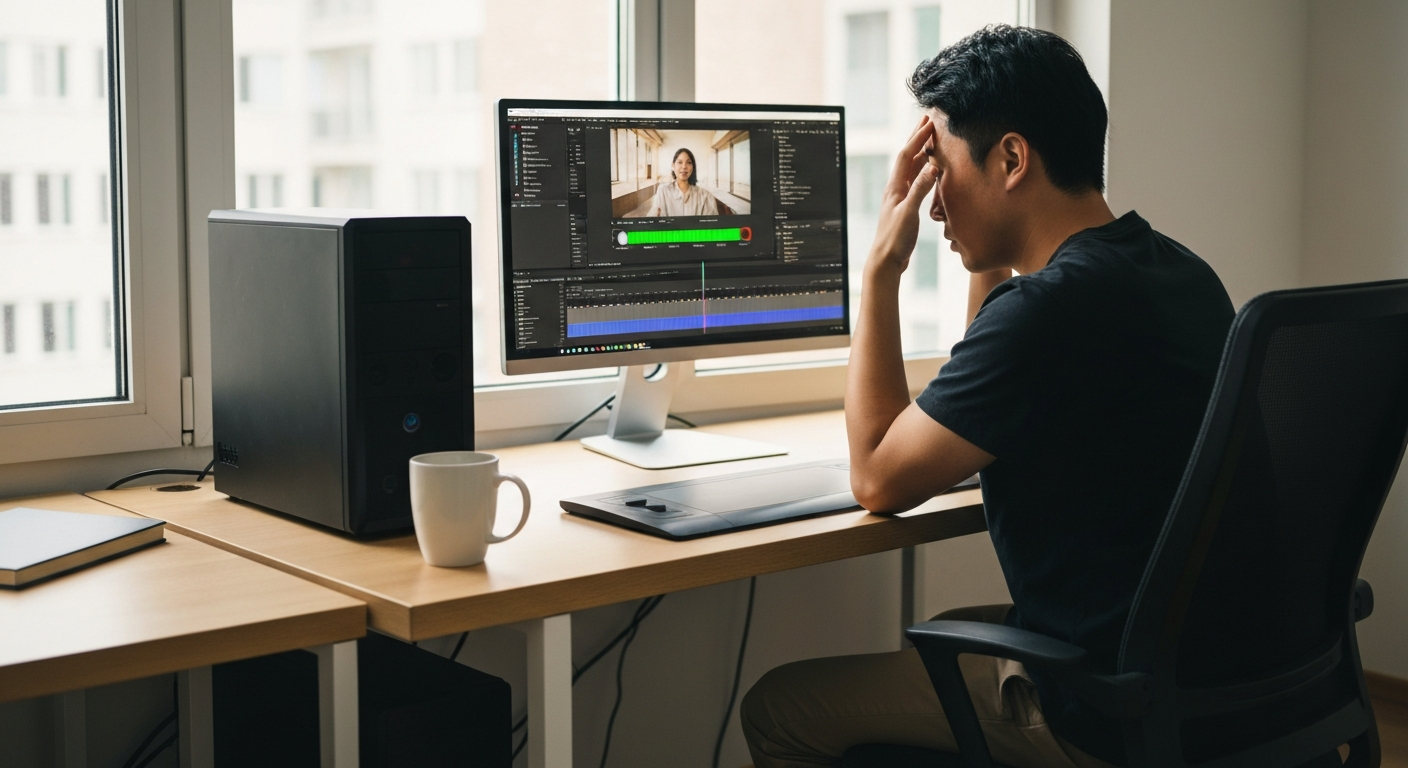

The progress bar in After Effects lags because the software is struggling to render frames in real time — usually due to limited RAM, a slow storage drive, an underpowered GPU, or compositions too complex for your hardware to preview smoothly.
After Effects is one of the most demanding applications on any system. When you scrub through your timeline or hit play, the software has to calculate every pixel of every layer in real time. If your hardware can't keep up, the preview bar stutters, freezes, or crawls along painfully. The good news: most causes are fixable without buying new equipment.
After Effects renders frames on demand during preview, and any bottleneck in RAM, CPU, GPU, or storage creates visible delay in the progress bar.
Unlike video players that read pre-rendered files, After Effects calculates every frame from scratch during preview. It composites layers, applies effects, processes expressions, and outputs the result to your screen — all while you're watching. This process is called RAM preview, and it's exactly as hardware-intensive as it sounds.
The progress bar you see represents the software's attempt to cache rendered frames into memory. When the bar moves slowly or stutters, After Effects is signaling that it can't render frames fast enough to play them back smoothly. Understanding which component is the bottleneck is the key to fixing it.
After Effects stores rendered frames in RAM for smooth playback. If the software doesn't have enough memory allocated, it constantly discards frames and re-renders them, causing the progress bar to crawl.
By default, After Effects shares system memory with other applications. Navigate to Edit > Preferences > Memory & Performance to check your allocation. Adobe recommends reserving at least 8GB for other applications on a 32GB system, but if you're running Chrome, Slack, and Spotify alongside After Effects, you may need to adjust this balance.
"After Effects is a RAM-hungry application. For HD projects, 32GB is the minimum for comfortable work. For 4K or effects-heavy compositions, 64GB or more is recommended." — Adobe System Requirements
The media cache stores decoded footage and renders to speed up future previews. When this cache becomes fragmented, corrupted, or fills up on a slow drive, it actually slows things down instead.
Check your cache settings at Edit > Preferences > Media & Disk Cache. The cache should sit on your fastest drive — ideally an NVMe SSD, not the same drive as your operating system or project files. If you've never purged it, try Edit > Purge > All Memory & Disk Cache, then restart After Effects.
A 4K composition at 60fps with dozens of pre-comps and expressions will preview slowly on even powerful hardware. Sometimes the fix isn't your system — it's your project structure.
Check your composition resolution, frame rate, and duration. For preview purposes, drop to Half or Quarter resolution using the dropdown at the bottom of the Composition panel. You can also reduce the Preview Resolution in Preferences > Previews. These settings don't affect your final render — they just let you work faster.
After Effects can offload certain tasks to your graphics card through GPU acceleration, but this feature must be enabled and your GPU must be compatible.
Navigate to File > Project Settings > Video Rendering and Effects. Select Mercury GPU Acceleration (CUDA for NVIDIA, OpenCL for AMD, or Metal for Mac). If this option is grayed out or set to Software Only, After Effects is doing all the heavy lifting on your CPU, which explains the slow progress bar.
"GPU acceleration in After Effects can dramatically improve preview performance for supported effects, but not all operations benefit equally." — NVIDIA Creative Software Guidelines
Every effect on a layer must be calculated during preview. Stack enough effects — especially processor-intensive ones like Glow, Gaussian Blur, or motion blur — and the progress bar will grind to a halt.
The solution is pre-rendering. Right-click any heavy pre-composition and select Pre-render. This creates a rendered video file that After Effects can read like footage, dramatically reducing preview demands. You can also freeze specific layers by right-clicking and selecting Create Proxy > Movie.
After Effects constantly reads source footage and writes cached frames. A slow hard drive — or even a SATA SSD — can become the limiting factor, especially with high-resolution footage.
Check where your project files, source footage, and media cache are stored. Ideally, each should be on a separate fast drive. If you're working off an external USB drive or a network location, consider copying files to a local NVMe SSD for the duration of your project.
Browser tabs, antivirus scans, cloud sync services, and even Windows Defender can compete with After Effects for CPU, RAM, and disk access. This competition shows up as an inconsistent or slow progress bar.
Before an intensive After Effects session, close unnecessary applications. Pause cloud backup services like Dropbox or OneDrive. On Windows, you can also temporarily disable real-time antivirus scanning for your project folder — though remember to re-enable it afterward.
Also Read: Why Is My Copy and Paste Not Working? 9 Causes & Fixes
| Setting | Location | Recommended Value |
|---|---|---|
| RAM reserved for other apps | Preferences > Memory | 8-12GB on a 32GB system |
| Disk Cache location | Preferences > Media & Disk Cache | Fast NVMe SSD (not OS drive) |
| GPU Acceleration | Project Settings > Video Rendering | Mercury GPU Acceleration |
| Preview Resolution | Composition panel dropdown | Half or Quarter for editing |
| Multiprocessing | Preferences > Memory | Enable for multi-core CPUs |
| Display Color Management | Preferences > Display | Disable during editing |
If settings tweaks don't solve the problem, your hardware may genuinely need an upgrade — but not all upgrades help equally.
RAM provides the most immediate improvement for most users. Jumping from 16GB to 32GB, or from 32GB to 64GB, directly increases how many frames After Effects can cache for smooth playback. This is almost always the first upgrade to make.
Storage speed matters more than many editors realize. An NVMe SSD is dramatically faster than a SATA SSD, which is dramatically faster than a spinning hard drive. Moving your cache and project files to an NVMe drive can cut preview rendering time significantly.
GPU upgrades help with specific effects but don't accelerate everything. After Effects is still primarily CPU-dependent for most operations. A mid-range modern GPU often performs nearly as well as a flagship card for After Effects work.
CPU upgrades help with overall rendering speed but show diminishing returns above a certain core count. After Effects benefits more from higher clock speeds than from massive core counts — a fast 8-core processor often outperforms a slower 16-core chip for typical work.
| ✓Our Pick |
Recover corrupted project and video files with Wondershare Recoverit Highly rated by thousands of buyers — this is one of the most effective solutions for this issue you can try at home. Learn More → |
Some projects are genuinely too complex for real-time preview on any hardware. This is especially true for:
The professional approach is to work in stages. Use proxy files for editing — low-resolution versions of your footage that preview smoothly. Pre-render complex sections as you complete them. Only switch to full-resolution for final review and export.
This workflow accepts that After Effects isn't a video player and shouldn't be expected to play back complex compositions in real time. The progress bar isn't broken — it's honestly communicating that real-time preview of your specific project exceeds your system's capabilities.
Also Read: Why Is My DisplayPort Not Working? 8 Causes & Fixes
After Effects preview bar delay almost always comes down to one of seven causes: insufficient RAM allocation, slow or fragmented media cache, demanding composition settings, disabled GPU acceleration, too many stacked effects, slow storage drives, or competing background processes. Work through the settings checklist first — most delays can be fixed without spending money. If hardware is genuinely the bottleneck, prioritize RAM and NVMe storage over GPU or CPU upgrades.
A green bar indicates frames are cached in RAM and ready for playback. If the bar appears green but playback stutters or the bar doesn't extend further, After Effects has run out of available RAM and can only cache a portion of your composition. Increase RAM allocation in Preferences or reduce your preview resolution.
This happens when RAM fills up. After Effects previews smoothly while caching frames, then pauses to purge old frames and calculate new ones. Increase your RAM allocation, work in shorter preview regions, or pre-render completed sections to free up memory.
Partially. A better GPU accelerates specific effects (Lumetri Color, certain blurs, some third-party plugins) but After Effects relies primarily on CPU and RAM for most operations. Upgrading GPU alone rarely solves preview lag unless you're specifically using GPU-accelerated effects heavily.
Premiere Pro plays back compressed video files — relatively simple decoding work. After Effects calculates every pixel of every layer with every effect for each frame. It's fundamentally more demanding. Comparing preview performance between them isn't really apples to apples.
For 1080p projects with moderate complexity, 32GB is comfortable. For 4K work or effects-heavy compositions, 64GB significantly improves preview fluidity. Professional VFX workstations often run 128GB or more. More RAM always helps in After Effects — it's one of the few applications that can genuinely use whatever you give it.
Reviewed and Updated on June 9, 2026 by George Wright